

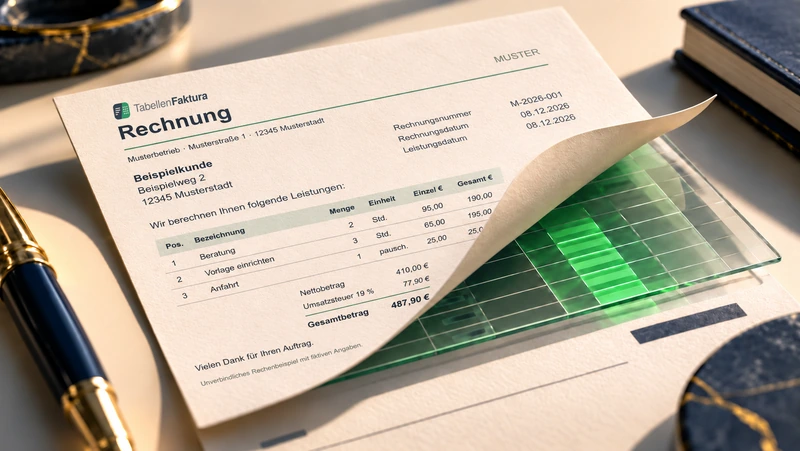
Create ZUGFeRD with Excel works with an existing invoice template and an appropriate export tool. Excel returns the invoice values and the visible layout. The tool ordntes the values to the invoice fields, generates the XML data and connects them to a PDF/A-3. An ordinary PDF export from Excel is not enough for this.
Prepare Excel template, assign headers and positions, create ZUGFeRD file, check PDF and XML and send the verified original file. The following example anticipates 430,00 Euro net, 81,70 Euro VAT and 511,70 Euro amount.
What is needed to create ZUGFeRD with Excel?
A useful template separates the invoice information from the pure design. Invoice number, date, recipient and payment data are in clearly identifiable cells. The positions have fixed columns for description, quantity, unit, net price and tax. Sums and subtotals are recognizable as such and are not exported as additional services.
In addition, a tool that actually creates ZUGFeRD. Save a file as PDF only or in "ZUGFeRD-Rename.pdf, rename does not add XML-Invoice data. TabellenFaktura is intended for this as Excel extension; the Functional overview with the workflow shows the assignment and output.
Before starting, establish the required format and the recipient’s requirements. A ZUGFeRD file with the appropriate profile is suitable for many B2B cases. If the customer explicitly requires XRechnung or a particular submission portal, those requirements must be met. The Comparison of ZUGFeRD and XRechnung helps with this decision.
Create ZUGFeRD from Excel: step by step
1. Prepare the bill and print area
The Excel invoice is completed in its entirety. Sellers and buyers must be clear, performance date and invoice date must not be mistaken. Quantities and prices must be numbers; a text written in a cell such as "4 hours à 85 Euro, does not replace cleanly separated values.
The print area contains the visible invoice, non-internal calculation columns or notes. A page preview shows cut addresses, broken amounts or unwound blank pages. This step concerns the readability of the PDF; it does not replace the later data check.
2. Assign headers and positions
In the export tool, the respective cells are connected to professional fields, such as invoice number, buyer name and maturity. The position area is then defined. An assignment describes the meaning of the data; font color and cell frames do not reliably deliver this meaning.
With TabellenFaktura, you can keep using your existing Excel template. If its structure changes, check the mapping again. An inserted column or a new totals row must not silently change which data is selected.
3. Set output format and create file
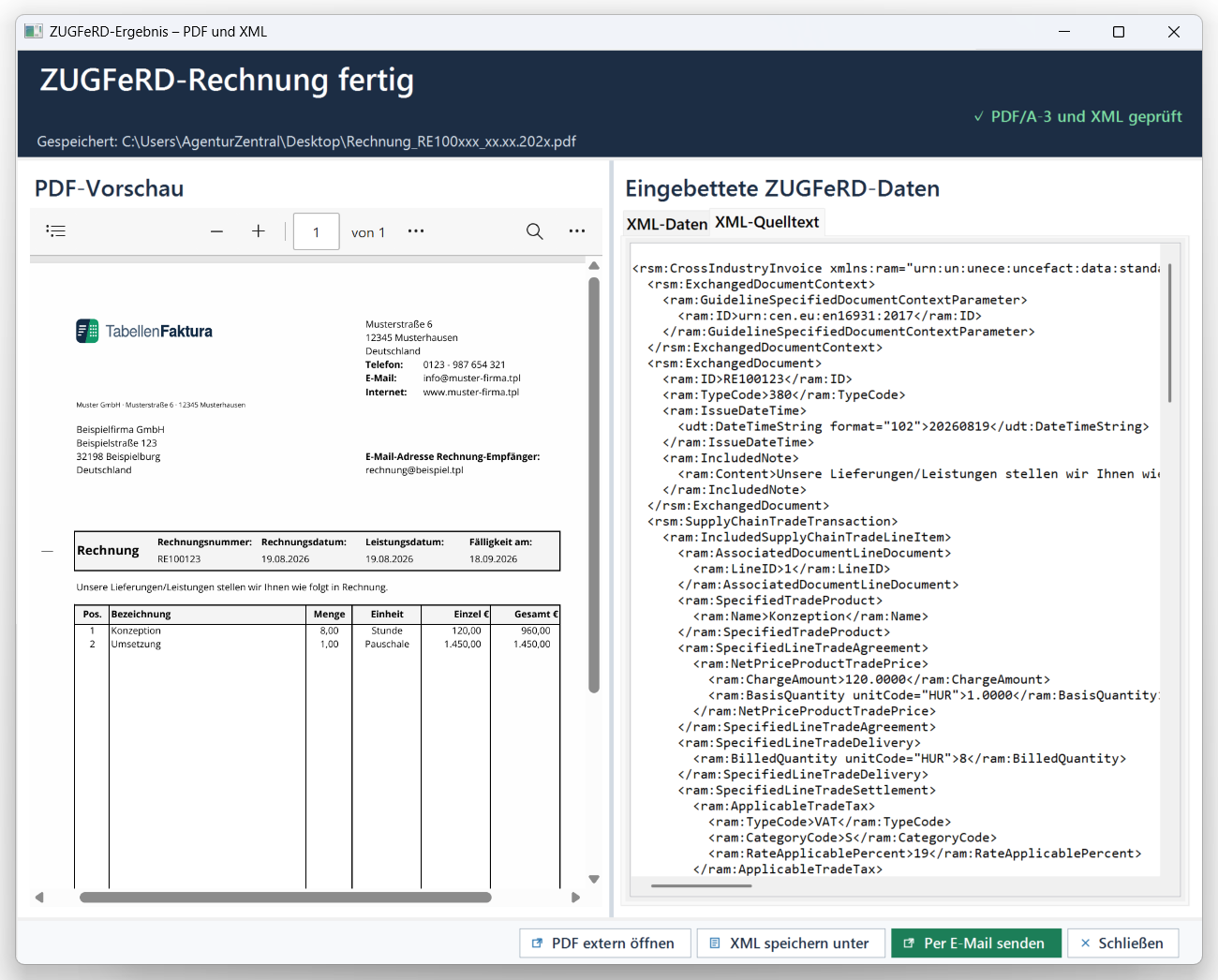
For ZUGFeRD, the tool creates a PDF/A-3 file with embedded invoice XML. The invoice image and structured data must represent the same business occurrence. The profile choice depends on the data scope and recipient requirements. The version number of a format specification is different from the version number of the application used.
4. Check, transmit and receive the sent status
The finished file is technically checked and then compared with the content of the template. Only this output is sent by the agreed way. For the own file the actually shipped ZUGFeRD file is preserved; a paper printout or a later edited Excel file alone does not represent its structured content.
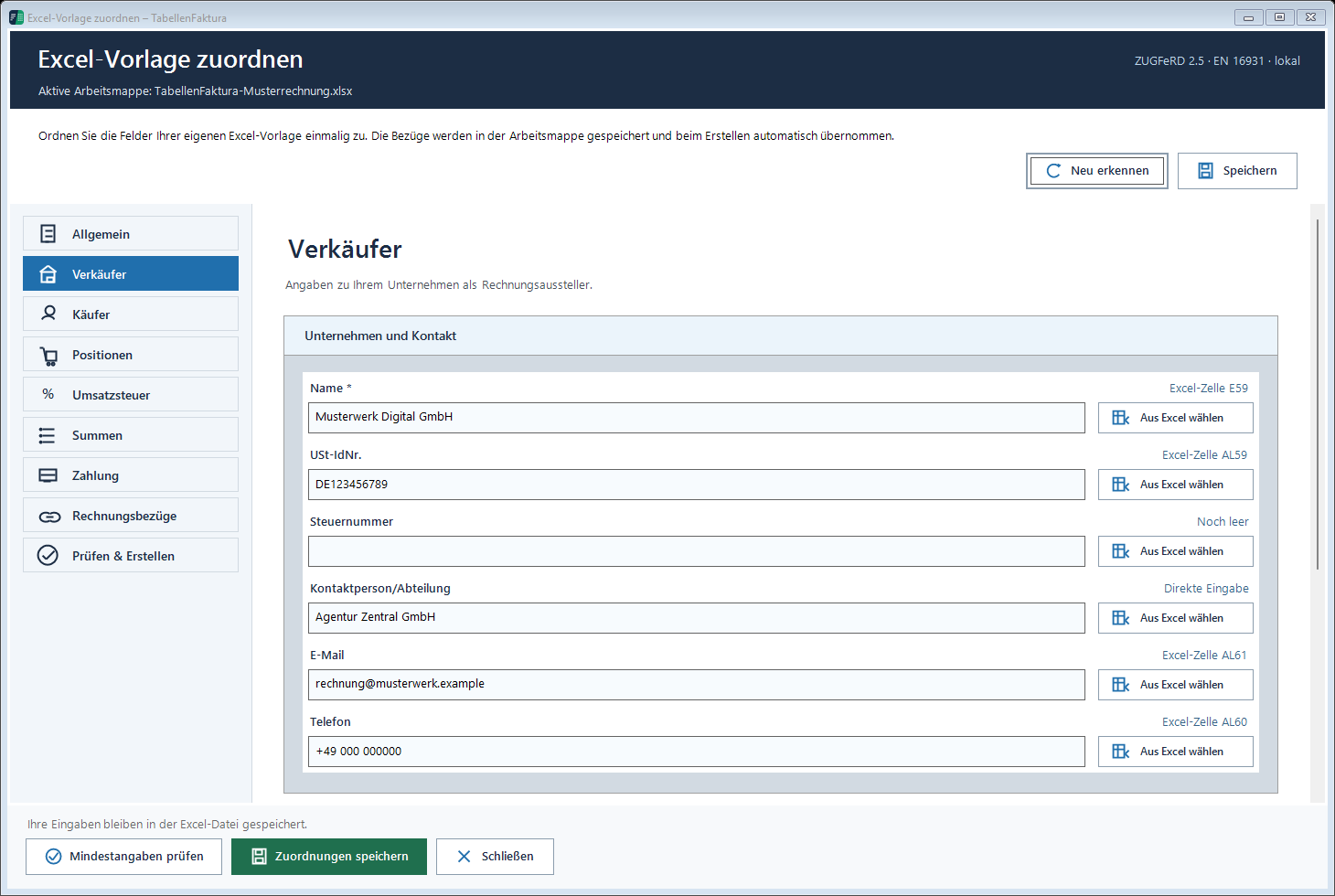
The field mapping guide shows the setup of your own template.
A complete example of Excel: 511,70 Euro brutto
The fictitious EX-2026-001 invoice contains four hours of setup and two documentation packages. The example is 19 per cent VAT, no discount and no advance payment. The invoice date is 29. September 2026, performance date of 28. September 2026.
| Description | Quantity | Unit | Net price | Total net |
|---|---|---|---|---|
| Establishment and training | 4 | Hours | €85.00 | €340.00 |
| Documentation package | 2 | Pieces | 45,00 € | 90,00 € |
| Total net | 430,00 € | |||
| VAT 19 % | 81,70 € | |||
| Amount of invoice / amount of payment | 511,70 € | |||
The amount and net price in C12 and D12, calculated =RUNDEN(C12*D12;2) the first item amount. For the second item the corresponding formula in line 13 applies. The sum of the two rounded items is 430,00 Euro; =RUNDEN(430*19%;2) gives EUR 81.70 in VAT. In the working template, the tax formula refers to the totals cell rather than the fixed number 430.
The examples deliberately do not contain real address, bank or tax data. For a real invoice all necessary information of the actual business incident must be supplemented. A computer-complete sample table is not yet ready for dispatch invoice.
Which Excel values belong in the structured fields?
| Indicated in Excel | Technical assignment | Control in the example |
|---|---|---|
| EX-2026-001 | Number of invoice BT-1 | Matches in PDF and XML |
| 29.09.2026 | Date of invoice BT-2 | No performance date assigned by accident |
| Seller and buyer | Separate names and addresses | No site or delivery address as a wrong buyer |
| 4 hours to 85,00 € | Quantity, unit code, price and net of lines | 340,00 € Position amount |
| 430,00 € | Total net of line amounts BT-106 | 340,00 € + 90,00 € |
| 81,70 € | VATsum BT-110 | 19 % of 430,00 € |
| 511,70 € | Total amount BT-112 and here amount BT-115 | No advance payment |
"Hour, or "piece, is represented in the structured part as a standardized unit code, such as HUR or H87. Tax rate and tax category also belong together. A template containing only a global tax number must be assigned more specifically in mixed tax cases.
What are ZUGFeRD, PDF/A-3 and XML?
ZUGFeRD connects a readable PDF with structured invoice data. PDF/A-3 is the PDF format used for this; the embedded XML file makes the invoice machine-analyzable. This connection and the necessary content consistency explains Ferd as editor of the format.
Version status checked on 29 September 2026: Ferd offers the ZUGFeRD 2.5.2 info package from 4. August 2026. A new specification does not automatically mean that every file it refers to has been created correctly. Validation must match the actual profile and rule level used.
The profiles differ in the covered range of information. For ordinary structured B 2B calculations EN 16931 is an important orientation. B-Mf-fq not sufficient for the sales control e-invoice. A more extensive profile is inversely no substitute for correct input data.
How to check the ZUGFeRD file?
A reliable control considers three levels:
- Presentation: The PDF is readable; pages, addresses, positions and sums are complete.
- Structure and rules: XML schma, mandatory fields, codes and computational relationships fit the intended profile. For ZUGFeRD the correct embedding is checked in the PDF.
- Business content: Recipients, benefits, tax cases, references and payment amount are in line with the order.
A validator can find many technical errors. However, he does not confirm that the billed service has been provided or that the chosen tax case is technically correct. PDF and XML should therefore be compared concretely: invoice number, recipient, both items, 430,00 net and 511,70 Euro brutto must give the same statement in the example.
Common errors and further examples
- Saved only as PDF: There is no structured data or its correct embedding.
- Wrong position area: A sum line is exported as a performance or a new position is missing.
- Only the display is rounded: Excel internally calculates values other than visible.
- Assignment after conversion forgotten: A cell reference points to a new content.
- Beneficiary targets overlooked: Reference, profile or transmission method do not fit.
For troubleshooting there is the post ZUGFeRD calculation invalid: typical Excel error. The examples of Rounding differences and Interim and final invoices The more general contribution Create e-invoice from Excel ordt the different output paths.
Information on TabellenFaktura is available in the Documentation and Pricing and licence.
Frequently asked questions
Can Excel itself create a ZUGFeRD invoice?
A common PDF export from Excel does not create a complete ZUGFeRD file. This requires a suitable tool that generates structured billing data and correctly connects it to PDF/A-3.
Can the existing Excel invoice template be used?
Yes, if headers and position columns can be reliably assigned. If the template changes, these assignments must be checked again.
Is a PDF with any XML file already ZUGFeRD?
No. XML content, embedding, PDF format and the selected profile must meet the corresponding requirements. The mere presence of an attachment is not sufficient.
Which ZUGFeRD profile matches a B2B invoice?
EN 16931 is an important reference for ordinary B2B invoices. The specific information required and the recipient’s requirements remain decisive. MINIMUM and BASIC-WL are insufficient for an e-invoice under German VAT rules.
Is the ZUGFeRD format free?
The format specification is provided by Ferd free of charge. Software for creation, inspection, dispatch or archiving can have own terms of use and costs.
What must be checked after export?
In addition to the technical examination, recipients, number, date, services, tax and payment amount must be compared in PDF and XML. A technical review report does not replace this contentual review.