


The Excel invoice is complete, the total amount is plausible and the PDF can be opened. Nevertheless, the validator reports an error or the recipient rejects the file. Usually, a targeted view of the transmitted invoice data helps now: Which information is missing, which sum does not fit and at which point of the template the deviation arises?
First, file format, used profile and test report must match. Then, the first specific error message for the particular statement is traced in the Excel template. After the correction, a new ZUGFeRD file is created, whose XML data, sums and visible invoice image are re-checked. Simply changing the PDF does not fix any error in the embedded XML.
Not every rejection means the same mistake
A technical validation examines whether a file fits the selected rules. A recipient can also request an order number, a specific transmission route or another invoice format. A technically valid invoice can therefore be rejected in the operational input process. The feedback should show whether it is about the file format, a data rule or a request of the recipient.
In the test report, four data help: file name, recognized format or profile, status of the test rules and the first understandable error message. Several messages can have the same cause. If, for example, a tax assignment is missing, control groups and sums can become noticeable. First, correcting the cause is usually more useful than overwriting individual subsequent values.
| Feedback | First check | Appropriate reaction |
|---|---|---|
| No invoice XML detected | Was actually created ZUGFeRD? | Check output path and embedded file. |
| Mandatory or business rule violated | What data does the report mention? | Correct assignment or calculation in the source file. |
| Technically valid, still rejected | What is the recipient requirement missing? | Match order, order purchase and intended entrance channel. |
The KoSIT Validator distinguishes the check with XML Schema and Schematron rules. The rules that actually apply determine the appropriate configuration. A green XML result alone does not confirm all PDF/A properties or the correctness of the transaction.
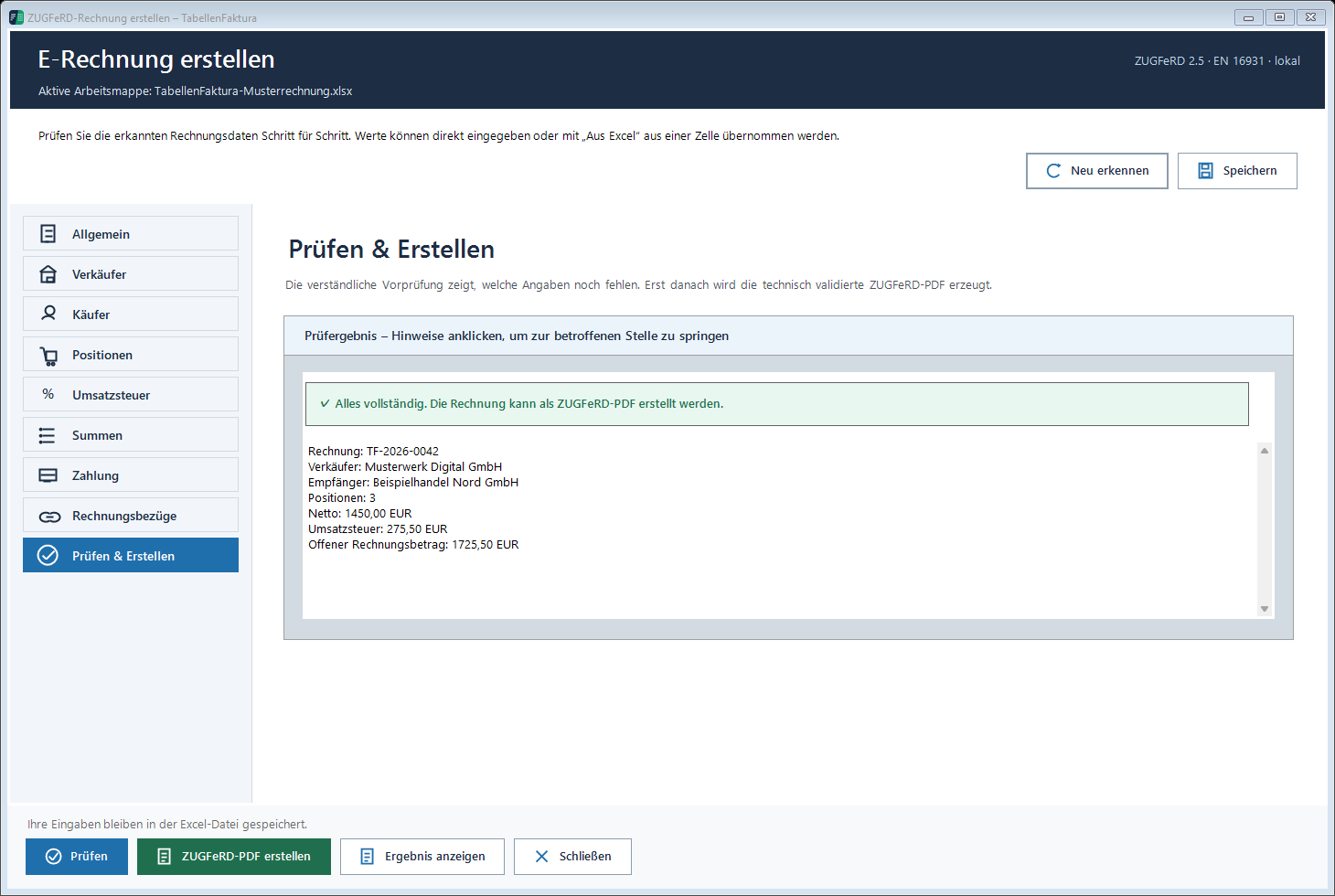
The procedure from pre-check to output is described in the Documentation on the first invoice .
Error 1: The file is a common PDF
Typical picture: The invoice was output in Excel via "Save as PDF". A ZUGFeRD tool does not find structured billing data. The file name contains "ZUGFeRD, but the content is still a normal PDF.
ZUGFeRD combines a PDF/A-3 file with structured invoice data in an embedded CII XML file. This is described by Forum electronic invoice Germany. Rename or attach any XML file is not enough.
Solution: Create the invoice with a ZUGFeRD-capable application from the invoice data. Then check the complete result file. For this, both the XML rules and the requirements for the hybrid PDF are relevant. Create ZUGFeRD statement from Excel.
Error 2: An entry is in PDF, but is missing in XML
Typical picture: The letter's head is the invoice number and address. The audit nevertheless reports a missing number or an incomplete participant. The visible text field was not assigned to the appropriate structured information.
In grown Excel templates, information is often found in different places: in a connected cell, a header, a text field or on a second sheet. The optical position does not indicate what value the extension actually reads. Even after moving lines, an old assignment to an empty or false cell can show.
Solution: Compare the value taken over in the wizard with the cell actually filled in. Check the invoice number, date, sender and recipient individually. A structured date should come from a suitable date field and not be guessed from a compound set such as "Braunschweig, den...".
The number RE-2026-041 is after a layout conversion in H7. The stored assignment still shows H6. The correction is to assign the invoice number field to H7 and then control the number taken over. An additional number written manually in the PDF would not fix the cause.
Error 3: The unit is only available as free text
Typical picture: In Excel are "Std., "Stk., or "pausch.,". When output the unit code or unit does not match the calculated quantity. A freely chosen abbreviation is understandable for humans, but not automatically unique for the structured data set.
Solution: The technically correct unit in the template assignment or in the selection provided for it must be defined. Quantities must fit: eight hours and a project flat fee are different types of pricing. An amount must not be made simply by changing the unit suitable.
A short control with two positions is helpful: a quantity position and a lump sum. The assignment can then be transferred to other similar lines in the data view, if the votes are identical in description, quantity, unit and price base. Free text for performance belongs in the description, not as a replacement for the structured unit.
Error 4: Tax rate and tax category contradict
Typical picture: A position contains zero percent VAT, while the structured category describes a normal taxable position. Or the PDF contains a tax note that is missing from the invoice data provided for this purpose.
A tax rate is a number. The tax category describes the underlying facts. Different cases may give the same amount of tax but require different information. Therefore, "0 %, is not a universal solution for an invoice without a VAT card.
Solution: To determine the actual tax case professionally, then examine the category, tax rate and, if necessary, the justification. To change a category only until the validator is satisfied, can produce a formally plausible, factually incorrect calculation. For a frequent special case, there is the contribution e-invoice for small business.
Error 5: The sum of the items does not match the net of the invoice
Typical picture: All visible amounts have two decimal places. Nevertheless, the position sum, net amount or VAT is different by one cent. Often Excel expects more digits than the cell format shows. Also, overlooked lines, double-recorded subtotals or too large a position range are possible.
A separate calculation example shows the difference: Three positions in each piece with a net price of 0,335 Euro result individually to cents rounded each 0,34 Euro. The three stated position amounts sum up to 1,02 Euro. If, however, the unrounded values are added and then rounded, 1,01 Euro arises. Mixing both paths in the same document leads to contradiction.
Solution: Check the position area first. After that, the invoice sum must be based on the actual amount of the position. In the example, the position formula is for quantity in B2 and net price in C2 =RUNDEN(B2*C2;2). The total sum is made up of these rounded lines. For discounts or another price base, the formula must be expanded accordingly.
The published EN-16931 rule BR-CO-10 requires that the sum of the net position amounts correspond to the individual net position amounts. Linked representation uses UBL; ZUGFeRD uses CII. The technical sum relationship remains the same.
Error 6: A discount is treated like a payment – or vice versa
Typical picture: An already paid discount appears as a negative item. In addition, the same amount is deducted as payment again. Or an agreed discount is only as free text below the gross amount.
A discount changes the calculated price. A payment already received reduces the outstanding amount. These two processes have different positions in the data model and cannot be exchanged against each other without technical examination.
Solution: To assign each deduction first: position discount, discount on the entire invoice or received payment. Then check whether it is taken into account exactly once in the appropriate place. With 1.190,00 Euro invoice brutto and a payment of 238,00 Euro already made remain without further special features 952,00 Euro. The original invoice brutto remains in this example 1.190,00 Euro.
A full example including the payment summary contains the contribution interim invoice and final invoice as e-invoiceIt also shows why an issued but not yet paid interim invoice may not be treated simply as a received payment.
Error 7: Billing image and XML come from different editing levels
Typical picture: After the first edition, a price was changed in PDF or an older PDF file was used together with new structured data. On the screen are 952,00 Euro, the receiving system reads a different amount of payment.
Solution: Make changes to the invoice data in the original template and re-create both components from the same status. Then compare invoice number, date, positions, tax groups, bank details and amount of payment in PDF and data view. Already sent invoices require a comprehensible correction process; silent overwriting of a stored file does not replace it.
Ferd describes the content consistency of PDF and XML as part of the hybrid format. A comparison must concern the values and their meaning. A merely different font, column width or line division in the viewer is not yet a content contradiction.
A fixed correction process saves repetitions
In TabellenFaktura, fields are assigned to an existing Excel template and invoice data is transferred locally. The check supports finding missing information and computational contradictions. The decisive factor is that the professional selection fits the actual performance. Function overview with the sequence in Excel shows preparation, testing and output.
Before dispatch, five short checks will help: correct invoice version, complete participants, appropriate tax treatment, comprehensible payment amount and compliance of invoice image and structured data. If the file is the technical audit and is rejected, the concrete feedback from the recipient is the next starting point.
As of September 2026. Basics: Ferd to ZUGFeRD and content identity, Cosit for technical validation and EN-16931 BR-CO-10. The figures and invoice numbers are fictitious examples. A technical examination does not replace an assessment of the individual tax case.
Frequently asked questions
Why is the ZUGFeRD invoice invalid, although the PDF looks right?
The PDF shows only visible representation. Information or other values may be missing in the embedded XML. In addition, requirements for the PDF/A-3 document or the profile used may be violated. Therefore, file, XML and invoice image must be checked together.
Is it enough to save a Excel invoice as PDF?
For ZUGFeRD the usual PDF export is not enough. A suitable hybrid document with structured invoice data is required. The creation takes over a suitable application.
How to trace an error message to the correct Excel cell?
The objectionable invoice is determined first. After that, the value taken over and the cell assignment stored for it are checked. After layout changes, it should be checked whether the assignment still shows on the completed cell.
Can a cent difference be entered simply as rounding amount?
A rounding amount is not a general repair value. First, position values, discounts, tax groups and sums must be consistent. Only then can it be assessed whether a separate rounding amount is technically justified and supported in the chosen output route.
Does a valid validation mean that the recipient accepts the invoice?
The test report confirms the tested technical rules. Additional requirements of the recipient, such as an order reference or a specific input channel, as well as the factual correctness must be checked separately.
Do confidential invoices need to be uploaded for verification?
A check is also possible with locally operating software. TabellenFaktura processes the invoice content and technical check locally on the Windows PC.