

TabellenFaktura’s November updates improve work with established Excel templates, add an optional payment QR code and make invoice checks easier to understand. This review covers released versions 1.6.15 through 1.6.17.
The updates address concrete invoicing situations: a description spans several columns, a new Excel column affects a mapping, changes remain unsaved when closing, or a generated PDF needs closer checking. Recent releases combine additional options with targeted corrections for these situations.
The three November updates at a glance
| Version | Released | Main changes |
|---|---|---|
| 1.6.15 | 03.11.2026 | Setup, text headings, buyer identification and saving safeguards |
| 1.6.16 | 05.11.2026 | Payment terms and Outlook message format |
| 1.6.17 | 09.11.2026 | Description columns, stable references, payment QR and PDF/A validation |
This overview concerns program versions actually released. Version 1.6.17 was published on 9 November as an optional update. The sections below group the changes by their practical benefit, making it easier to see which additions affect a template and which checks remain useful.
Multiple description columns and better-protected Excel references
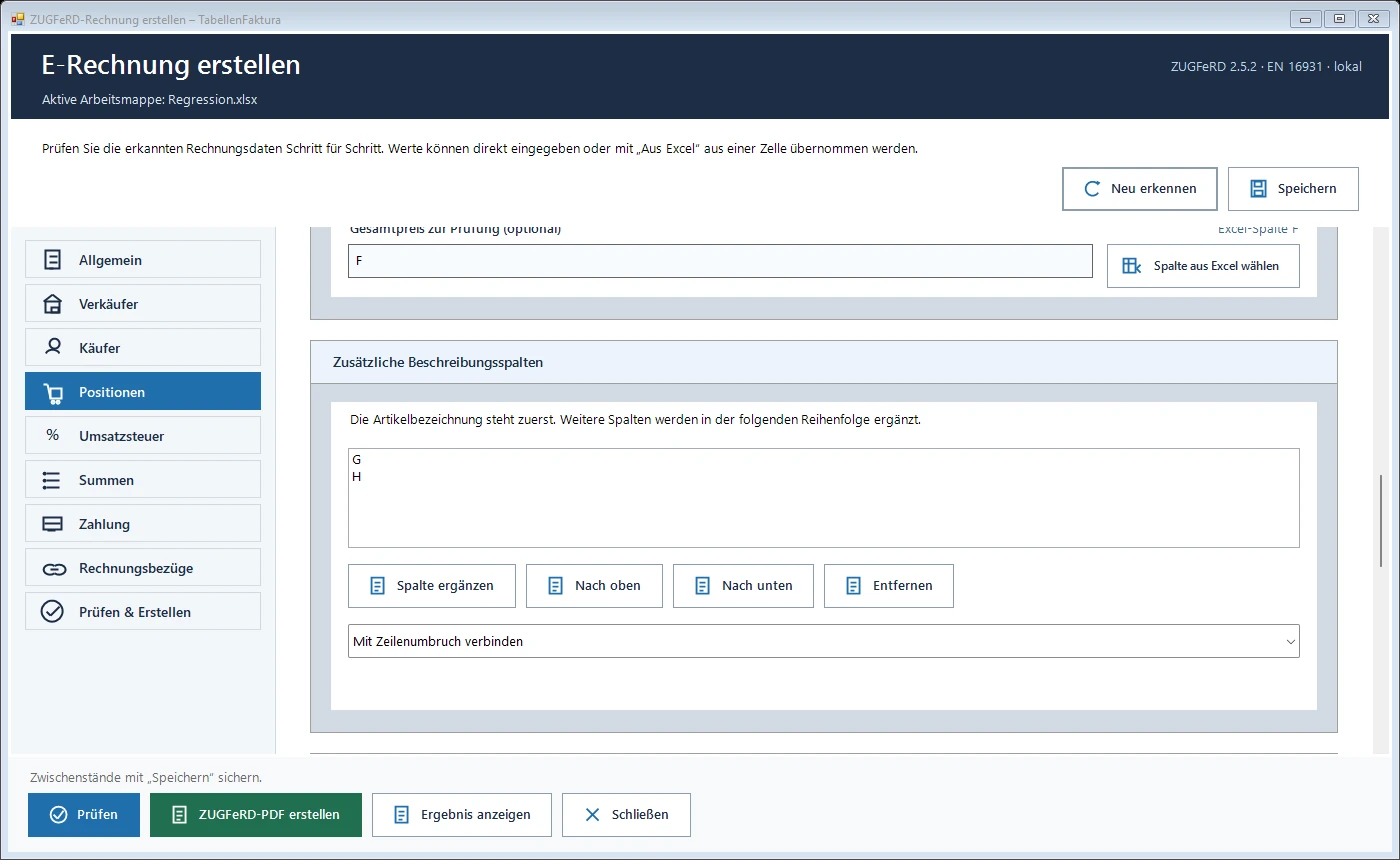
Many templates do not hold the complete service description in one column. Item names, supplementary text and technical details may occupy neighbouring columns. Since 1.6.17, additional description columns can be added and ordered explicitly. Their contents can be joined with spaces or line breaks. The item preview shows the combined result, including existing text continuations.
For example, column B contains “maintenance”, G identifies the equipment and H gives a more detailed description of the work. The order B, G, H can be selected deliberately. An additional Excel formula is no longer needed simply to combine these descriptions for the e-invoice. Check that the combined text accurately represents the actual service before creating the invoice.
Another addition concerns later spreadsheet changes. “Bezüge absichern” can bind the item range and columns to Excel defined names, allowing references to follow inserted rows or columns. “Bezüge prüfen” refreshes the displayed mapping. A missing reference is reported specifically and can be repaired by selecting the affected column again.
Existing unambiguous defined names are preferred during cell selection. Earlier mappings remain usable. Protected references still do not replace reviewing the preview after major template changes. The article on changed Excel invoice templatesprovides further checks after structural edits.
New in 1.6.17: payment by bank-transfer QR code
An optional EPC bank-transfer QR code can be included in the PDF invoice for euro payments. Select its position within the print area and its size in the payment section. The preview shows the recipient, current amount payable and payment reference. Compare these details with the visible invoice before generating the output.
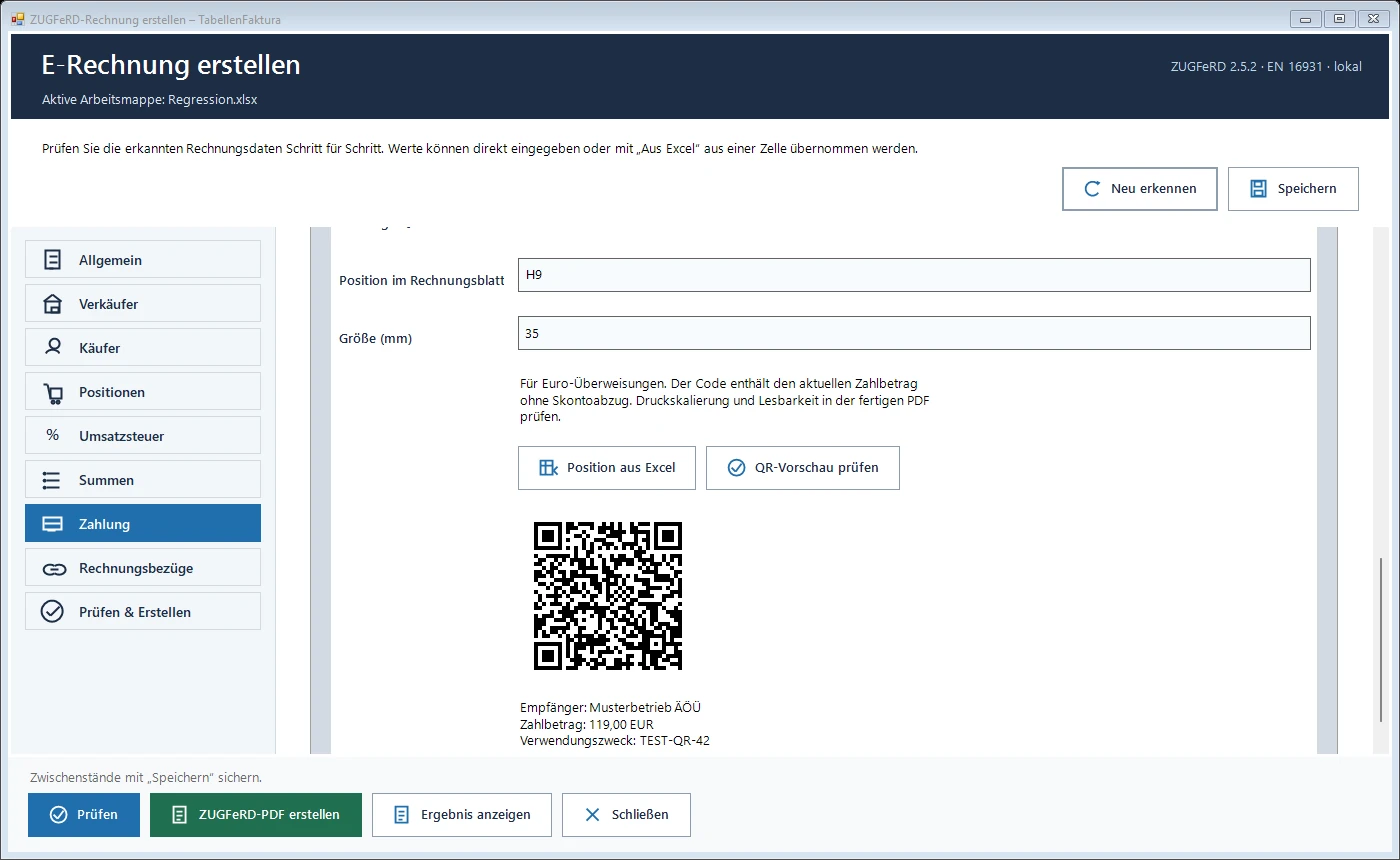
The code uses the current invoice data for PDF creation. Afterwards, no outdated payment image remains in the editable Excel sheet. This matters when reusing templates: the next invoice should not accidentally show a previous amount or reference. Output is generated again using the details of the current transaction.
The payment QR code does not initiate a transfer. It supplies payment details to a supporting banking app. Early-payment discount is not deducted automatically. No payment QR is generated for credit notes or fully paid invoices. Check print scaling and readability in the finished PDF as well. Support depends on the banking app used.
ZUGFeRD 2.5.2 and targeted PDF/A corrections
Version 1.6.17 uses ZUGFeRD 2.5.2 with the EN16931 profile and Mustang 2.26.0. The update covers the actual library and bundled validation resources. In everyday work, the important point is that generation and final validation operate together using the updated components.
Specific issues involving impermissible image attributes in Excel-generated PDFs have also been addressed. Preparation now includes nested image resources. Missing fonts are added only when an unambiguously matching, embeddable original font is available. An arbitrary substitute font is not used. If a suitable repair is unavailable, the message identifies the font requiring correction.
Validation-result assessment has also been improved. It considers the actual PDF/A and XML sub-results. An outer success status is insufficient when an underlying result reports an error or a required report is missing. Conversely, harmless filenames or log text should not be mistaken for errors. Reports from the validation runs are retained and PDF/A messages are explained more clearly.
This makes the final check more informative. It does not amount to blanket approval of every possible Excel file. The visible invoice and structured data still need to agree. For a specific message, consult the validation troubleshooting guidance and article on common ZUGFeRD errors.
Since 1.6.16: clearer payment details and Outlook drafts
Agreed payment terms can be entered over multiple lines in the general section or imported from an Excel cell. For a positive outstanding amount, validation requires either a due date or payment terms. The message points to the appropriate setting. No payment deadline is invented or added automatically. Additional rules also check these details in the finished invoice file.
New Outlook email profiles use HTML. An explicitly selected plain-text setting and the signature choice are preserved. When the stored setting follows Outlook, an RTF setting is replaced with HTML for the invoice draft. The actual format is checked while constructing the draft. If Outlook changes it, a message prompts review of the draft.
Sending remains a deliberate action in Outlook. TabellenFaktura prepares the draft and does not send automatically. This draft check does not rule out later changes by a mail server. The first-invoice guide explains the sending workflow.
Since 1.6.15: better protection when saving and closing
Unsaved changes are detected when closing the assistant and its associated workbook. The choices are to save, discard deliberately or cancel. If saving fails, the entries remain open. An earlier success message is removed to avoid suggesting that the save succeeded.
Another correction concerns characters that XML does not permit. Such control characters are reported with their location and character identifier before saving or export. Existing mappings survive a failed save operation. Permitted line breaks and tabs in fixed text are preserved through saving and reopening.
When settings are stored in the workbook, the Excel file itself also needs to be saved afterwards. Safeguards during normal closing do not replace backups for a crash or power failure. The administration documentation explains backup as a complementary measure.
Improvements to setup, text headings and buyer details
Since 1.6.15, the setup assistant appears automatically at most once per Windows user on the particular PC. After closing, it remains accessible through E-Rechnung > Hilfe > Einrichtung. Earlier appearances are taken into account during the update, allowing setup to be resumed deliberately without repeated automatic opening at ordinary startup.
Descriptive headings such as “additional work” are included according to the chosen association of text rows with the preceding or following item. Totals and carry-forward rows remain excluded. This allows supplementary text to be imported without treating total rows as descriptions. Combined with the new description columns, it supports more detailed templates.
The buyer’s legal registration identifier is also available as a separate field for mapping, customer management, preview and e-invoicing. Depending on the transaction and format, it can be relevant to required buyer identification. An arbitrary tax number or internal customer number does not thereby become a legal registration identifier. The actual meaning of the identifier remains decisive.
Installing the update and checking a template
- Save current work normally and use “Speichern und aktualisieren” when an update is offered. Manual checking is available through E-Rechnung > Hilfe > Nach Updates suchen.
- Close Excel normally after saving, including other Excel instances. The update helper then handles downloading and starting the signed EXE installer.
- After updating, open a copy of a typical invoice, check mappings and item preview and review newly generated output. Configure additions such as the payment QR code explicitly for the template.
Existing settings, mappings and invoice data are retained during the intended upgrade. Updating is not a reason to regenerate invoices already issued. The current download page and installation guide support installation. For a specific issue, the software version, workflow step and exact message are useful information for the Help centre.
Frequently asked questions
Which updates does this review cover?
The article covers released versions 1.6.15 of 3 November, 1.6.16 of 5 November and 1.6.17 of 9 November 2026.
Do existing Excel mappings need to be configured again?
Existing mappings remain usable. Review imported values and preview after changing a template. Additional description columns and protected references can be added deliberately.
Does the new QR code transfer money automatically?
No. It supplies payment details to a supporting banking app, where the payment must be reviewed and authorised. Support depends on that app.
Does the payment QR code deduct early-payment discount automatically?
No. The code contains the current amount payable without automatic early-payment discount. No payment QR is generated for credit notes or fully paid invoices.
Does 1.6.17 automatically solve every PDF/A font issue?
No. Missing fonts are added only when an unambiguously matching, embeddable original font is available. Otherwise the affected font is identified for correction. Final technical validation remains necessary.
Does TabellenFaktura send Outlook messages automatically?
No. The application prepares invoice drafts. Review and actual sending take place in Outlook.