

Not every job fits into the same Excel invoice template. A short hourly calculation can be different from a material calculation with article numbers. TabellenFaktura supports this method if the assignments are consciously stored together or for the respective file.
"Centrally – for all Excel files, it is suitable for a uniform layout on the used PC. "Only in this Excel file, is useful if fields, columns or position ranges differ. Two different layouts should not be operated unchecked with the same assignment.
Two templates with different columns
A fictitious company uses a service template: description in B, amount of hours in C and net price in E. For material deliveries there is a second template with item number in B, description in C, amount in D and net price in F. Both files may contain the same seller address and payment terms, although their position columns do not match.
If the service template was to be assigned to the material file, the article number could be read as a description. A column with plausible numbers can initially cover such errors. The correct location and control during the template change prevent the appearance of a file from being combined with the assignment of another.
| Field | Services | Material |
|---|---|---|
| Description | B | C |
| Quantity | C | D |
| Net price | E | F |
| Article No | Not required | B |
| Matching storage | Own file | Own file |
Common settings for a common setup only
If each new invoice is a complete copy of the same template, central assignments can represent the common structure. This requires that the invoice number, buyer fields and position columns in the files remain the same. A new file name alone does not make a new template.
On the other hand, if a customer needs an additional column or another billing structure, a separate file association is often more clearly arranged. The setting should fit the actual variety. Centrally, this does not mean that several PCs automatically receive a common template inventory or a common number lock.
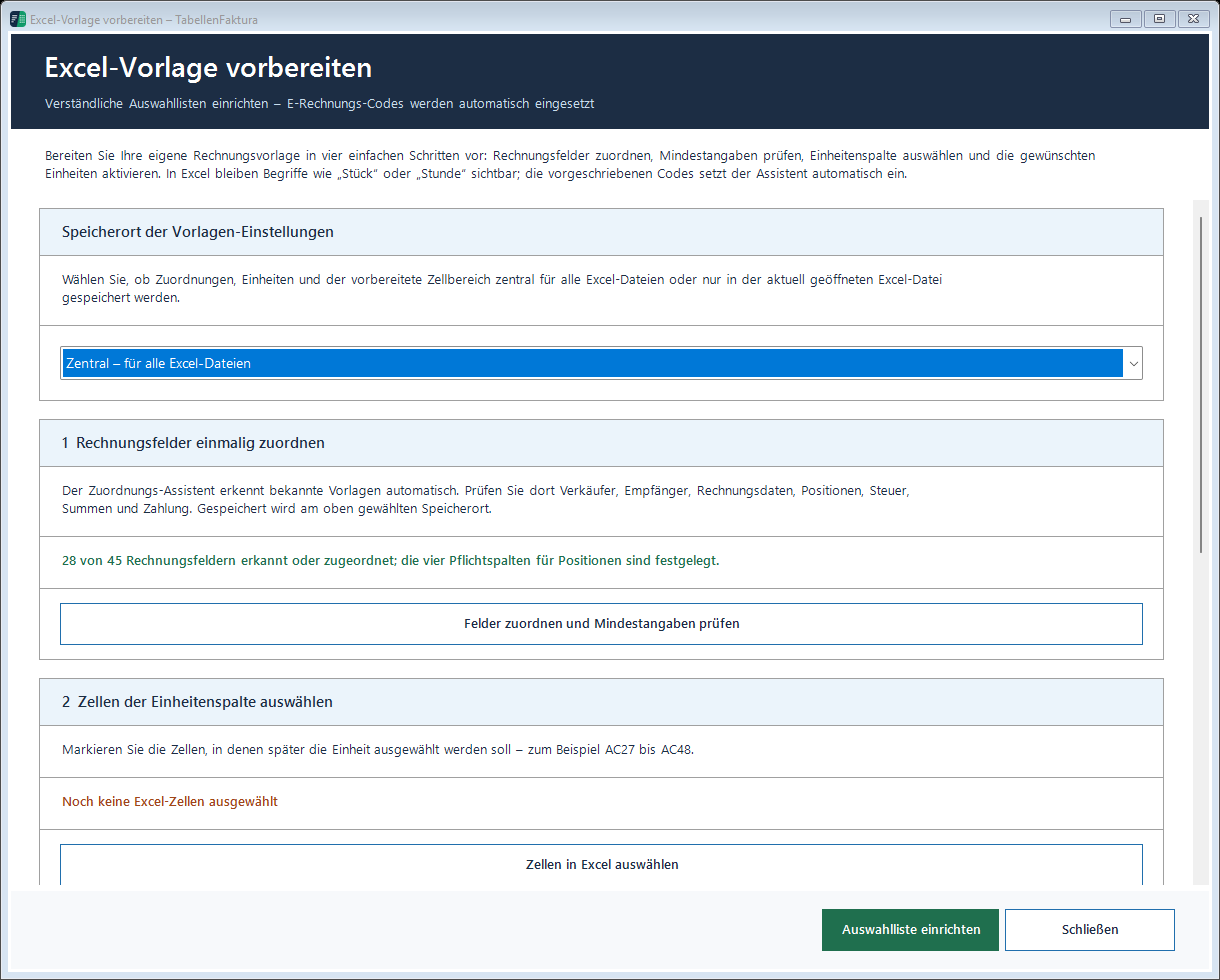
Set up every different template once completely
- Open the first template as a full working copy and activate the invoice sheet.
- Prepare Excel template select and set the location.
- If layout differs Only in this Excel file The
- Assigning the fields and position columns to this file.
- Check minimum details, save assignments and save the workbook afterwards.
- Open the second template and execute the same procedure for its actual cell structure.
Check the file name in the wizard for each template. After that, check a simple sample calculation with known quantities and prices. It is not enough to see only the seller data: The different position columns have to be compared with the Excel table. The complete operating paths are in the template documentation.
Check the setup with a template change
A useful test is the order A, B, A. First open the service template and view the detected fields. Then check the material template. Then switch back to the service template. In each step, the respective values and columns must appear. Thus, it is noticeable that a change has been made in the common file memory instead of the intended file storage.
For A, two hours at 75,00 Euro may yield an expected net amount of 150,00 Euro. For B, five pieces at 12,00 Euro will deliver a net amount of 60,00 Euro. These significantly different test values are easier to distinguish than two identical sample invoices. File creation is not yet required for the control of the detected data.
Deriving new invoices from the correct output file
For a new material calculation, copy the set up material file completely. File-related assignments are retained when copying files. Copying individual cells into a fresh mappe does not automatically take these settings. An understandable template name helps to select the correct output file.
The new invoice receives its own process data and a new unique number. Different file associations do not mean that an already used number is released again. The journal protects the recorded numbers on the PC across workbooks. Also, a change between two templates does not reset this history.
Check changes per template
If a column is added to the material template, only adjust the relevant assignments of this template and then repeat the change test. If centrally stored settings are used, consider that a change may be relevant for other files with the same common setup. Keep the old working output file until the control is completed.
Regular maintenance includes current sales data, matching unit lists and a checked print area. Changed Templates Guide describes the targeted comparison. For recurring invoices supplemented the monthly invoice from an established file the procedure.
After selecting the correct template, the final creation remains the same: Check data, create ZUGFeRD and compare PDF and embedded data. Guide to ZUGFeRD leads through this final check.
Described function state: TabellenFaktura 1.6.8. Illustrations contain example information; recordings of previous program states are marked.
Frequently asked questions
When are central assignments useful?
If the used Excel files have the same billing structure with the same fields and position columns. After structural changes, check the affected files.
Which setting fits different layouts?
"Only in this Excel file, holds the assignment for the respective workbook and is suitable for different field or column arrangements.
Does a complete file copy take over the assignments?
The assignments stored in the workbook are retained when a complete file copy is made. Individual copied cells are not an equivalent replacement.
Does an independent number history ever arise?
Another template does not reset the recorded number history on the PC. Reserved and final numbers are checked against dublettes.
Are central settings automatically shared with other PCs?
No. The setting indicates the common use on the respective PC. This does not automatically synchronize multiple workstations.