

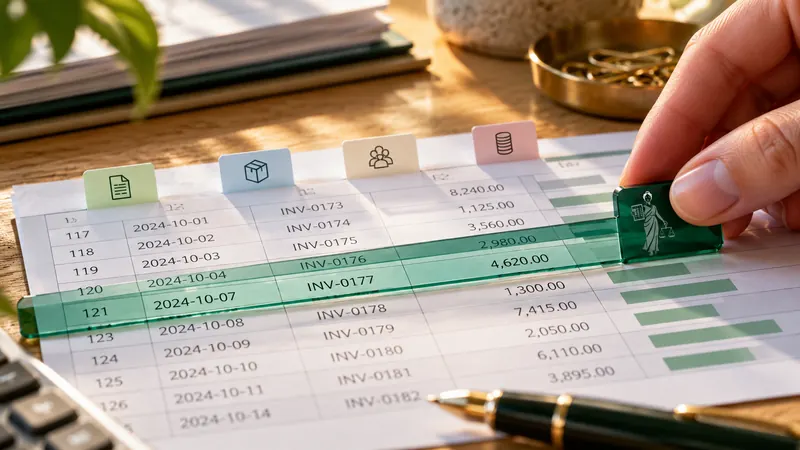
An Excel invoice template evolves with a business: A field for the order number is added, a column is widened or the line-item section is extended. To ensure TabellenFaktura continues to import the correct values, the saved mappings must match the new structure. An invoice that looks correct does not by itself confirm that the mappings are correct.
Open the changed mappe, select and control the affected fields via "From Excel" and then check the position area. Only when recognized positions, Excel sum and print view match, create a new invoice and compare their PDF and XML.
Example: A new column before the individual prices
A fictitious service invoice has been used to include the description in B, the quantity in C, the unit in D and the net unit in E. A new column is added before E for an internal project identifier. The unit prices are then in F. In addition, the position block grows from line 20–26 to line 20–30.
Excel can adjust references within its own formulas when inserting. However, this does not mean that any stored assignment of an extension or any named area remains unchanged. The decisive factor is what TabellenFaktura actually reads after the change. Therefore, a control of the values taken over is more reliable than simply looking at a column letter.
| Detail | Before | Check afterwards |
|---|---|---|
| Description | Column B | Full performance |
| Net single price | Column E | Now column F with the single price |
| End of position | Line 26 | Now line 30 |
| Amount of invoice | Total cell | Actual new result cell |
Create a working copy with unique name first
The template that has worked so far remains the starting point. The editing takes place in a complete file copy, for example "Calculation Template Project Identifier.xlsx. A template with VBA retains the appropriate file format. A mere copying of the visible cells into an empty mappe does not automatically take over the TabellenFaktura settings stored only in the workbook.
Enable the correct bill sheet before assigning it. If several variants are opened, compare the file name in the wizard window with the intended workbook. If not, just similar named monthly copies can lead to a correct change to the wrong file.
Reconnect the offset billing fields
- In the Horseman e-invoice the Prepare Excel template and subsequently Assign fields and check minimum information and the
- Select the appropriate area, for example General for the invoice number, or Buyer for the address of the recipient.
- Check the value and its cell reference.
- In case of a deviation Select from Excel use and mark the cell with the actual value.
- Read the content and save the assignments.
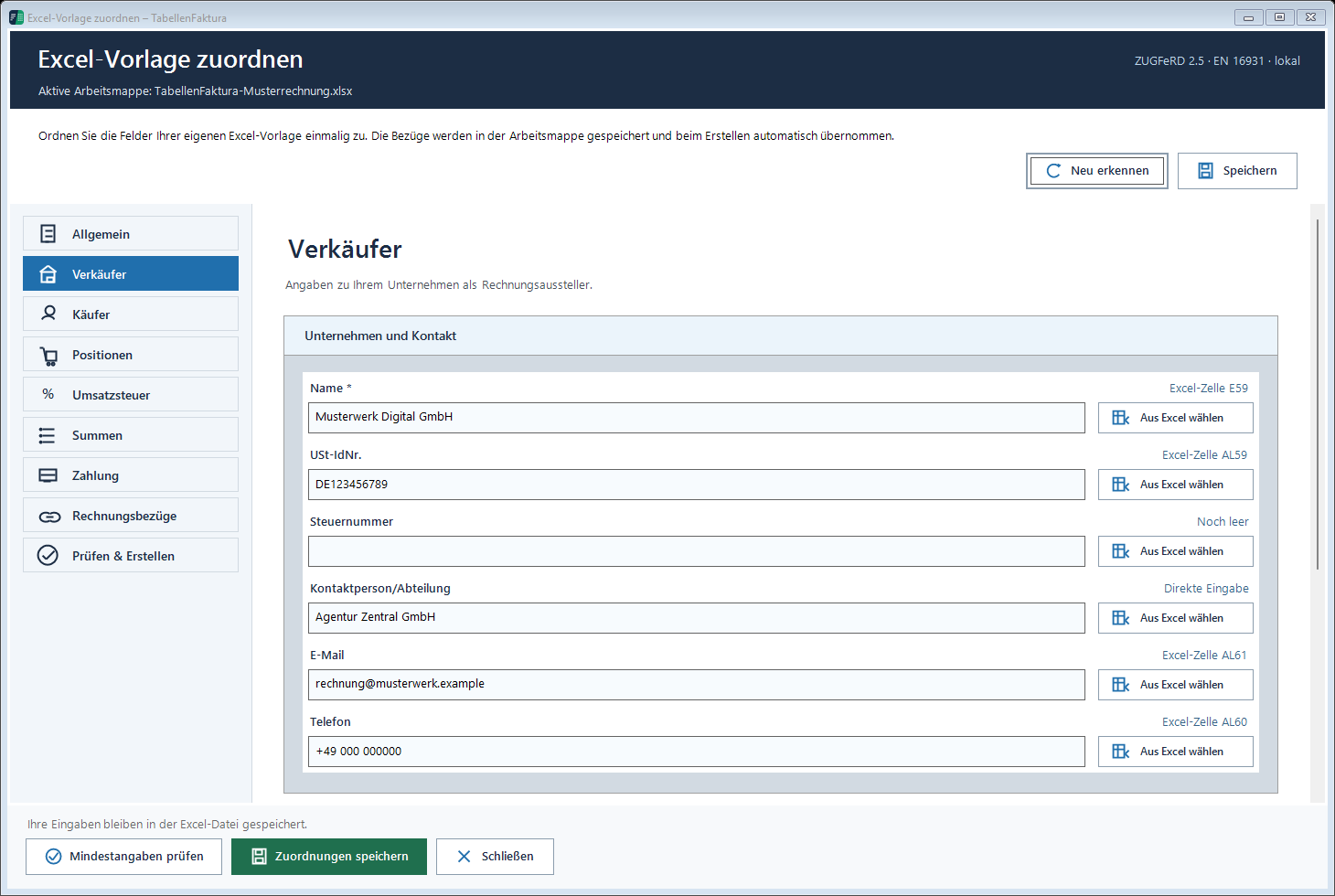
The cell with "Invoice number, is a label; the adjacent cell with the number is required. In connected cells the left upper cell of the composite is decisive. Information in the logo or in the Excel print foot is not only structured by its visibility to invoice fields. field mapping guide describes these cases more precisely.
Control the position area and columns together
The Line items First set the first and last actual invoice line. In the example, the range now ends in line 30. After that, check description, quantity, unit and net price individually. For the net price, F is the new column; a project identifier from E would be wrong in this field, even if it looks randomly like a number.
In Recognised positions The number of subtotals that have been taken over by accident may cover up a missing service in numerical terms. Therefore, additional names and amounts are added. Repeated headings and transfers do not belong as own services in the list.
The simple control case is three positions: 2 hours to 80,00 Euro, 3 pieces to 25,00 Euro and 1 flat rate to 40,00 Euro. Expected are 160,00, 75,00 and 40,00 Euro, together 275,00 Euro net. With uniform 19 percent, 52,25 Euro tax and 327,25 Euro brutto. The tax classification is required for this calculation example.
Check print view and data transfer separately
The position area determines the data that is taken over; the Excel print area determines the PDF pages. After additional rows, the data list can already be complete, while the last position in the printout is cut off. Conversely, a position can be printed visibly, although it is outside the assigned data area.
The File → Print check all pages. After that in the wizard Check run, correct clues to their cause and then create the ZUGFeRD file. Compare the recipient, number, last position and total amount on both sides in the Result View. The complete process is listed in the Guide Creating ZUGFeRD invoices with Excel.
Use the corrected template permanently
After successful control, save both the mappings and the Excel file. Close the file and reopen it; the field connections must continue to point to the intended values. Afterwards, this mappe serves as the starting point for new invoices. Replace sample customers and sample amounts completely before real use.
Invoices already finally created will not be corrected subsequently by a template change. If an error is only noticeable in an invoice already issued, the appropriate Correction The original file is retained. A layout correction and the technical correction of an invoice are two different tasks.
Described function state: TabellenFaktura 1.6.8. Illustrations contain example information; recordings of previous program states are marked.
Frequently asked questions
Does everything have to be re-installed after each layout change?
No. First, check the fields and position areas that are actually affected. If the values that are taken over are still correct, no complete re-installation is necessary.
Why is the last line of invoice missing?
Often the saved position area ends before this line. Check the area and columns and then the last performance in "Revealed positions, search.
Does a direct input in the wizard also change the Excel print image?
No. Direct input does not automatically change the visible Excel cells. PDF presentation and structured data must therefore be controlled together.
Is it enough to store the assignments?
In addition, save the Excel workbook. If the file-related settings are then closed and reopened, check whether the assignments are retained.
Are old bills changed by a new template?
The invoice files already generated remain unchanged. A necessary correction is made via the professionally appropriate correction process.