


A long Excel invoice can be created as a multi-page ZUGFeRD file. Two things must be right for this: Excel must output all the required pages, and TabellenFaktura must read all actual performance positions. A page break does not automatically connect these two tasks.
The Excel print area determines the visible PDF. The assigned position area determines the structured billing lines. TabellenFaktura creates the PDF from the active billing sheet; several print pages of this sheet are possible. Any merging of different worksheets is not associated with this.
Example: Two position blocks on three print pages
A fictitious invoice contains 27 services. The first 14 are in the lines 20 to 33, and further 13 in the lines 36 to 48. In between there is an intermediate heading and a visible transfer. The printing area includes additionally address, billing data, tax overview and payment details. Excel distributes this content over three pages.
The number of pages does not indicate the number of invoice positions. A long description can cause an additional page without forming a new position. Conversely, a densely formatted page may contain many positions. Therefore, the control uses the actual performance lines as a scale.
| Area | In the example | Expectation |
|---|---|---|
| First position block | B20:F33 | 14 services |
| Second position block | B36:F48 | 13 services |
| Heading and transfer | Between the blocks | No additional benefit |
| PDF edition | 3 Print pages of the active sheet | All texts, sums and payment details visible |
First, check the Excel print view completely
Activate the invoice sheet and see File → Print The print range must reach up to the last invoice information. Especially for inserted lines, bank details or last position may lie outside the previously defined range. An extremely reduced representation is also not a good result: The invoice should remain readable on the intended pages.
Page breaks and print scaling are set in Excel. Repeated column headers facilitate orientation to subsequent pages. These printed repetitions are not new performance data. If an existing template is spread over several tabs, first clarify which sheet is to deliver the complete billing print. TabellenFaktura exports the active sheet.
Targeted allocation of separate power blocks
- In the wizard the area Line items and the
- Set the first and last actual position line for a continuous block.
- For separate blocks Area / Name (8.1) For the example, the range is
B20:F33,B36:F48. - Check the columns for description, quantity, unit and net unit price.
- The list Recognised positions compare with the invoice sheet.
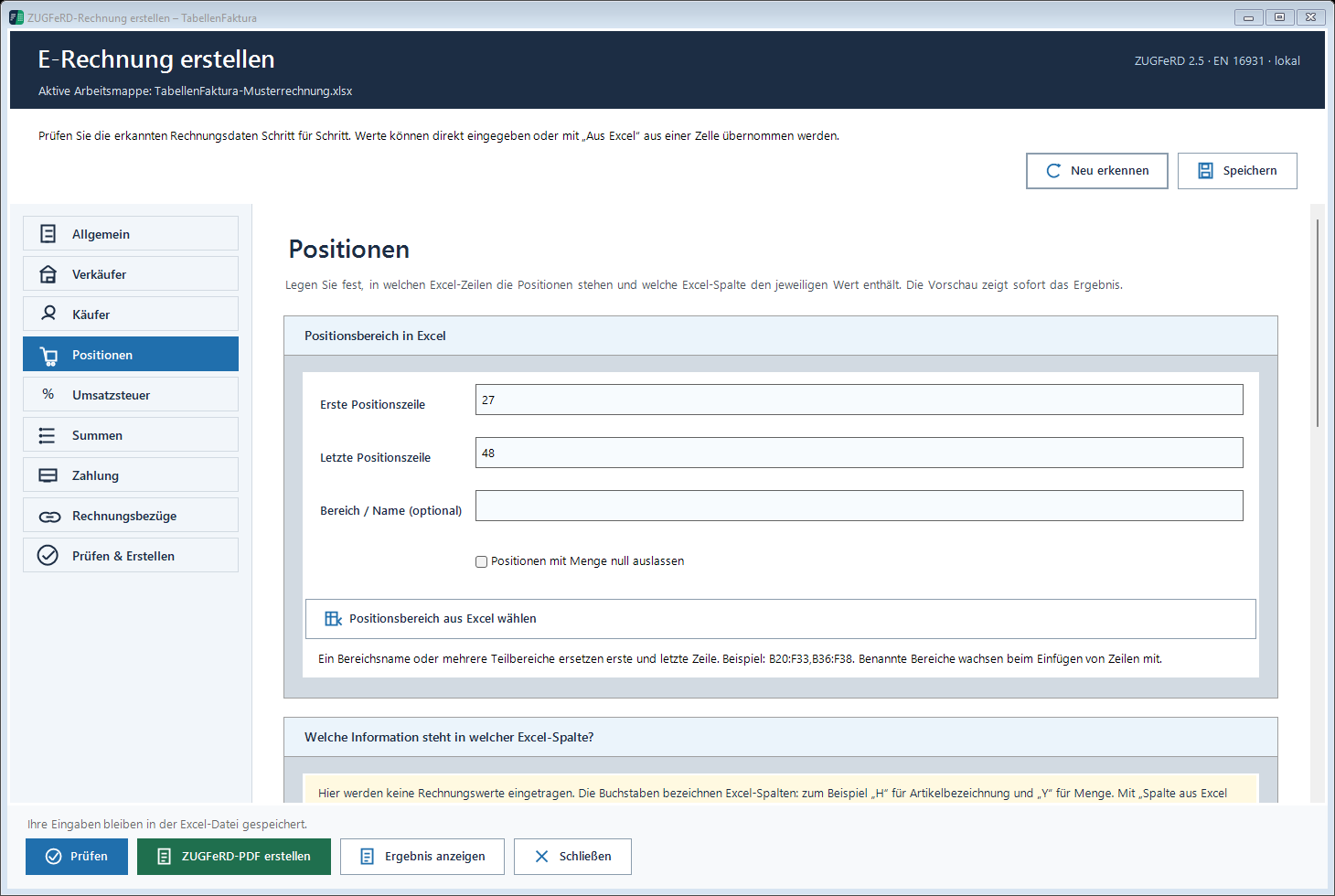
A named Excel area can simplify maintenance when the template grows regularly. However, it must be checked whether it actually contains all new lines after a specific insertion. The name alone is not a guarantee of completeness. Documentation on multi-page invoices shows the settings provided.
Do not double charge overdrafts and subtotals
A transfer is the repetition of an already included amount. If it is additionally read as a position with quantity and price, the invoice amount increases unauthorized. The fact that a transfer in the PDF is useful does not make it a separate service. In the recognized list only the positions actually to be settled can be placed.
A simple numerical comparison helps: If the first block contains EUR 800.00 and the second EUR 450.00 excluding VAT, the line-item total is EUR 1,250.00. A printed carry-forward of EUR 800.00 must not turn this into EUR 2,050.00. Assuming 19% VAT on all services, the correct calculation gives EUR 237.50 in VAT and EUR 1,487.50 including VAT.
Pure text lines are another special case. An additional line with explanation can be skipped if quantity and price are missing. It is not automatically attached to the description of the previous position. Therefore, the complete performance text belongs in the assigned description cell, if necessary with line breaks within this cell.
Compare the first, middle and last position
Full control captures the number and content. In the example, 27 positions are expected. In addition, check the first performance, the transition between both blocks and the last performance. The line is easily overlooked when the areas are set.
The total of net positions detected must match the technically correct Excel sum. If the difference is first missing or double lines, then examine prices, quantities and rounding. To remove the Excel control value would not fix the cause. For real cent deviations, the contribution to Rounding errors in Excel invoices.
After creation, remove both components
After successful pre-checking, create the ZUGFeRD file and wait for the final exam. Then view all PDF pages and compare the structured positions. A valid PDF with three pages can still have a technically incomplete content if the initial data was already wrong.
The created file can then be saved and sent unchanged. A missing last page cannot be reliably repaired by reprinting the finished ZUGFeRD file. The cause lies in the Excel output and must be clarified before a controlled new creation. If the invoice is already issued, take into account the necessary correction process.
The central guide Creating ZUGFeRD invoices with Excel completes the complete sequence of steps. In the case of rows inserted afterwards, the Control of the template assignment The
Described function state: TabellenFaktura 1.6.8. Illustrations contain example information; recordings of previous program states are marked.
Frequently asked questions
Can TabellenFaktura create a multi-page ZUGFeRD invoice?
Yes. Several print pages of the active bill sheet can be printed. Printing area and assigned position areas must be both complete.
Are multiple Excel worksheets automatically joined?
No. The PDF is generated from the active sheet. Several print pages of a sheet are to be distinguished from several separate worksheets.
How are two separate positions recorded?
A range can be specified under positions, for example B20:F33,B36:F48. After that, control all detected positions and the sums.
Does a transfer belong as a position in the XML?
A transfer repeats an already included amount and is not an additional benefit. A double transfer would distort the invoice amount.
Why is there no description on the following page?
A separate line of pure text is not automatically added to the previous position. Keep the complete description in the assigned description cell.