

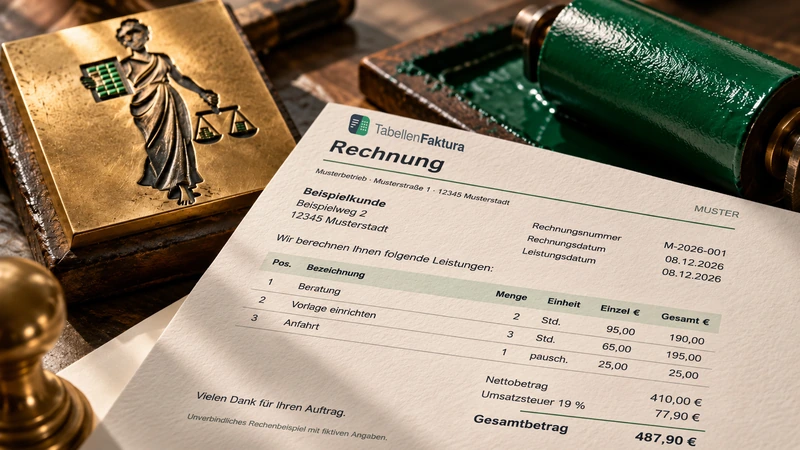
A company logo, a familiar letterhead and a separate table arrangement do not have to be abandoned for a ZUGFeRD invoice. TabellenFaktura uses the Excel invoice sheet for the PDF presentation and supplements the structured invoice data. To match both, visible information and associated data must be carefully linked.
Yes, the design remains in Excel. A logo or footer is not automatically read as a data source. Company name, address, tax and payment details must be available via matching cells or deliberately maintained input in the wizard.
Design and billing data fulfil different tasks
The PDF shows the invoice as it is output from the active Excel sheet. The embedded XML contains defined information such as invoice number, recipient, positions and amounts. A nicely designed letterhead can therefore look right in the PDF, while a required structured sales field is still empty.
This applies especially to templates in which company address and bank details have been inserted as image or as print head or print foot. TabellenFaktura does not perform general text recognition via these design elements. Therefore, visible information must be connected to an appropriate data source.
| Template element | Task in PDF | For data transfer |
|---|---|---|
| Logo as image | Recognition of the undertaking | Separately record company name and other seller data |
| Address in individual cells | Readable sender or buyer | Assigning the cells |
| IBAN in the press foot | Visible payment information | Add IBAN as field |
| Table of invoices | Services and prices | Connect position area and columns |
Example: A letter sheet with bank details in the foot
A fictitious agency uses a logo at the top left, including an address block and a bank account at the end of the page. The invoice amount is calculated in a highlighted cell. This appearance should be preserved. For TabellenFaktura company name, street, postal code and location are taken from designated cells.
The IBAN from the press foot is additionally guided in a suitable cell of the mappe and the field IBAN As an alternative, a direct input is possible in the wizard. In both cases, the visible bank account must match the structured value. A later bank change requires the control of both places if no common Excel source is used.
For the example, no usable bank details are deliberately published. When setting up your own template, use the actually agreed account link and do not take over a sample IBAN unchecked. Likewise, sample addresses and tax identifiers must be replaced with your own details.
Configure the layout in a working copy
- Copy the previous invoice template completely.
- Check logo, letterhead, footer and print area in Excel.
- e-invoice → Preparing your own Excel template → Excel template and the
- Assign the required seller, buyer, invoice and payment fields.
- Link the position range, quantities, units and net prices.
- Check minimum details, save assignments and workbook.
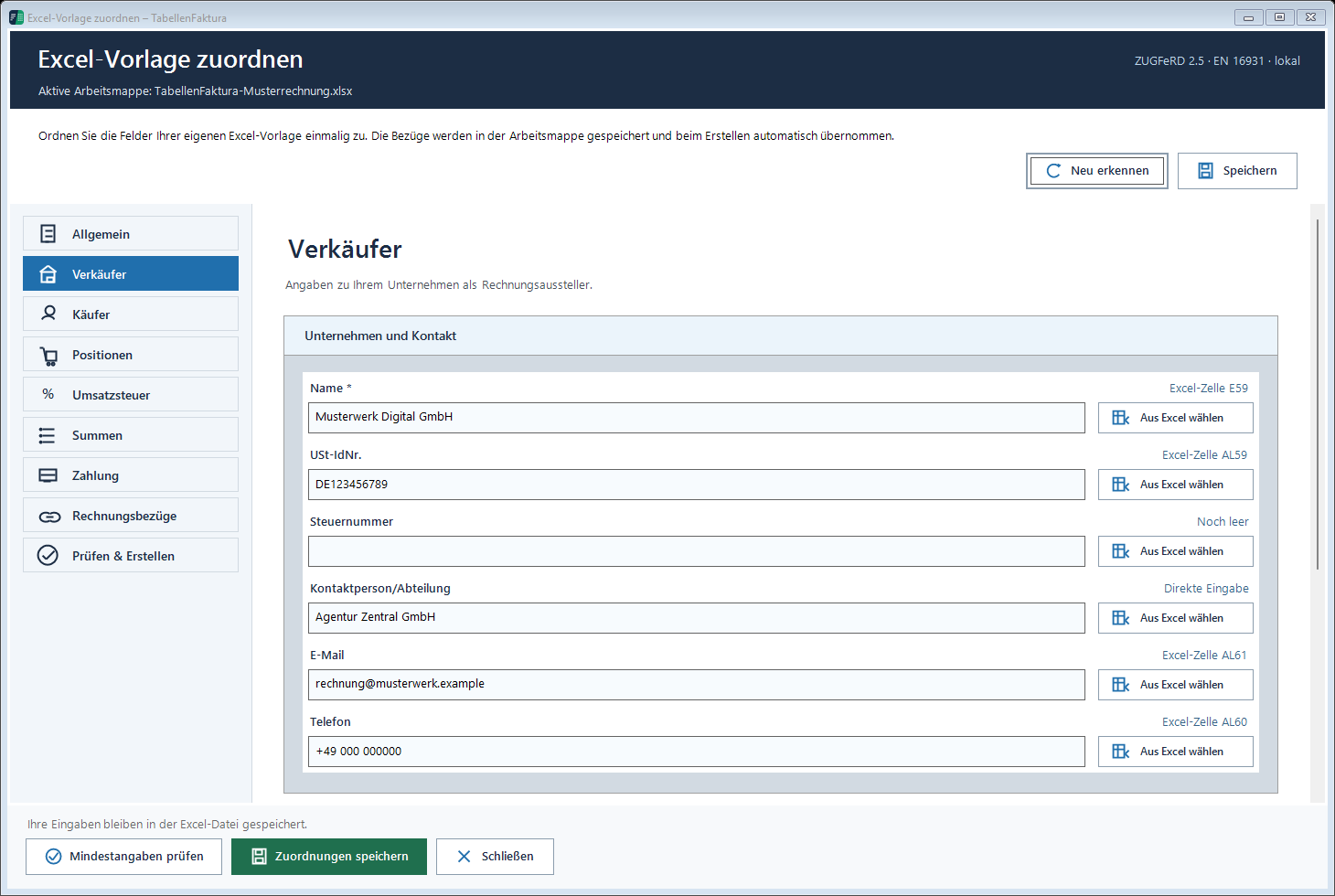
Select the left upper cell of the composite in the case of connected cells. This applies for example to a company name drawn over several columns. Do not treat the entire decorative address area as a single data field if separate information such as road and location is required. Assignment Manual explains the individual areas.
Check the design with a completed invoice
An empty template can look generous and still break with a long customer name or several power lines. Therefore, check with a realistic working copy: longer company name, multi-line description, normal and larger amounts. File → Print ensure that the logo, address and bank details are fully displayed.
The logo should support the billing information. If large images push the position range or force a tiny print scaling, a smaller representation is useful. Check the following pages for multi-page calculations. A print foot can appear on each page, while the same information is assigned to the structured invoice only once.
A concrete comparison can consist of two hours to 90,00 Euro and a lump sum to 120,00 Euro. This is equal to 300,00 Euro net and if 19 Percent 357,00 Euro brutto. The highlighted final sum in the layout must match the invoice amount calculated by the assistant.
Compare PDF and XML with the same core data
After pre-checking, create the ZUGFeRD file. Compare the visible invoice and embedded information in the result view. For layout conversion, the seller name, buyer address, invoice number, bank details and amount are particularly important. A completely visible letterhead does not prove that all associated data fields have been filled.
Direct input in the wizard does not automatically change the printed Excel cells. If an address is corrected there, the visible template must also be adjusted accordingly. A common data source reduces this maintenance effort. After the correction check again and create the final file checked.
Send the completed ZUGFeRD file unchanged
The result is the PDF with embedded invoice data created by TabellenFaktura. It must not be replaced with a normal PDF export only because it looks the same. A subsequent application of letter paper in a PDF editor can also change the checked file. Therefore, the desired design is already in the Excel output.
The complete creation explains Creating ZUGFeRD invoices with Excel. For extensive templates supplement the contributions to Multilateral invoices and Changed cell assignments practical control.
Described function state: TabellenFaktura 1.6.8. Illustrations contain example information; recordings of previous program states are marked.
Frequently asked questions
Can the company logo remain in the Excel template?
Yes. The logo remains part of the Excel print image. The structured seller's information is recorded independently of the specified fields.
Does TabellenFaktura read the address from a picture?
An address in a logo or image is not automatically taken over as a billing field. Provide the information in cells or specifically collect it in the assistant.
What applies to the IBAN in the print foot?
The visible IBAN must be available in the structured payment field. Compare both values before creation.
Can post-paper be placed on the ZUGFeRD-PDF?
The desired design should already be in Excel. Subsequent processing changes the checked file and may affect its embedded data or its connection with the PDF.
Does a default fixed template have to be used for ZUGFeRD?
TabellenFaktura supports own Excel templates by assigning fields and positions. The template must provide the required billing information and a suitable print output.