

TabellenFaktura for Excel · Manual
Journal, Customers and Data Backup
Invoice numbers, final invoices and customer data are managed on the PC together for the various Excel files.
What is the journal?
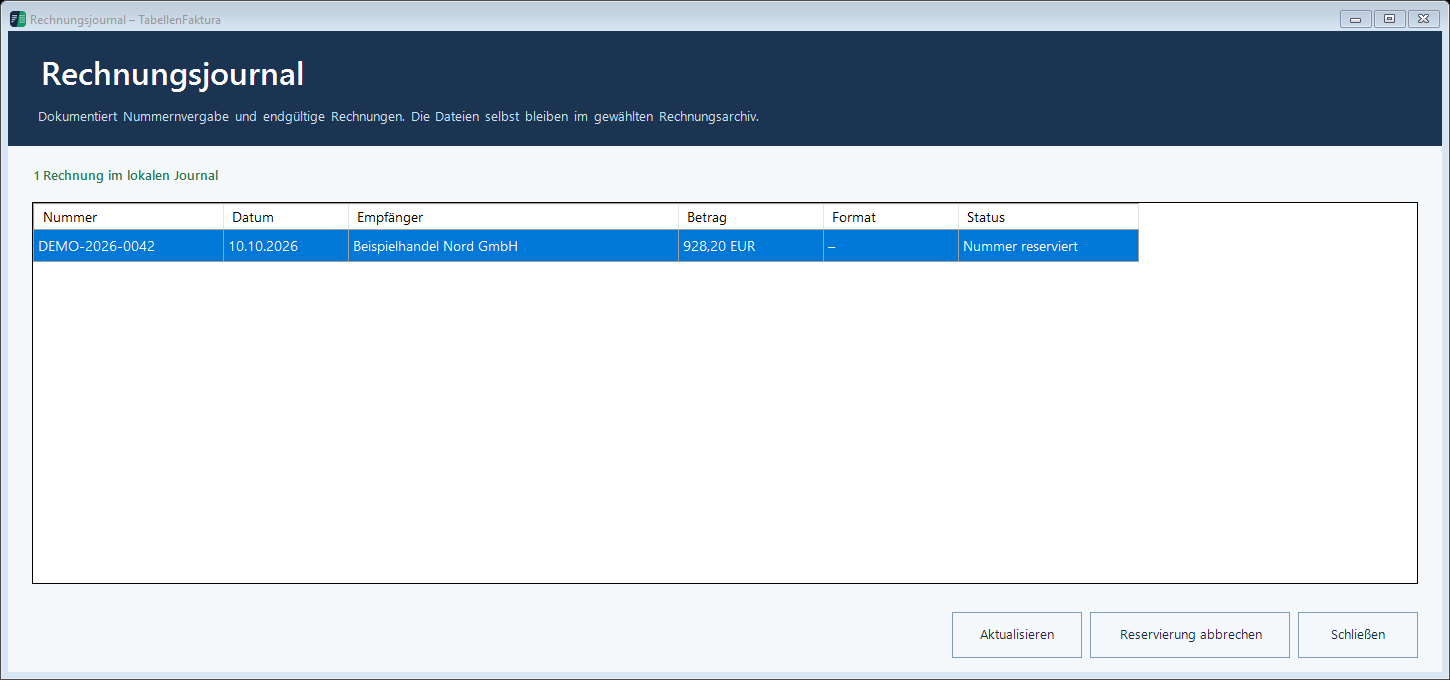
The invoice journal is the local, cross-work overview of the number assignment and final invoices. It is outside the individual Excel files. Therefore, operations remain visible when a different mappe is used per customer or invoice.
e-invoice → Invoicing management → Open journal displays number, date, recipient, amount, format and status. The journal is not an automatic payment control, no email mail output, and no shared cloud database for multiple PCs.
| Status / Action | Meaning |
|---|---|
| Number reserved | The number is assigned for a process, the final file is still missing. |
| Finalized | The invoice was completed and their file recorded. This does not mean "send, or "pay. |
| Replaced by correction | A complete correction replaces the original invoice. The assignment to the correction and the original file remain. |
| Cancelled | A reservation has been cancelled in a controlled manner. The entry remains comprehensible; the number is not reused. |
| Update | Reloads the overview and can follow up design data from the active mappe. Final entries are not rewritten afterwards. |
| Open File | Opens the corresponding final invoice. If the file is moved, an unchanged copy can be searched. |
| Check integrity | Checks whether the stored invoice file is still in line with the file originally recorded. |
The available actions are based on the selected entry. Cancel a reservation only if the planned invoice is not actually completed. For an invoice already created, a suitable technical correction is required.
Set up the number circle and archive
- Account management → Settings and the
- Select the location of the settings.
- Prefix for example:
RE-{JJJJ}-.{JJJJ}sets the four-digit year,{JJ}the two-digit. - Number of digits and First serial number Choose the appropriate number system. With four digits and start value 1, for example,
RE-2026-0001. - A accessible, permanently secured folder as Accounting archive set and save.
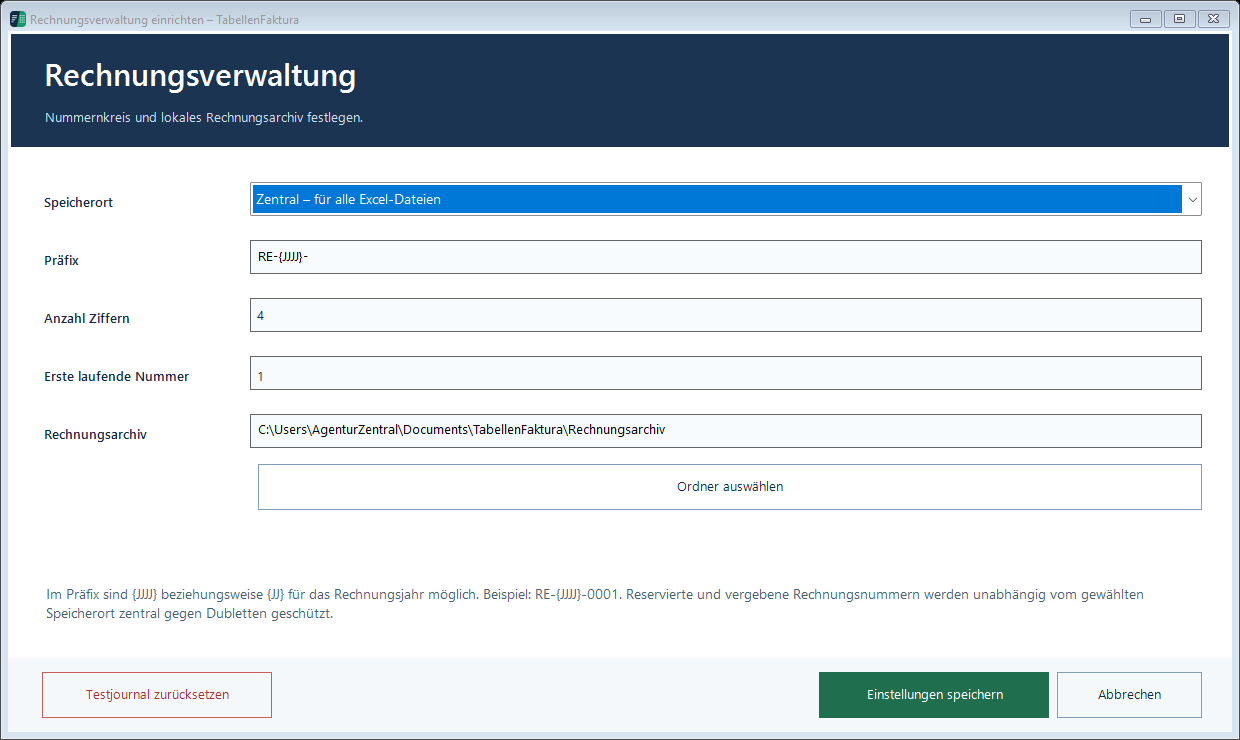
Reserved and final numbers are centrally protected against dublettes on this PC. A new Excel copy or any other setting for the location does not reset this history. Independent PCs do not have a common number lock; for several workstations, a coordinated number assignment is required.
Reset Test Journal is a deletion function for pure test data. It is not part of the normal billing process and must not be used to make final real invoices disappear.
Manage and paste customers
- Customers → Manage customers and the
- Collect a new customer with name, address, country, e-mail and if necessary VAT ID number, Leitweg-ID and payment destination.
- Save. If you have a duvet note, first search for an existing record.
- For an invoice Add Customer open, choose the customer and check the cells taken over.
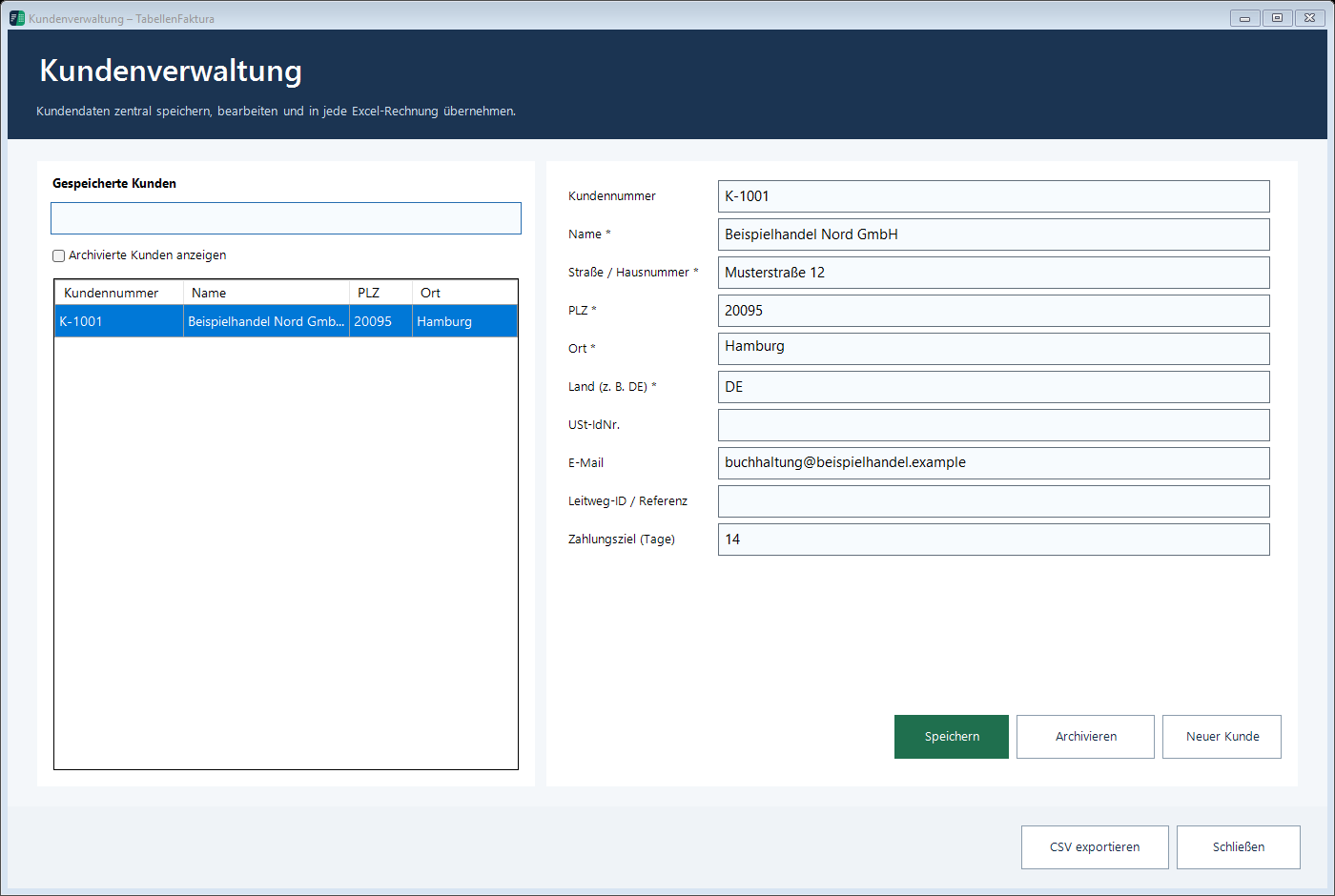
Take it from account can use existing buyer data as a starting point. Export CSV The displayed customer list can be output for further use. No longer used customers can be archived and over Show Archived Customers a later change in the customer base does not change any already generated invoice file.
Secure data completely
- Invoice management → Secure data The
- The question whether the final PDF/XML files still to be found should be included for a complete backup with Yes answer.
- One
.tfbackup-Save file to a protected backup location. - Read the final report and pay particular attention to missing invoice files.
A compact backup without invoice files contains the database with journal, number circles, customers and central settings. It does not replace backup of the archive. Also a complete backup can only record findable invoice files.
Own templates, workbooks and assignments stored in them belong separately to the backup. Also the Outlook account and the Outlook signatures are not re-set by the TabellenFaktura backup.
Create backups regularly, as well as from updates, restores and a PC change. An additional copy outside of the billing PC protects even in case of a device failure.
Restore a backup
- First, back up the current data.
- Restore Backup select and select the desired
.tfbackup- Open file. - Check the test result and the scope.
- Confirm the recovery only for the intended data status. It replaces the current database, it does not merge two journals.
- Then check Journal, next invoice number and archived files. Excel Templates and, if necessary, Outlook Re-set up separately.
The previous database is stored as a backup copy. Nevertheless, an old backup of newer invoices cannot contain. On a new PC additionally the Clearing the Licensing.