

TabellenFaktura for Excel · Manual
Download and install
TabellenFaktura adds the “E-Rechnung” tab to Excel. Install it using the signed EXE from this website.
1. Check requirements
- 64-bitWindows and Microsoft Excel from 2016 as desktop application, in 32 or 64 bit. Excel in browser and Excel for macOS are not supported.
- .NET Framework 4.8. The integrated PDF preview uses Microsoft Edge WebView2 Runtime. Without this preview component, you can open the PDF in an external application.
- Internet connection for activation, license check and updates.
- Classic Microsoft Outlook for Windows for the automatic preparation of e-mail drafts. The invoice files can also be sent manually with another mail program.
Windows 11 is the right basis for new installations. For Windows 10 a continued maintained output or ESU should be used.
2. Download with license
- If you do not have a licence yet, Try free for 30 days. Your first name, last name and email address are sufficient. Business details are optional. After confirming your email address, you receive your licence automatically.
- Nach Bestätigung der E-Mail-Adresse den freigeschalteten Download verwenden. Bei einem späteren Download auf der Download Page enter the valid license code and download the Installer.
- Save all open Excel workbooks and close Excel regularly. Also take into account other Excel windows and instances.
- The downloaded file
TabellenFaktura-1.6.17-x64.exeOpen in the download folder.
The signed EXE-Installer is used. A separate MSI file is not required. After installation, the personal activation code enabled in Excel.
3. Set up download and Windows warnings
"Not frequently downloaded, or "The computer was protected by Windows,
SmartScreen takes into account the digital signature and the familiarity of a file. Therefore, a new one in the year 1520 can trigger a Rep-Symbol-Rep-Rep-Rep-Rep-Rep-Rep-Rep-Rep-Rep-Rep-Rep-Rep-Rep-Rep-Rep-Rep-Rep-Rep-Rep-Rep-Rep-Rep-Rep-Rep-Rep-Rep-Rep-Rep-Rep-Rep-Rep-Rep-Rep-Rep-Rep-Rep-Rep-Rep-Rep-Rep-Rep-Rep-Rep-Rep-Rep-Rep-Rep-Rep-Rep-
- The file must be www.tabellenfaktura.de The
- In the Explorer, right-click on the EXE, Properties → Digital signatures open and check the signature details.
- The Signatories must: Agentur Zentral GmbH Appear; Windows must confirm a valid digital signature.
If this is only an indication of an unknown or less widespread use and if this information is correct, Windows may provide: More information → Run anyway If you use a download notice in Edge, the corresponding option can be included in the further actions of the download. Company policies can exclude a continuation.
Microsoft explains SmartScreen and the evaluation of downloads.
A virus message, an invalid signature, another publisher or a lock by IT are not a normal installation step. Leave the protection enabled and the message with file name and version number to the Support or pass on the relevant IT.
Administrator query
The current application is installed only for the registered Windows account and does not need any administrator rights. However, if an older system-wide output is removed, Windows can require increased rights. If an unexpected query occurs, check editor and installation situation first.
4. Complete installation
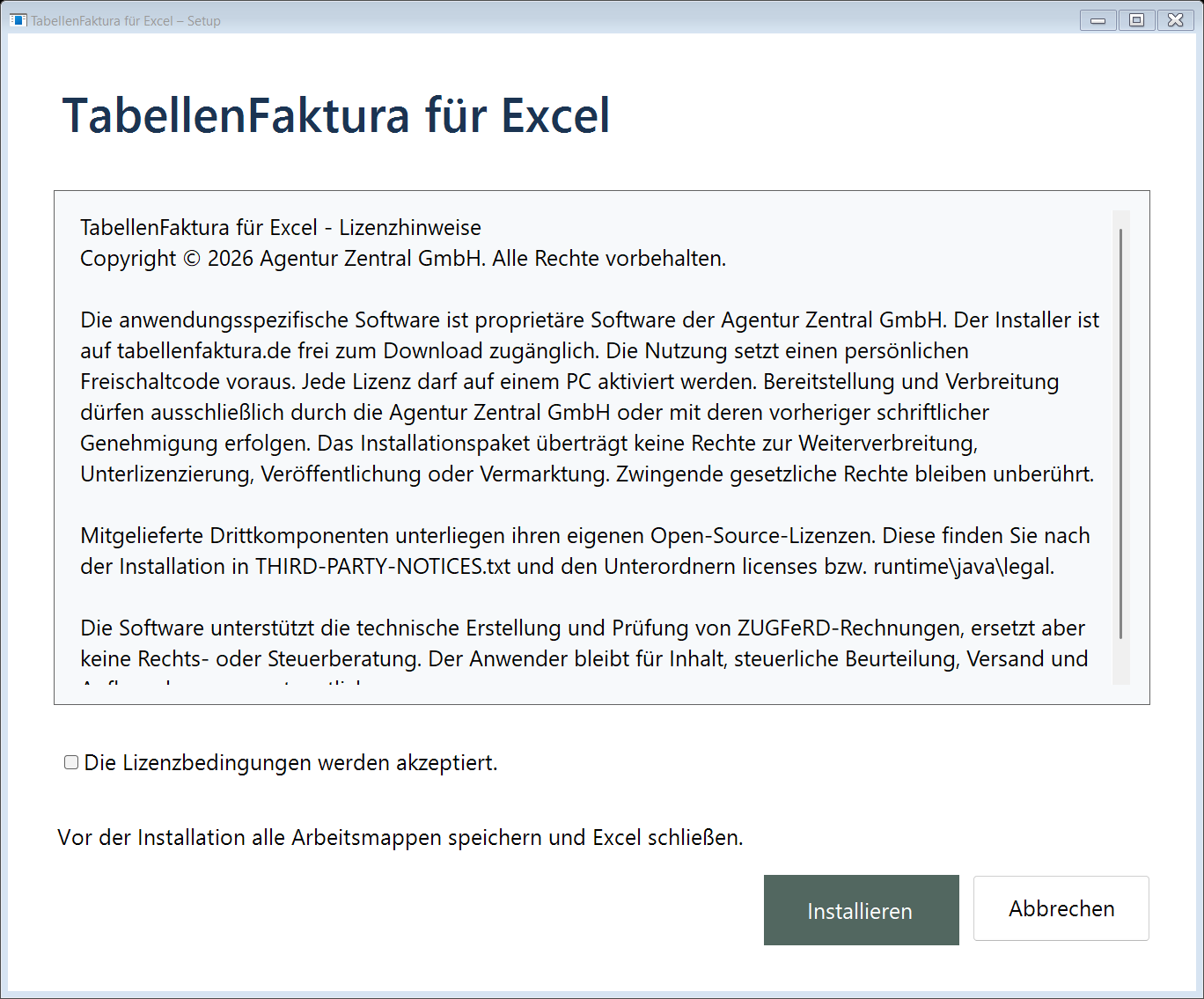
- Read and accept the license terms in the installation window.
- Install choose and wait for the final.
- Excel open normally afterwards, not as "administrator,.
- In the ribbon the new tab e-invoice and the
An older system-wide installation is available
The old edition once about Windows Settings → Apps → Apps installed Uninstall and then start the current EXE. Billing data and settings are separated from the program files. Before changing a Data backup The Installer prevents two types of installation that are unnoticed.
If the rider is missing, help "e-invoice, not shown.
Install later updates
The e-invoice → Help → Search for updates the check can be started manually. If the application reports a new version, the start Save and update the conduct of the operation:
- Store open workbooks regularly. If memory is broken, the update will also be canceled.
- Excel is closed regularly. Close further Excel instances after saving.
- After successful license verification, the update helper receives the protected download access. It loads and checks the package and starts the installation. An additional code entry in the browser is not required for this update process.
- Open again after completion Excel.
Excel processes are not necessarily terminated. Mandatory updates must be installed before the new test rules can be worked on. For very old issues, first use the current EXE from the download page.