

TabellenFaktura for Excel · Manual
Setting up special cases correctly
Macros, multiple print pages, tee-off and final invoiceen require additional attention when submitting and taking over data.
Excel files with macros
TabellenFaktura is an installed Excel-Add-in. For the normal pattern calculation no VBA macros are required. However, own templates may contain macros for numbers, calculation or printing.
- Macro-based templates as .xlsm and/or in the existing suitable format. Save as
.xlsxRemoves VBA macros. - Check existing macros first in a working copy. A macro must not be assigned the same numbering in parallel to the TabellenFaktura number circle.
- After changes by macros recalculate the invoice, recheck the detected positions and the print view.
- A macro that only generates or sends a common PDF does not replace the ZUGFeRD creation. To send it, use the file created by TabellenFaktura.
Macros from the Internet are blocked
If a downloaded macro file is loaded, Excel can block execution. Only release the file if source and required macros are checked. For a single trusted file, Microsoft describes the release under Explorer → Properties → General → Allow / Unblock; the name depends on Windows. For managed devices, the IT decides. Do not activate all macros and do not share unknown files.
Microsoft: A potentially dangerous macro has been blocked.
Protected View and Macrolock are different hints. "Activate editing, allows editing a trusted file; this does not lead to a general macro share.
Multi-page invoices
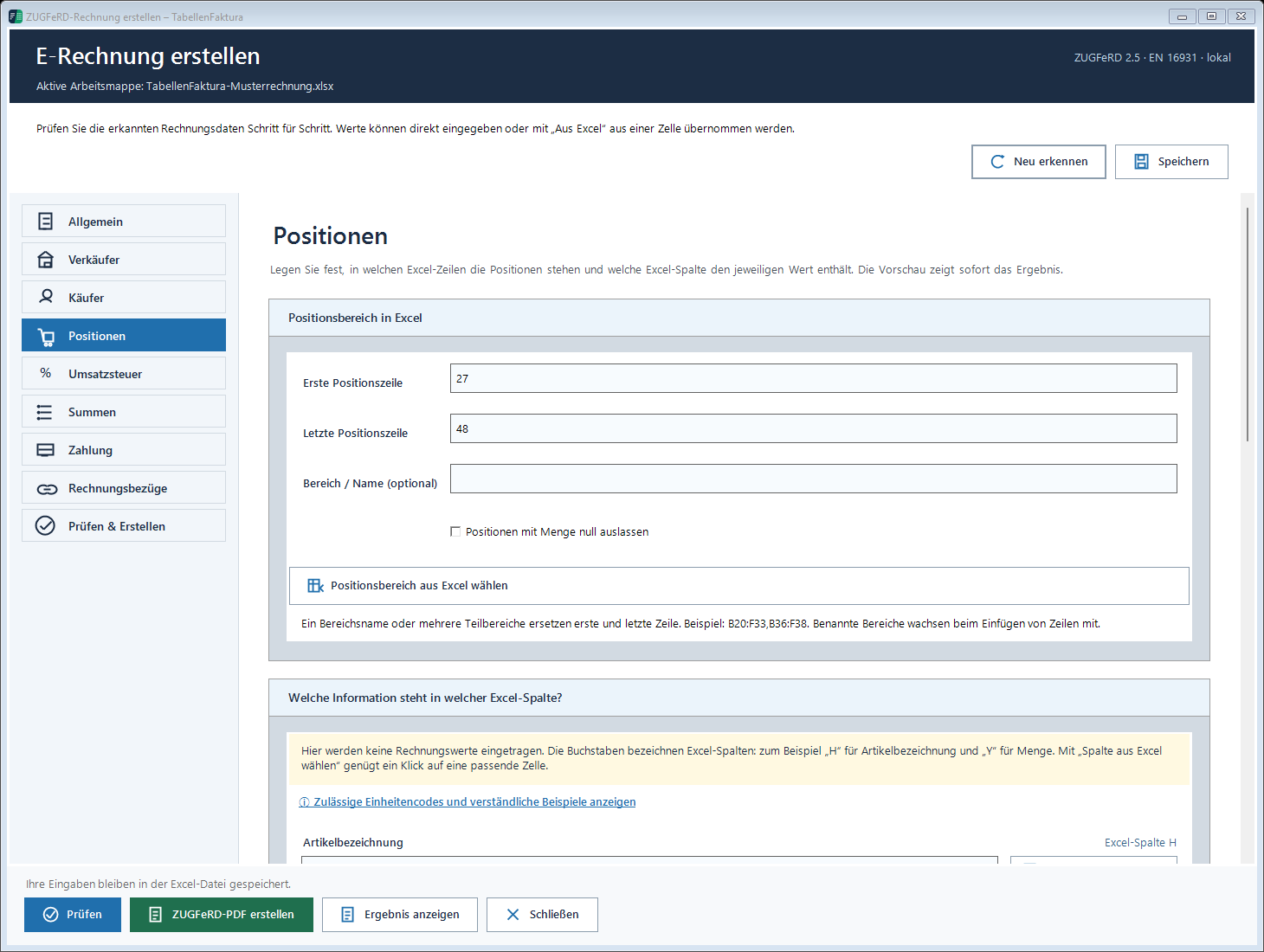
Multiple print pages are possible. Two settings must match: Excel sets the printed pages, TabellenFaktura reads the assigned position rows.
- Set up the complete printing area on the invoice sheet, including page breaks. Check all pages in the print preview.
- In the wizard, Line items expand the range to the last actual position.
- For separate blocks Area / Name (8.1) use, for example
B20:F33,B36:F48. A named area can grow when inserting lines; after a layout change, it can still control. - Repeated headings, transfers and subtotals are not counted as additional services. The complete service description either within the description cell or pure text lines under Unit and text updates → Service description The following price line or the previous one must be assigned. Repeated page headings must not become part of a service.
- In Recognised positions Compare number, first and last position and total sum to Excel.
- After creation, check all PDF pages and structured positions.
Several worksheets are different from several print pages. The PDF is extracted from the active Excel sheet Therefore, before creating the invoice sheet, activate exactly the invoice sheet, whose data are assigned. Any combination of multiple invoice sheets does not take place automatically. To calculate the required data and print pages, merge on a suitablely arranged sheet. Treat plants separately according to the requirements of the recipient.
Deposits, partial and final invoice
The General → Invoicing select the actual process. Deposit / advance payment before payment is from Partial calculation for performance from one another. For construction billing, construction interim invoices, partial final invoices and final invoices are available. An old ambiguous setting displays Previous discount: Reselect the method of invoice and must be re-assigned to the technical staff.
A format change does not change the chosen method of invoice. If the XRechnung auditor complains of one type, not only to avoid the examination, choose another. To clarify the technically appropriate way of issuing the invoice with the recipient.
Decompose fully the payments received
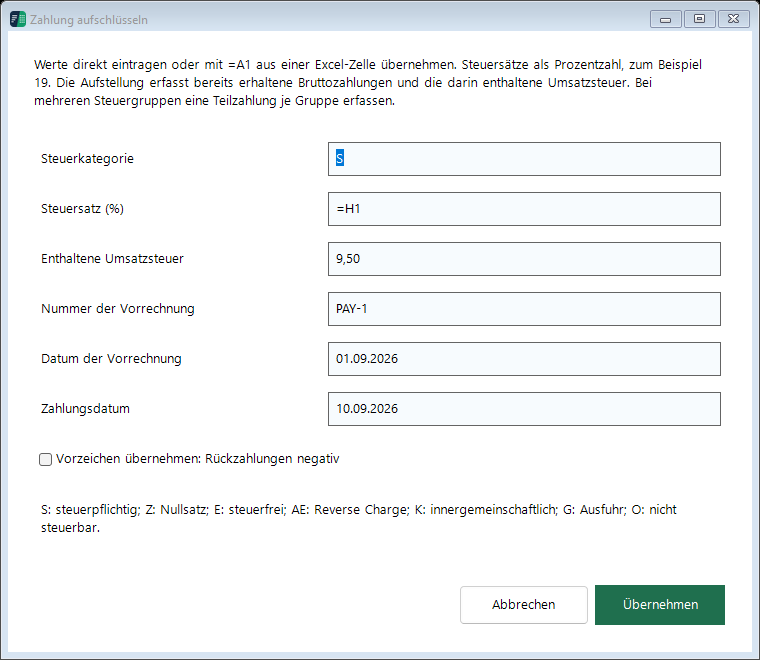
An issued but unpaid advance payment is not yet a receipt of payment. The journal does not automatically determine payments received. In the final invoice below Totals → Amount already paid → Individual amounts... record the gross payments actually to be offset.
- Create a separate amount and unique name for each payment.
- The Details Add the number and date of the invoice and the date of payment.
- Specify the tax category, tax rate and included VAT. The net amount is the gross amount minus the included tax.
- Where there are several tax groups, allocate the appropriate partial amounts. Together, they must equal the gross amount received.
- Detection of repayments only with explicitly selected pre-signs. The contained VAT must fit.
- The previous invoices are also available at: Invoices (b) the amount of the aid granted to the beneficiary.
TabellenFaktura creates an embedded PDF payment statement from the payment details with reference to the structured data. In ZUGFeRD the list is added to the Excel PDF. Check the complete finished file and attachment before shipping.
Example for uniform 19 %: 10.000,00 € net plus 1.900,00 € VAT result in 11.900,00 €. A received payment of 3.570,00 € contains 3.000,00 € net and 570,00 € VAT. The outstanding amount is 8.330,00 €. The payment does not additionally deduct as a negative performance position. The breakdown must fit the actual business transaction.
Security retention and discount
Page 3 Safety retention is neither discount nor received payment. It is Totals The application distinguishes open payment amount and currently payable amount.
Example: €8,330.00 outstanding minus €595.00 retention leaves €7,735.00 currently payable. Do not also enter the retention under “Bereits gezahlter Betrag” (amount already paid). Map the Excel check value for the payment accordingly. Enter only the retention that is still outstanding. Do not deduct previously released retention again. The software does not decide when a contract permits its release.
Discount is Payment The discount base may differ from the amount currently payable; therefore, do not assume an existing formula unchecked.
Mixed rates, tax exemption and reverse charge
For mixed rates, the column VAT rate and, where necessary, the Tax category The breakdown under VAT must correspond to the Excel amounts.
The application supports among others regular VAT, zero rate, tax exemption, reverse charge, intra-Community delivery, export and non-returnable transactions. The technically correct category and a necessary justification must be specified. small business VAT exemption, reverse charge and a zero rate are different situations.
A flat-rate net reduction or supplement without a clear tax allocation is contested by several tax groups. Totals → Individual amounts... → Details The tax information can only be taken over from the items in a unique common tax group. The visible invoice must also take these amounts into account correctly. The category "not transferable cannot be mixed with other categories in an invoice as desired.
XRechnung for contracting authorities
- The client has confirmed format, buyer reference or Leitweg-ID, electronic address and route of transmission.
- Create XRechnung The
- The General check the buyer reference / Leitweg-ID and business process identifier; specify an order number only in the designated field.
- Complete contact with the contact person/department, telephone and e-mail. Check the electronic address of the recipient in the buyer area.
- Check the invoice and create the XRechnung. The final KoSIT exam must be successful.
- The .xml file transmit through the agreed channel and verify the receipt of the recipient's confirmation.
TabellenFaktura creates XRechnung 3.0.2. For a maximum of one previous invoice reference, CII is used; for several references, UBL. The generated XML is checked with the KoSIT validator. Rename a PDF to ".xml, or simply send a normal PDF does not create XRechnung. The Leitweg-ID is not an email address or a shipping document.
Correction and commercial credit
A final invoice and its file are not overwritten under the same number. Two different operations are available:
- Corrected invoice (full replacement): a new unique number. Invoices specify exactly one source invoice with number and date and the reason for the correction. If the original is present in the journal, it is marked as replaced. The original file is retained.
- Commercial credit (loss): The amount, reason and reference must be consistent with the specific process.
Check the type of document and sign together. A negative price is not accepted in the supported profile. The correction is not reversed simultaneously via the type of document and unchecked again via signs. Keep the original and correction together.
Rounding, zeros and multiline texts
A cell formatting to two decimal places only rounds the display. For money amounts, the formula must also match the desired calculation result, for example =RUNDEN(Menge*Einzelpreis;2). Total votes Excel and the item calculated from quantity × unit price do not match, both values including formula check.
A real amount 0 can occur with positional amount 0. Excluding positions with zero quantity no zero quantities are missing. For multiline descriptions use line breaks within the assigned cell. Separate pure text lines can be selected using the conscious selection Text lines before the price line ==References== Text lines after the price line Clear notes on unassigned texts. Check headings, negative lines and numbers stored as text separately; the list "Recognised positions, is decisive.
Old XLS files and protected templates
The Ending .xls A modern working copy can be useful, but does not replace any assignment. In macros, the file format is obtained. Very large formatted blank areas can hinder automatic detection; assign the real invoice area specifically and clean up the template in a copy.
In protected sheets, number assignment, customer insertion or unit lists on locked cells may fail. Share the required input cells within the scope of your own permission or have them adjusted by the template manager. After saving and reopening, check whether assignments and settings are retained.