TabellenFaktura for Excel · Manual
Overview of all areas
The ribbon opens the tools. In the invoice wizard, the data is checked and supplemented in nine areas.
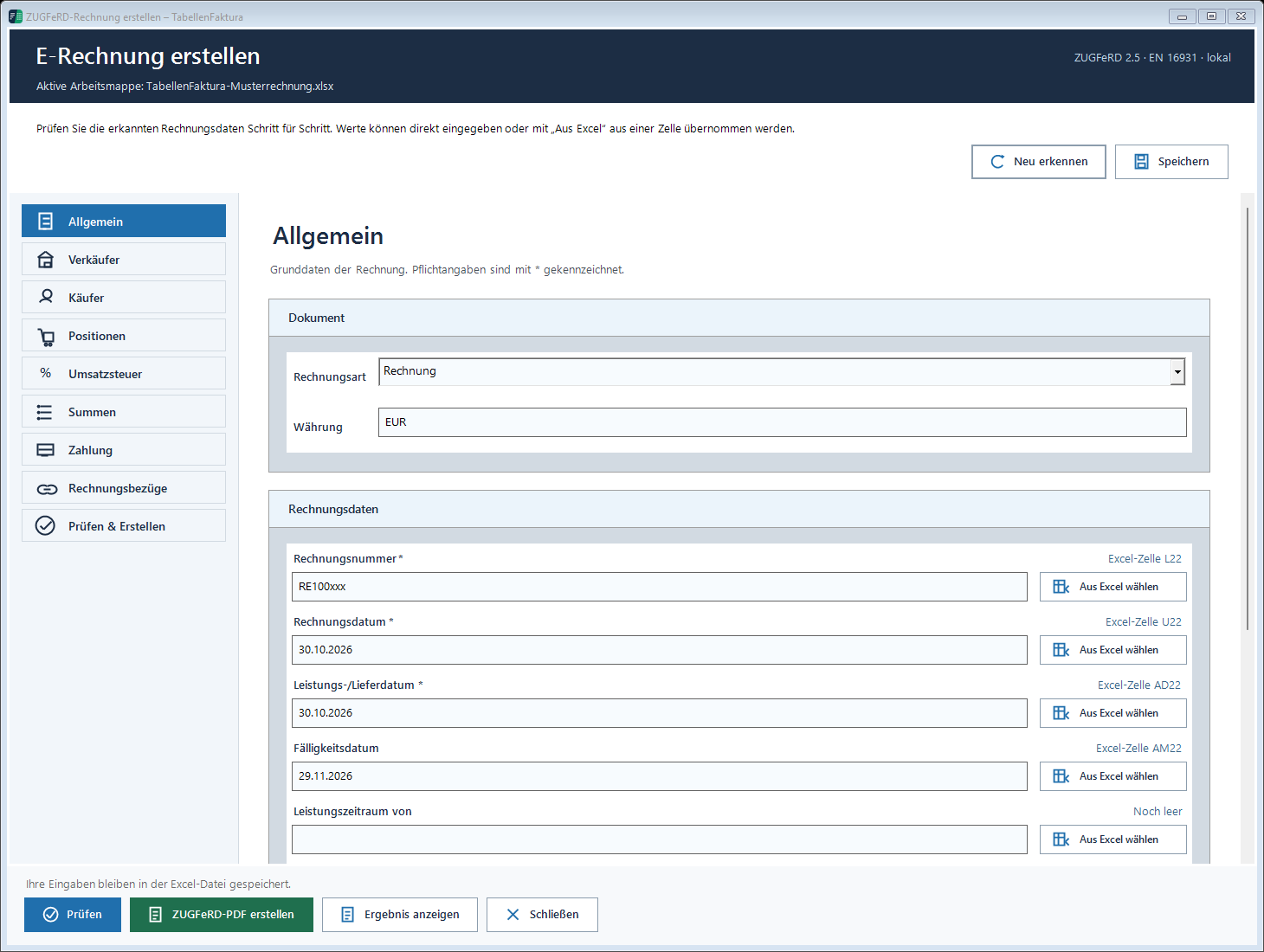
General
The invoice type and currency determine the document. These include invoice number, invoice date, service/delivery date, due date and, if necessary, service period. Buyer reference or Leitweg-ID, business process identifier, order number and invoice note complement the process. The buyer reference comes from the invoice recipient and serves its internal assignment. For public clients this is often the Leitweg-ID. It is not the own invoice number and not the order number automatically. Information with star is mandatory; for XRechnung further requirements are added.
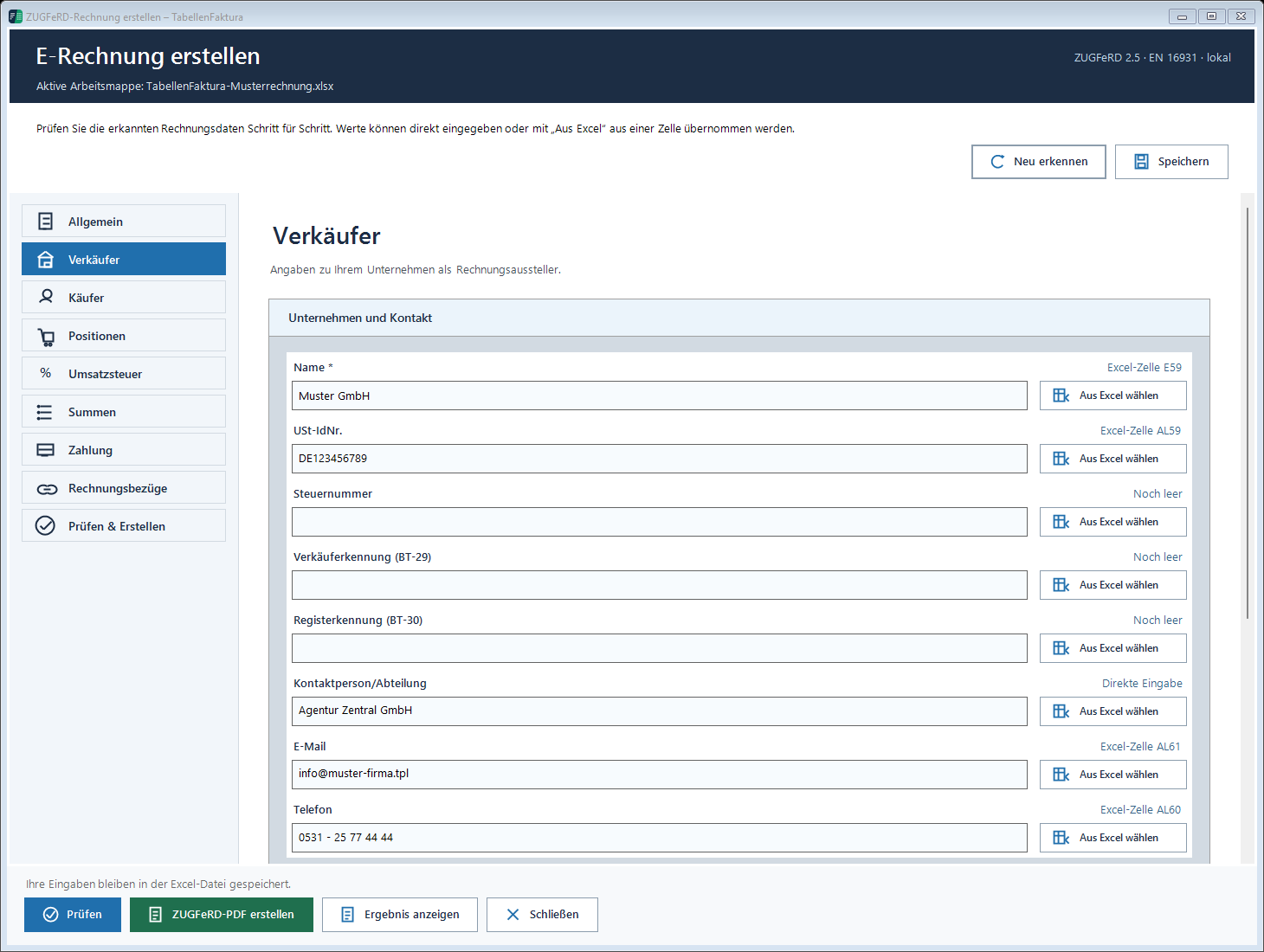
Salesman
The accounting company: name, address, country, tax details and contact. VAT-IdNo. and tax number are different information and belong to the fields provided for this purpose. Seller ID (Bt-29) and Register identifier (Bt-30) The tax number is a separate field and does not replace these identifiers. Only use the correct information. For XRechnung contact person or department, telephone number and e-mail must be checked. The contact person or department must be checked for the technical identification. Rule BR-CO-26 describes the technical identification requirement.
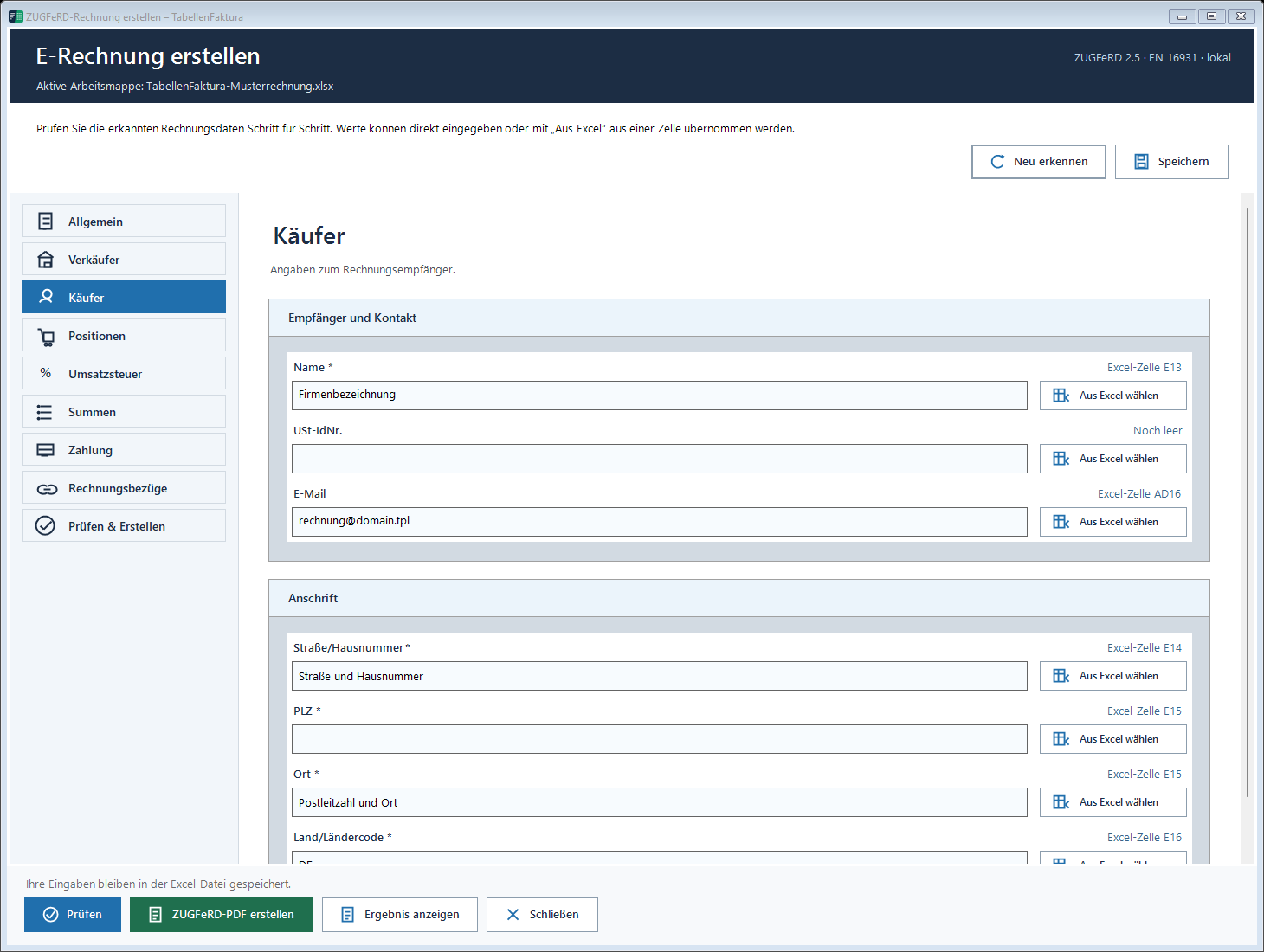
Buyer
Enter the invoice recipient’s name, address and country here, together with their VAT identification number and email address where needed. The email address is used for the email draft. For XRechnung, this application also uses it as the buyer’s electronic address. An incorrect buyer mapping can therefore affect both the invoice file and the email draft.
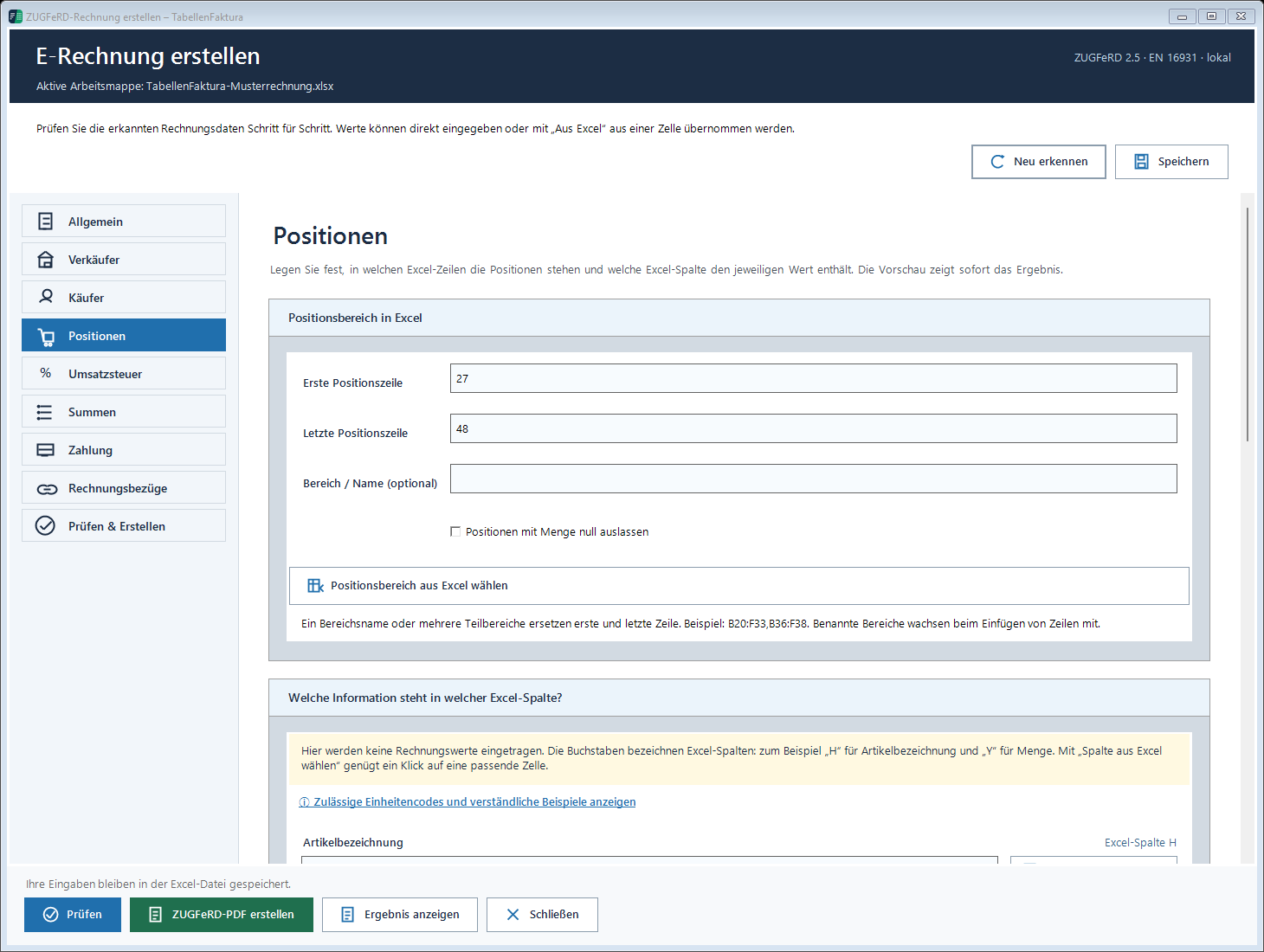
Line items
Position area, column assignment and recognized billing lines. The preview shows which services are actually transferred to the e-invoice. The scope follows the assigned range, not automatically the number of printed pages. Empty lines, text revisions and zero quantities must match the respective layout. Unit and text updates a fixed unit and the direction of the text assignment can be explicitly chosen. Configure units and descriptions.
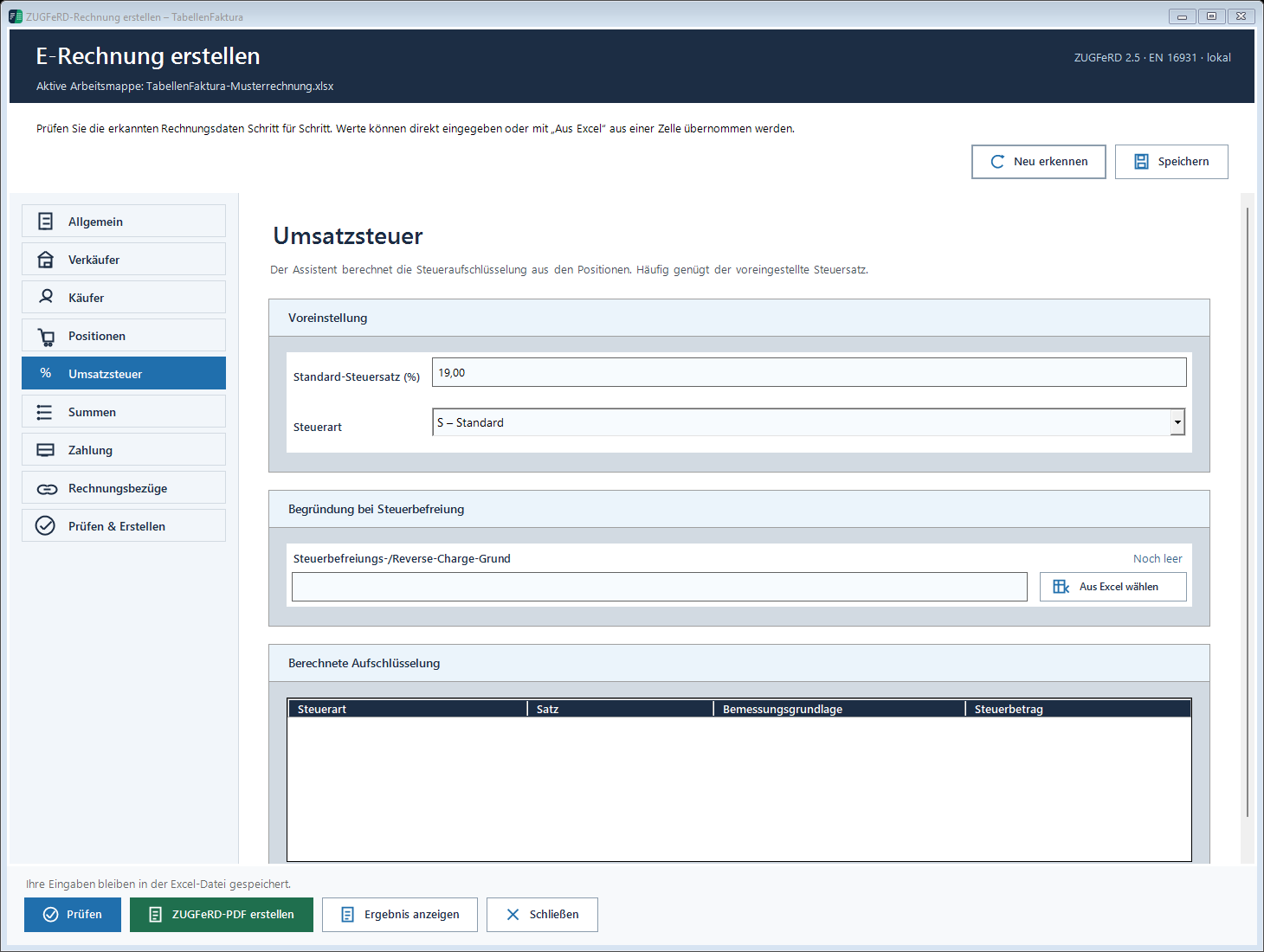
VAT
Standard tax rate and type of tax apply unless different position columns are assigned. In case of tax-free operations or reverse charge, the appropriate category and justification are required. The calculated breakdown shows the combined tax groups. 0 % alone does not describe a reason for liberation.
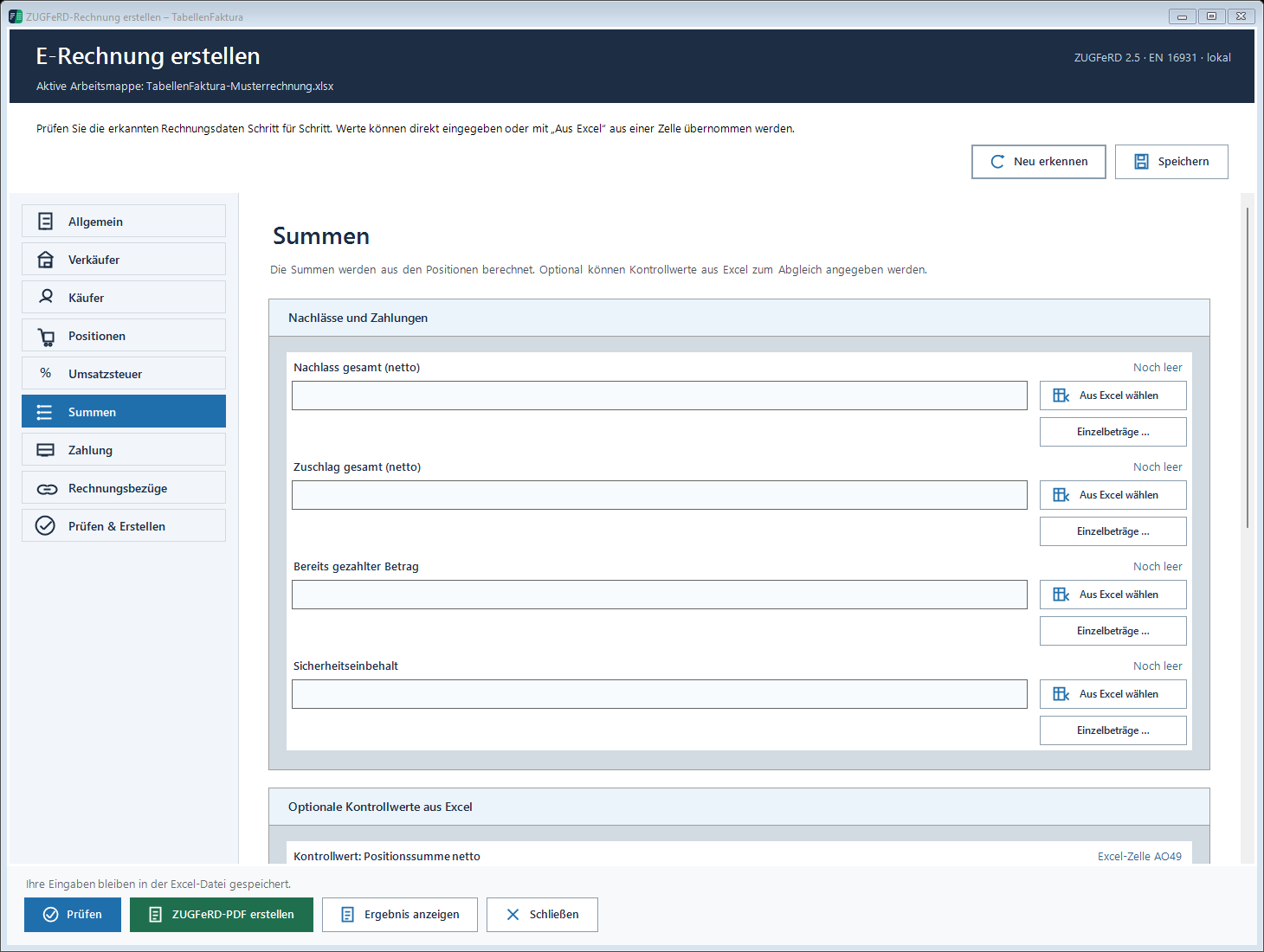
Totals and individual amounts
The amounts are calculated from the items. Document-wide net discounts and net surcharges change the net of invoices. Payments received and security retentions are treated separately.
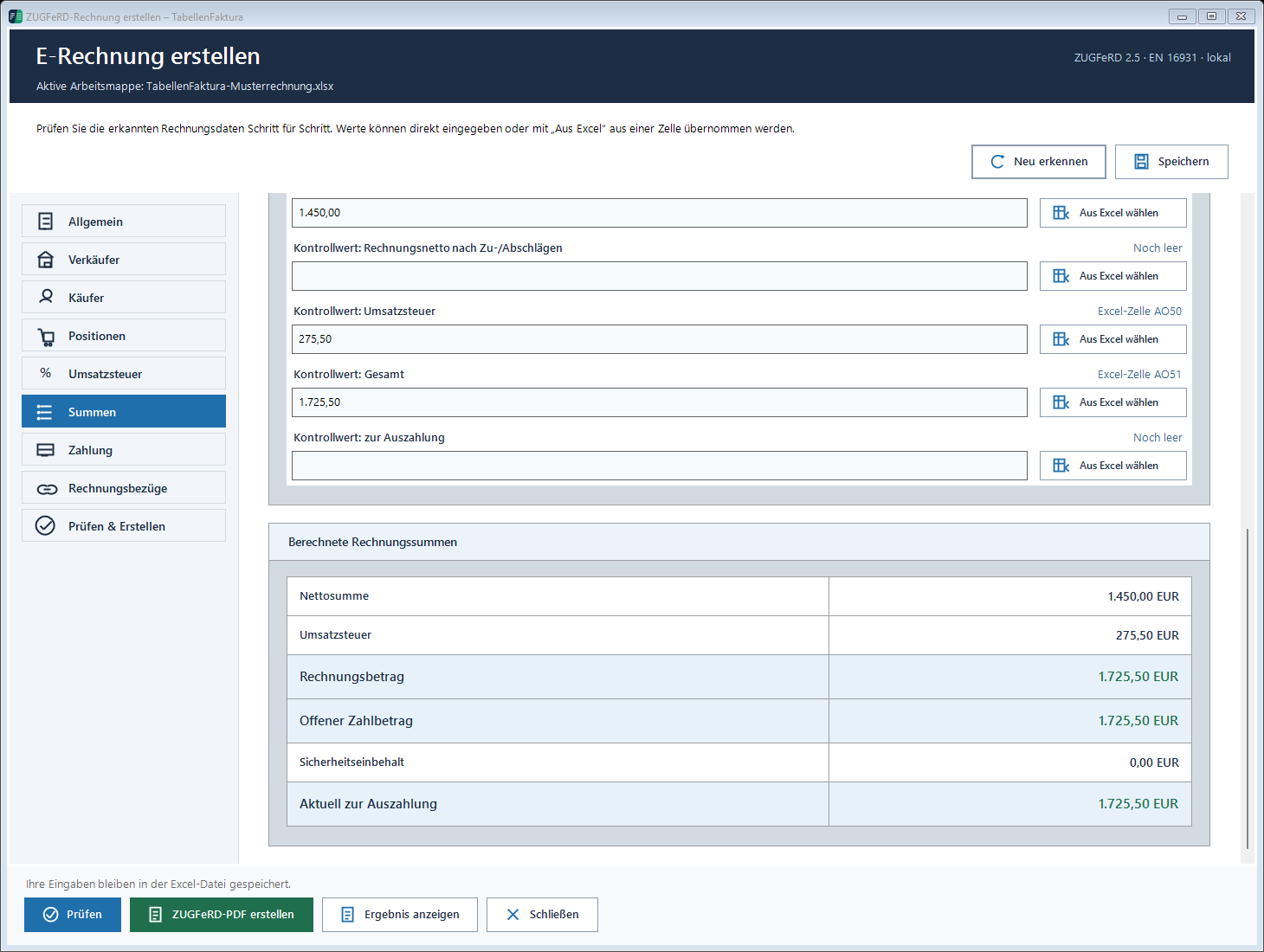
- Position total net: Total net positions before document-wide increases/discounts.
- Net invoiced by surcharge/debate: The amount of the item minus the net deductions and the net additions.
- Invoicing amount: Total amount including VAT.
- Open payment: Amount of invoice minus amounts already paid.
- Currently for payment: open amount minus the currently open security retention.
The two net values have separate Excel control fields. Existing assignments to the position sum remain unchanged. Clear deviations based on formulas and amounts, not conceal by removing the control value.
Several amounts with ‘individual amounts...', cover
- In case of discount, surcharge, amount already paid or withholding security Individual amounts... and the
- For each amount, record a denomination and an amount cell or a direct value. Do not add an additional total twice.
- In case of discount and surcharge below Details check the appropriate tax category and rate. Use net amounts; gross amounts are not converted automatically.
- In the case of payments received, the Payment details with invoice and tax share (b) the amount of the aid granted to the beneficiary.
- Control, take over and map and save the Excel file if necessary.
The tax is not a tax-related tax on the same goods or services as the tax on the same goods or services.
Payment
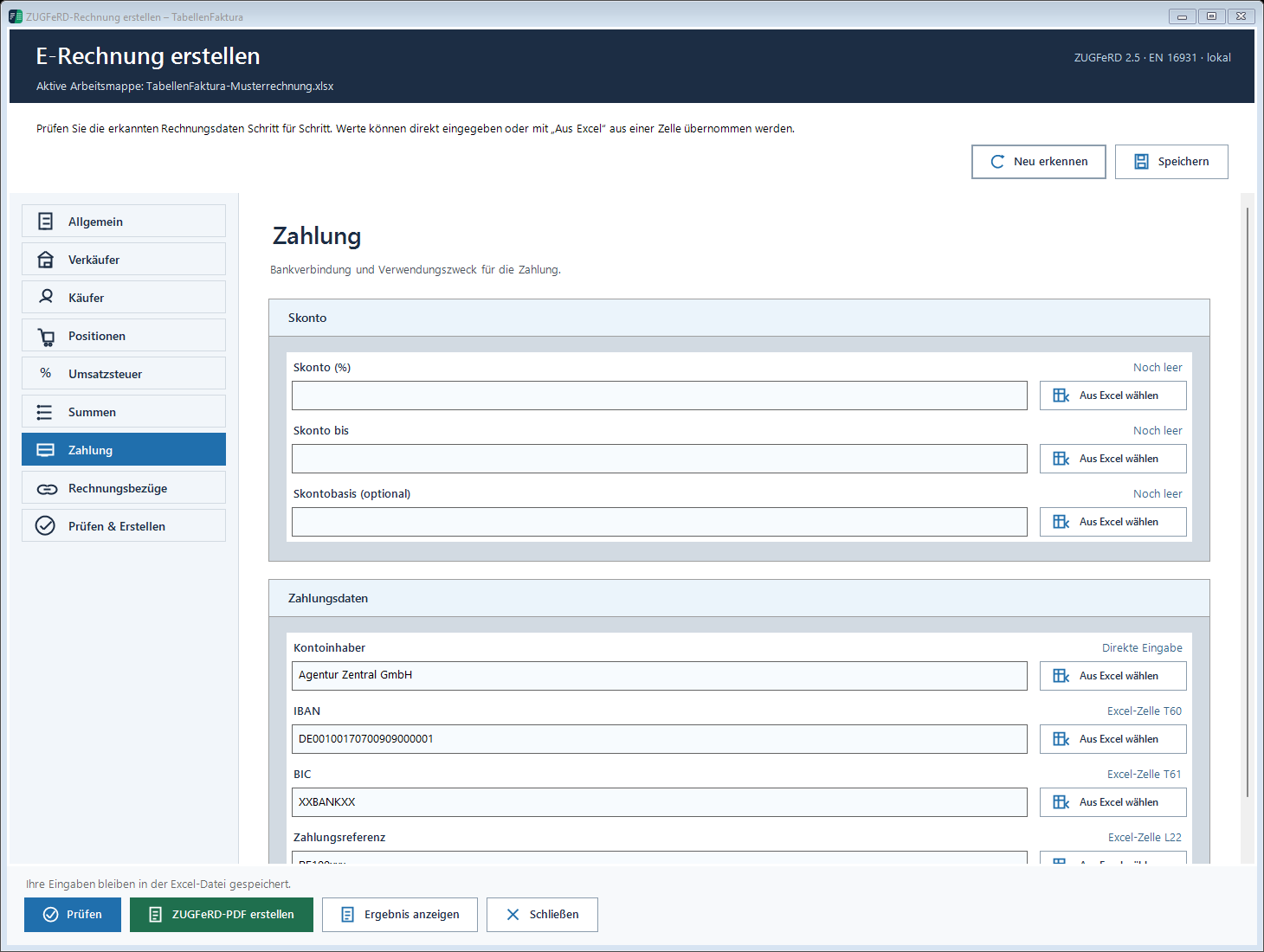
Agreed payment terms can be entered as multiple lines or mapped from an Excel cell. A positive outstanding amount requires a due date or the actual payment terms.
Account holders, IBAN, BIC and payment reference are included here. For agreed discount, percentage, deadline and optional special discount base can be recorded. A discount offer is not received yet and does not automatically reduce the invoice amount.
Pay using a payment QR code
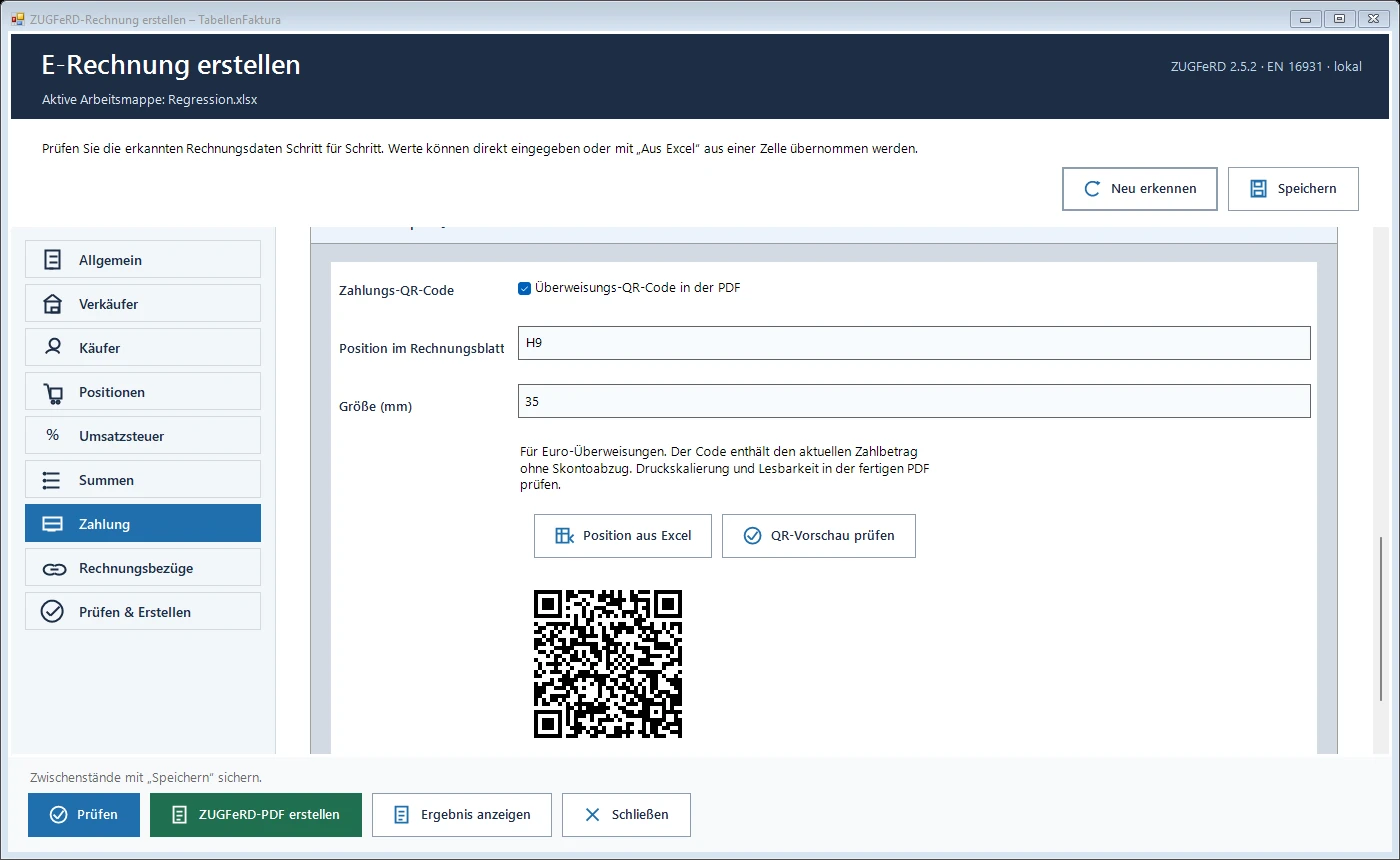
For ZUGFeRD PDFs, TabellenFaktura can place an EPC payment QR code for euro transfers in the print area. It contains the account holder, IBAN, BIC where required, current amount due and payment reference. If no payment reference is specified, the invoice number is used.
- In the ZUGFeRD wizard, open “Payment → Transfer by QR code” and enable “Payment QR code in the PDF”.
- Use “Position from Excel” to select the upper-left cell of the QR code on the invoice sheet. Place the entire code inside the print area and leave sufficient free space.
- Choose a size between 25 and 80 mm under “Size (mm)”. Longer payment details may require a larger minimum size.
- Choose “Check QR preview”. Compare the recipient, amount and reference with the invoice. Save the mappings and the Excel file.
- Create the final ZUGFeRD PDF. Check the position, print scaling and readability, then test the code with a compatible banking app. Review the transfer details before authorising payment.
The code uses the current outstanding amount without automatically deducting a cash discount. No payment QR is generated for credit notes or fully paid invoices. Disable the option for other currencies. A pure XRechnung output does not include a QR image.
The QR image temporarily inserted for the PDF export is removed from the Excel file afterwards. The saved setting is retained. The code prepares a transfer and does not confirm receipt of payment.
Invoices
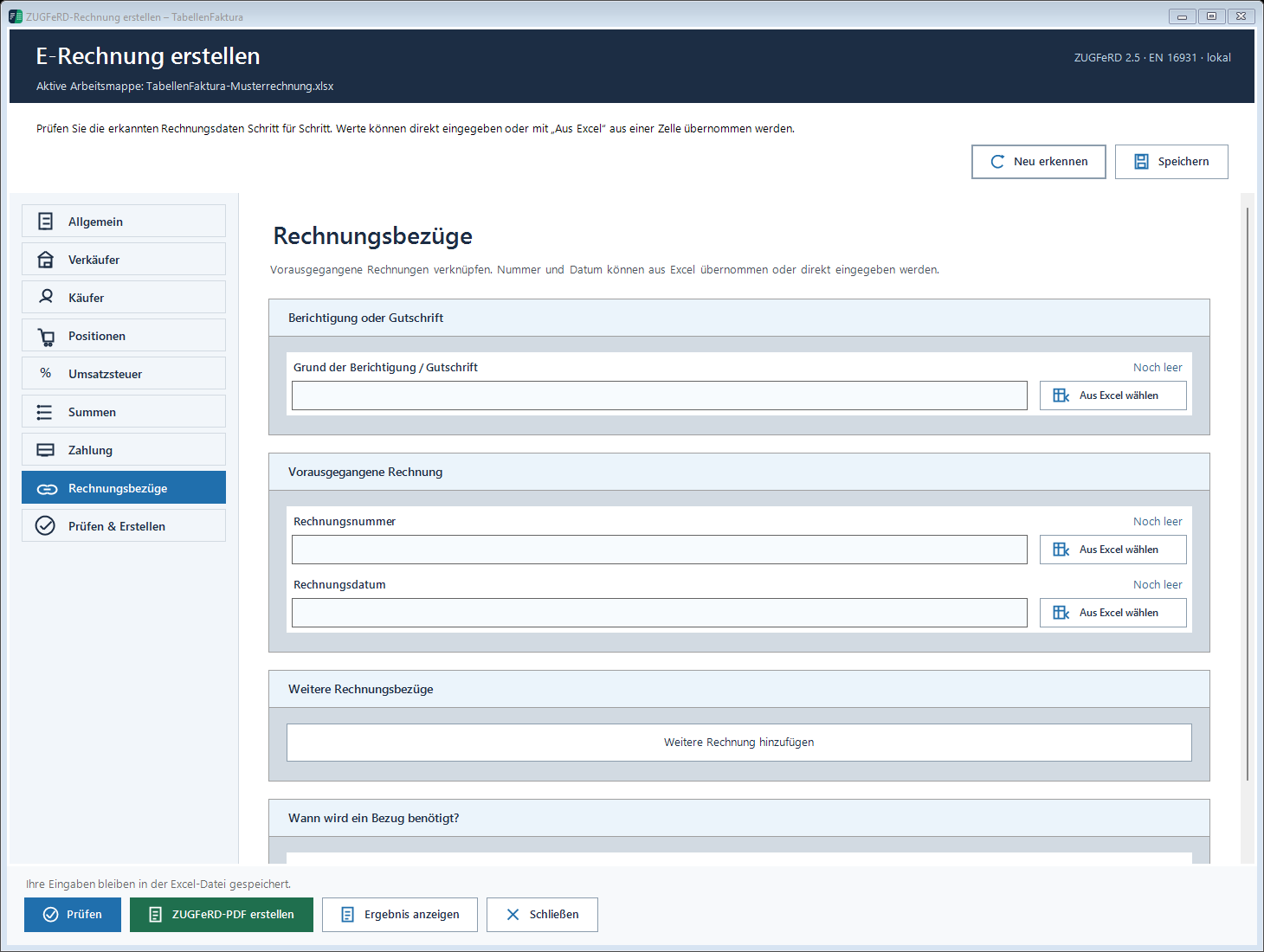
The number and date link the new invoice to previous invoices. Add additional invoice The previous limit to one or twelve reference pairs no longer applies. Information can be taken from Excel or entered directly; empty additional references are not issued.
A reference does not charge any amount. In fact received payments include additional payments under Totals → Individual amounts.... For a complete correction exactly one origin invoice and the Reason for correction/credit Page 3 Differentiating correction and credit.
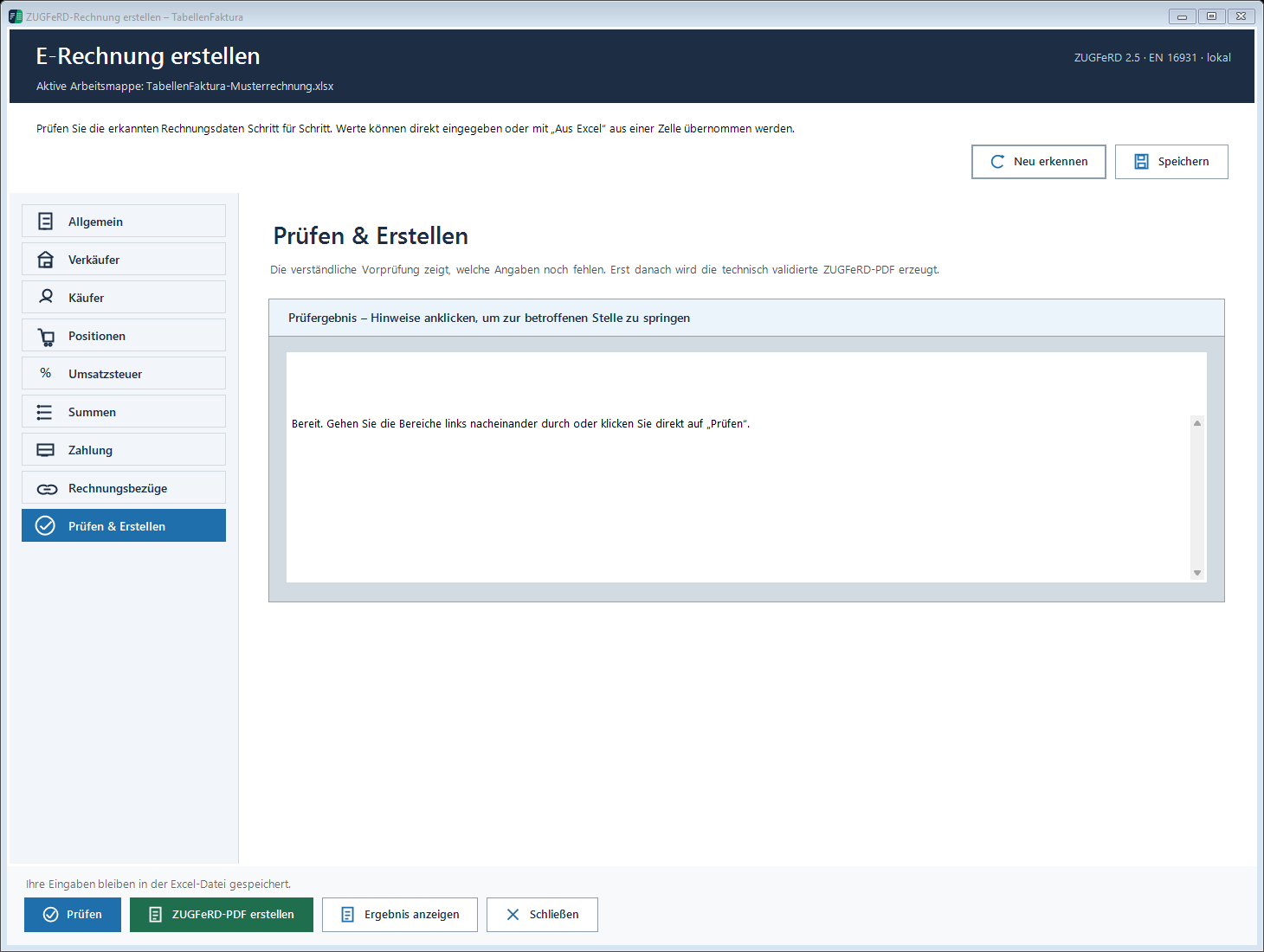
Check & Create
Check checks the information taken over and shows errors and hints. A clickable notice leads to the affected location. Check again after correction. Copyable test report the affected information, the error and the next step; technical details are available. Correct date errors on the specified cell and do not bypass any replacement data. The final PDF or XML is generated via the corresponding creation button and then technically validated.
Re-recognize reads or recognizes data again; then controls assignments and values. Save saves the input or assignment, but does not replace the final invoicing. Show Result and Send by e-mail are available for the generated result.