

TabellenFaktura for Word · Manual
Journal, customers and Word backups
Manage invoice numbers, customer records and final invoice files for the Word application and back them up.
What is the Word journal?
The journal records reserved numbers and completed invoices across Word documents. It remains available when different documents are used per customer. Open Rechnungsverwaltung → Journal öffnen.
A reserved number is not a final file. Finalised does not mean sent or paid. The journal does not replace bank statements or the mail outbox.
| State or action | Meaning |
|---|---|
| Number reserved | Number reserved; invoice not yet completed. |
| Finalized | Final invoice file created and recorded. |
| Cancelled | An unfinished process was cancelled deliberately. Do not simply reuse its number. |
| Open File | Open the final file belonging to the selected record. |
| Check integrity | Check whether the archived file still matches the recorded original. |
| Update | Reload the list. |
Configure numbering and the archive
- Open Rechnungsverwaltung → Einstellungen.
- Choose prefix, digit count and starting sequence to fit the existing system.
- Check the example for year placeholders such as
RE-{JJJJ}-. - Select a reliably accessible archive folder and save.
- Ensure the first real number has not already been used elsewhere.
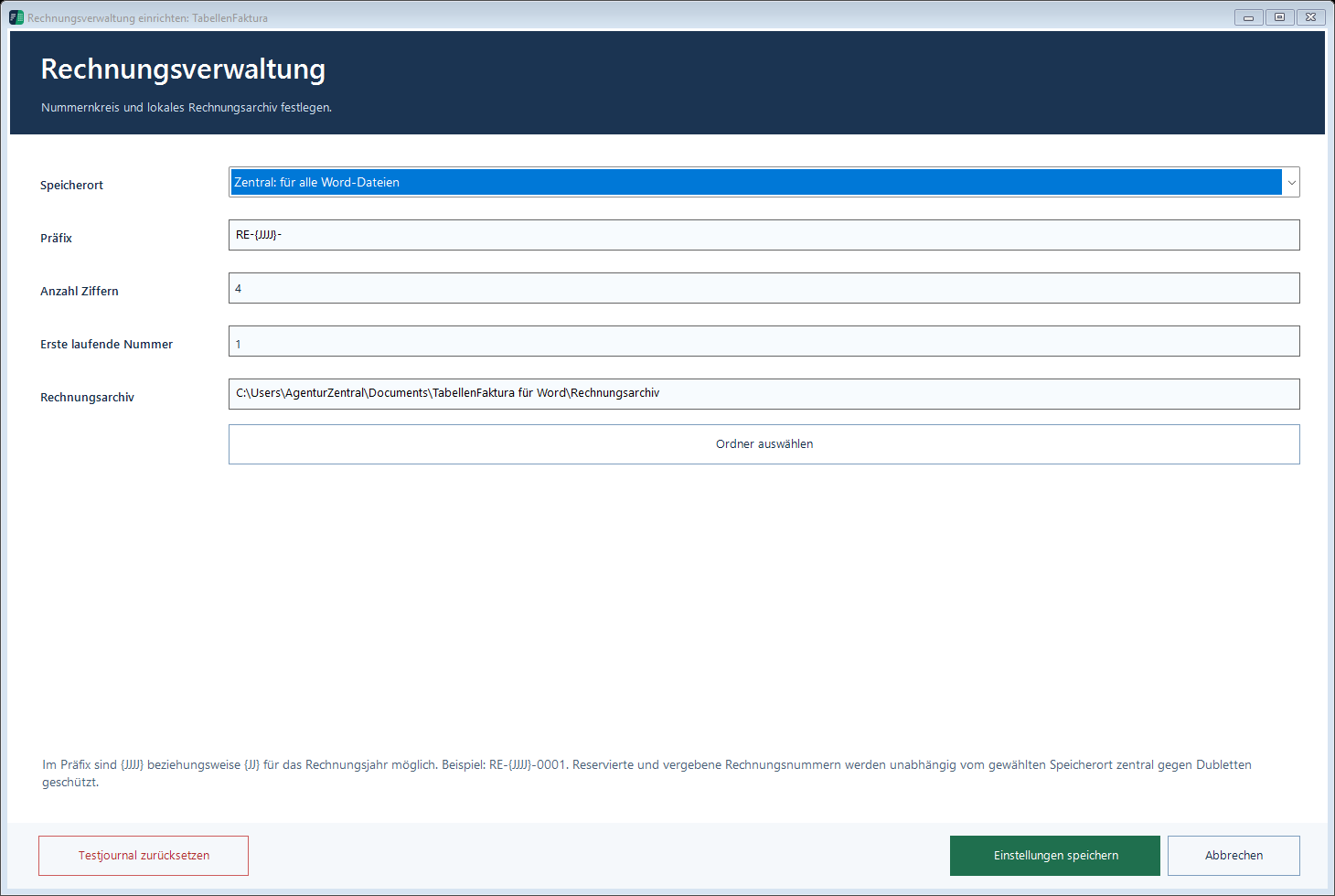
A new document copy does not reset the central history. Separate computers have no shared automatic number lock. Reset a test journal only for purely synthetic data.
Maintain and insert customers
- Open Kunden → Kunden verwalten.
- Enter name, address, country, email and required tax, reference and payment details.
- Check for duplicates and save.
- Use Kunde einfügen for a new invoice.
- Verify the mapped Word values.
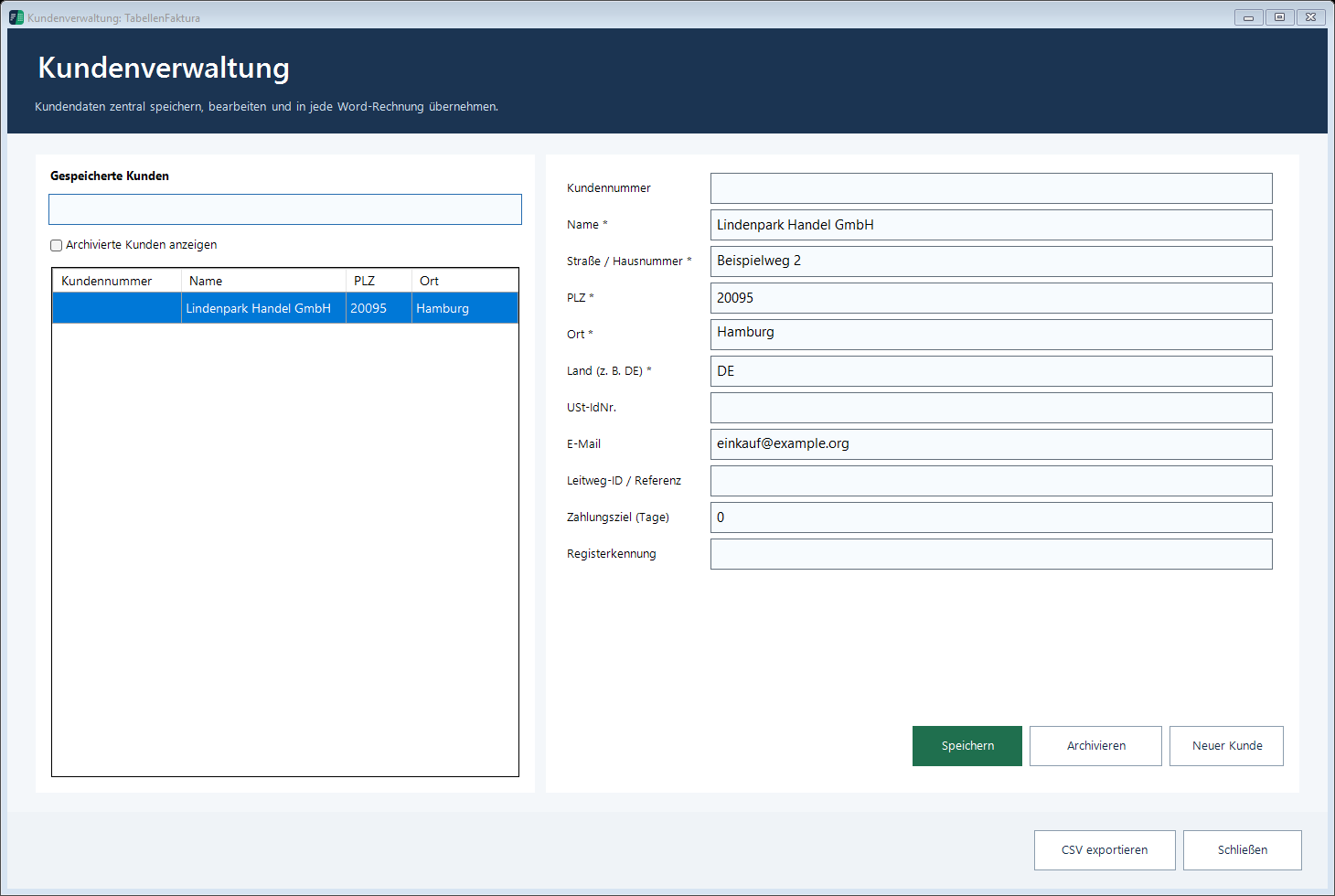
Aus Rechnung übernehmen starts a customer record from existing invoice details. CSV exportieren exports the displayed customer list for further use. A CSV export is not a full backup. Archived customers can be found again. Editing a customer record does not rewrite a previously created invoice.
Create a full Word backup
- Select Rechnungsverwaltung → Daten sichern.
- Include available final invoice files for a full backup.
- Save the .tfwbackup file in a suitable location.
- Check the completion report for missing or inaccessible files.
A compact backup contains management data, customers, the journal and settings, but not the full invoice-file collection. A full backup can only include files still available.
Invoice templates, DOCX/DOCM files and their document mappings need separate copies. Outlook accounts and signatures are not recreated by this backup.
Back up regularly and before updates, restores or a computer move. Keep another copy away from the invoicing computer.
Restore a Word backup
- Back up the current state first.
- Select Sicherung wiederherstellen and choose a .tfwbackup file.
- Check validation, included data and date.
- Confirm only the intended restore. It replaces management data rather than merging journals.
- Check customers, journal, next number and original files. Restore Word documents separately.
Excel .tfbackup files belong to the Excel application. Restoring an old backup must not cause real numbers to be issued again. On a different computer, resolve the licence binding too.