

TabellenFaktura for Word · Manual
Create and send your first Word invoice
Fill in the configured template, check the recognised values and create a ZUGFeRD PDF or XRechnung.
1. Write the invoice in Word
- Open a copy of the configured template and save it under a new filename.
- Enter buyer details or insert a saved customer.
- Set invoice date, service date or period and due date.
- Enter descriptions, quantities, units and net unit prices. Check the range after adding rows.
- Correctly calculate visible line totals, VAT, gross and payable amount.
Example: two hours at €100 net give €200 net, €38 VAT at 19% and €238 gross. The actual business transaction and tax treatment govern a real invoice.
2. Reserve a unique number
With numbering configured, select Rechnungsverwaltung → Neue Nummer. The number is reserved and written to the mapped field. Do not retain a previous invoice number in a copied file. An existing external number system can be used if it supplies a genuinely new unique number. Independent computers need coordinated numbering.
3. Update Word fields and resolve revisions
Update calculation and date fields through Update Field or F9 for the relevant selection. Ctrl+A followed by F9 updates selected main-body fields. Check headers and footers separately as needed. Manually typed numbers are not formulas.
Review and accept or reject tracked changes. Hiding markup or turning tracking off does not resolve existing revisions. Open revisions block creation. Then inspect every page in Print Preview and save.
4. Check the recognised data
- Activate the intended Word document and open ZUGFeRD-Rechnung erstellen.
- Check the filename at the top.
- Review all nine sections, particularly recipient, number, full descriptions, tax and amount due.
- Run Prüfen and correct the actual causes of reported issues.
- Prefer correcting the Word document, then recheck the recognised values.
5. Create and inspect the final file
- Select ZUGFeRD-PDF erstellen.
- Check filename and destination and save.
- Wait for creation and technical validation to finish.
- Compare PDF and embedded data: recipient, number, dates, items, VAT and amount due.
- Inspect all pages, table breaks and the optional payment QR.
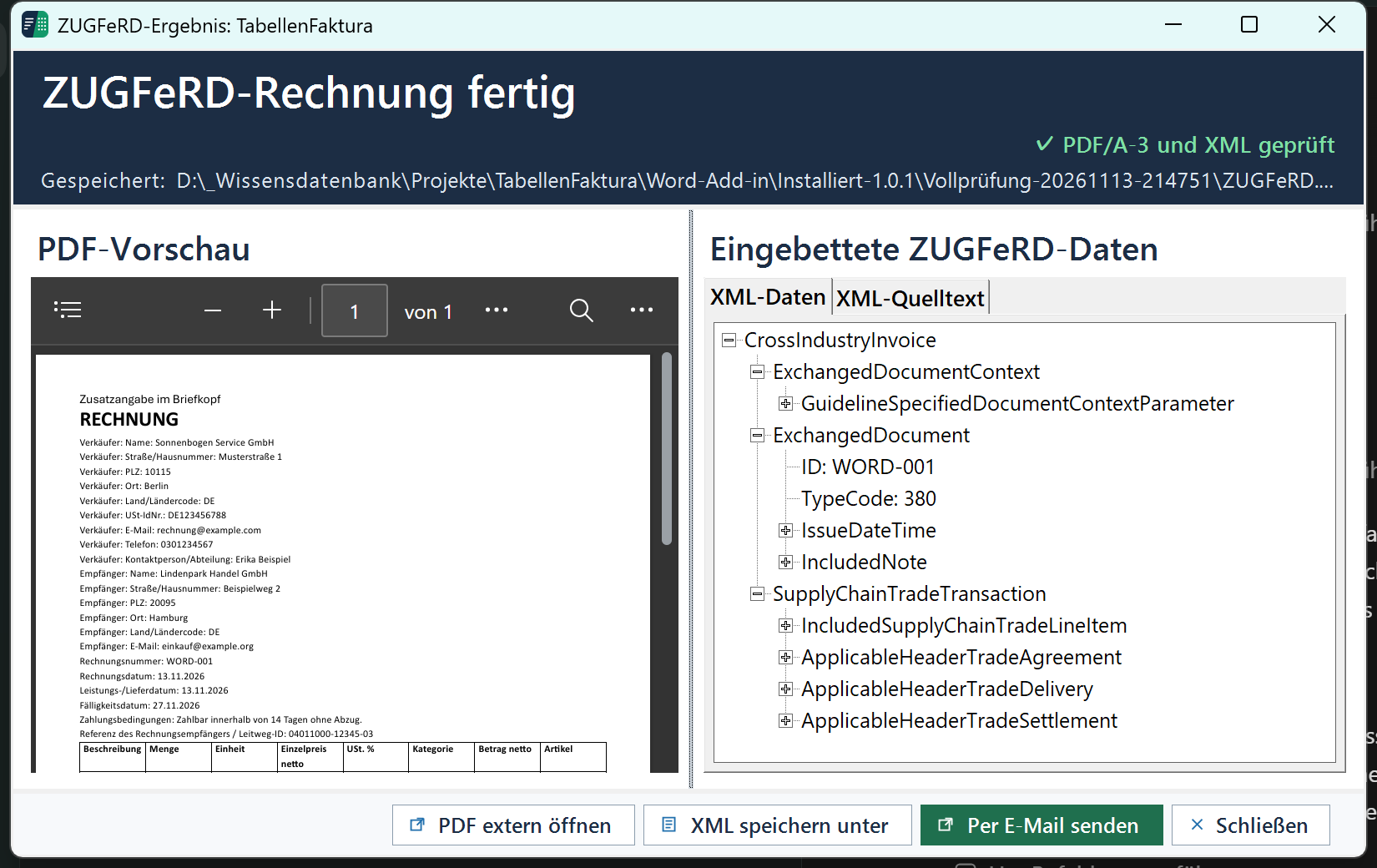
Do not print the ZUGFeRD PDF to another ordinary PDF or edit it afterwards. Embedded invoice data could be lost or disagree with the visible document.
For XRechnung, use its ribbon command, wait for validation and transmit the generated XML through the agreed channel.
6. Check the draft and send
- Select Per E-Mail senden in the result window.
- Check recipient, sending account, subject, message and attachment.
- Open the draft in classic Outlook.
- Verify the actual attachment and recipient again.
- Only then select Send in Outlook.
A draft is not a sent message. Check sending in the mail application or invoice portal. Other mail applications can attach the final file manually. Add required timesheets separately outside TabellenFaktura. Check the journal and back up the Word data afterwards.