

TabellenFaktura for Word · Manual
Download and install the Word application
The signed Windows installer adds the E-Rechnung ribbon to Word. The Excel application is not required.
1. Check the requirements
- Microsoft Word as a Windows desktop application. The add-in is not installed into Word for the web or Word for macOS.
- The signed Windows EXE supplied for the Word product and a Word entitlement.
- .NET Framework 4.8. The embedded PDF preview uses Microsoft Edge WebView2.
- Internet access for initial activation, licence checks and downloads.
- Classic Outlook for Windows if email drafts should be prepared automatically.
Excel is not required. Check the system information supplied with the Word installer. Word's bitness is shown under File → Account → About Word.
2. Download the correct installer
- Open the download supplied with the Word licence. Its filename must contain
TabellenFaktura-Word-…-x64.exe. - Check that the publisher is Agentur Zentral GmbH.
- Save all open Word documents normally and close every Word window.
- Start the EXE, check its licence terms and installation destination, then complete installation.
- Open Word again.
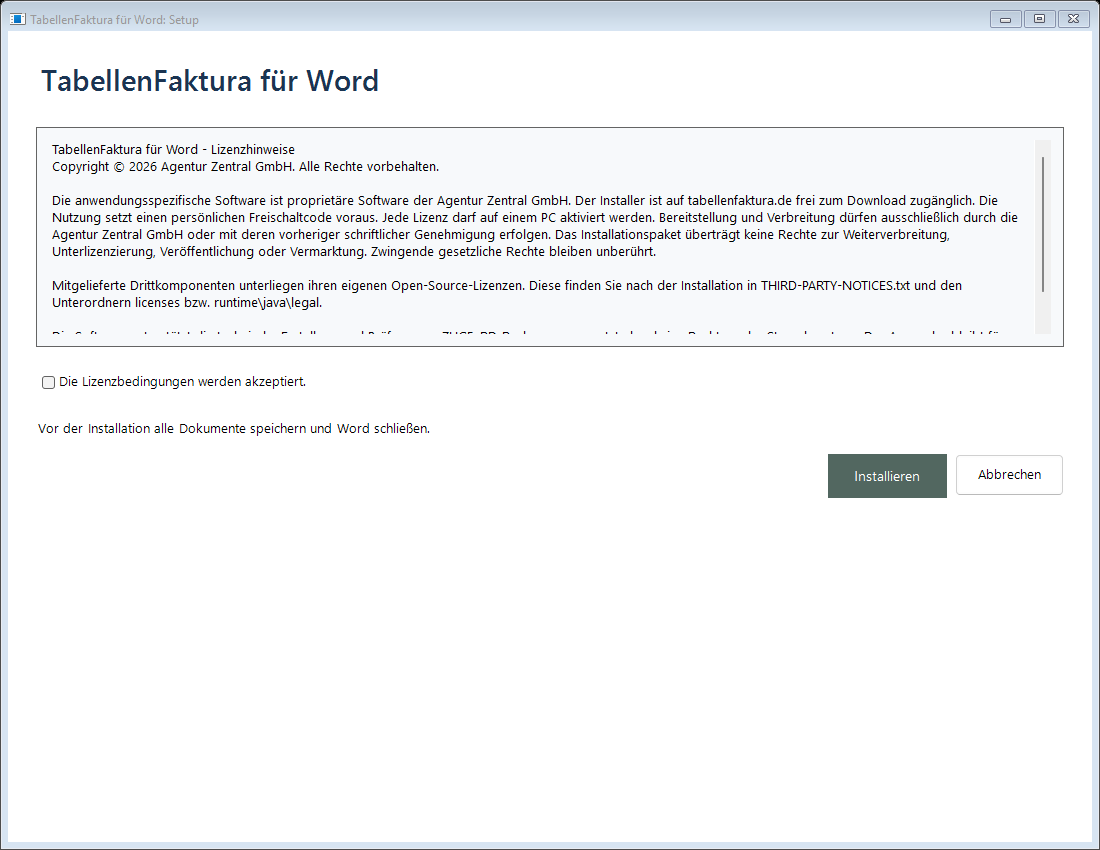
An Excel installer does not install the Word add-in. A forwarded personal download link does not grant a licence. If the correct download is missing, check the licence documents or use the Help Centre.
3. Check download and Windows warnings
SmartScreen may display a reputation warning for an infrequently downloaded installer. In File Explorer, open Properties → Digital Signatures → Details. Windows must confirm a valid signature from Agentur Zentral GmbH. Also check that the file came from www.tabellenfaktura.de.
If this is only a reputation warning and the origin and signature agree, Windows may offer More info → Run anyway. Stop for a specific malware detection, invalid signature or different publisher. Follow your organisation's IT policies. Disabling security software or all macro protection is not a routine installation step.
4. Complete the first start
Open the e-invoice ribbon in Word. Activate the Word licence if prompted when opening a protected function. Then open Hilfe → Einrichtung to configure an existing invoice document or a new basic template.
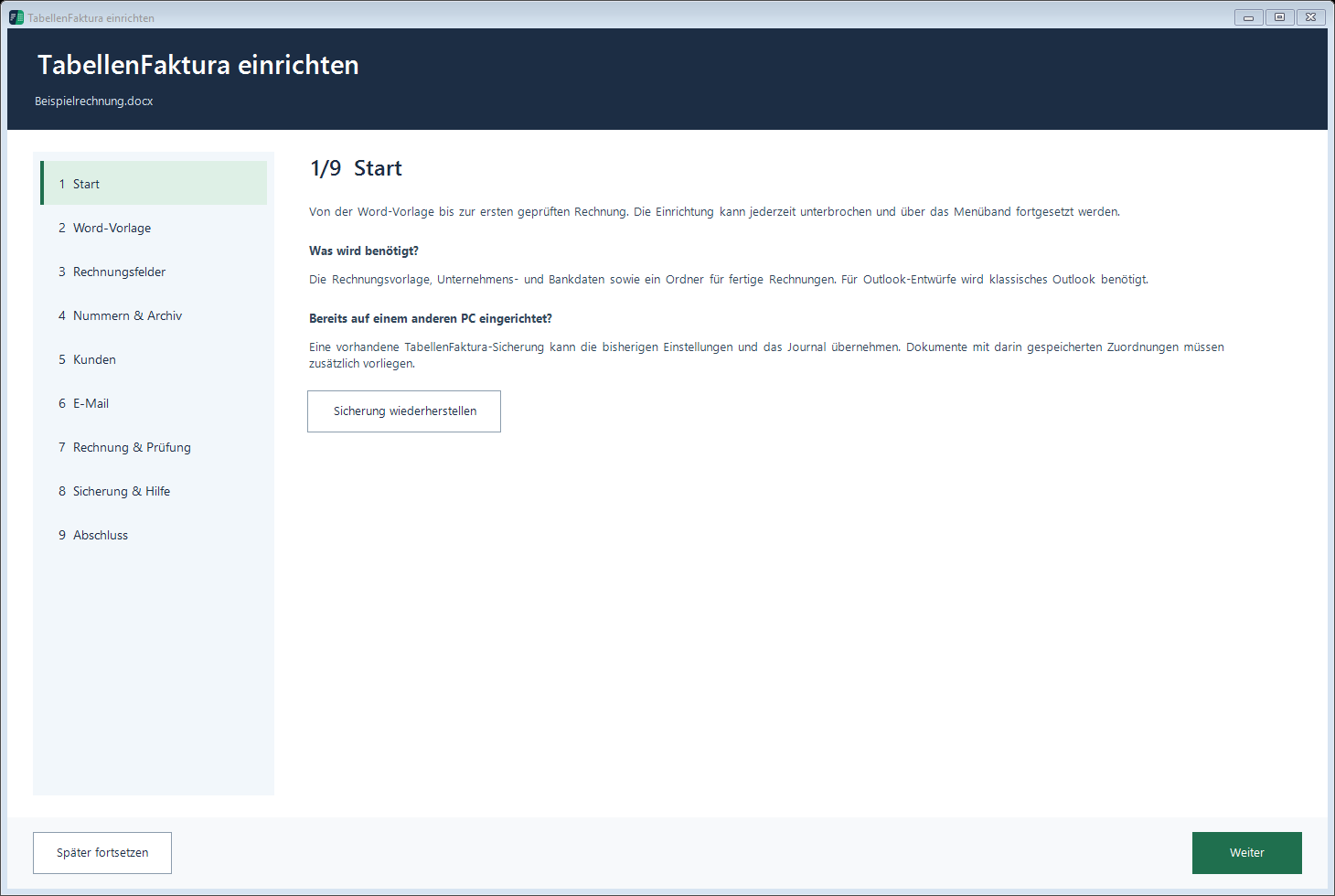
The automatic setup entry is not shown on every start for the same Windows user. Closing it or selecting Später fortsetzen does not mean configuration is complete. Reopen it through the ribbon to continue. See Missing ribbon if necessary.
Updates and removal
Hilfe → Nach Updates suchen checks Word updates. With Speichern und aktualisieren, save documents normally and allow Word to close. Cancelling a save must also cancel the update. Close any additional Word instances after saving.
To remove the application, close Word and use Windows Settings → Apps → Installed apps → TabellenFaktura for Word. Back up the Word management data and documents beforehand. Uninstalling is not a backup.