

TabellenFaktura for Word · Manual
The ribbon and all assistant sections
The Word ribbon tools and the nine invoice assistant sections, with the purpose of each.
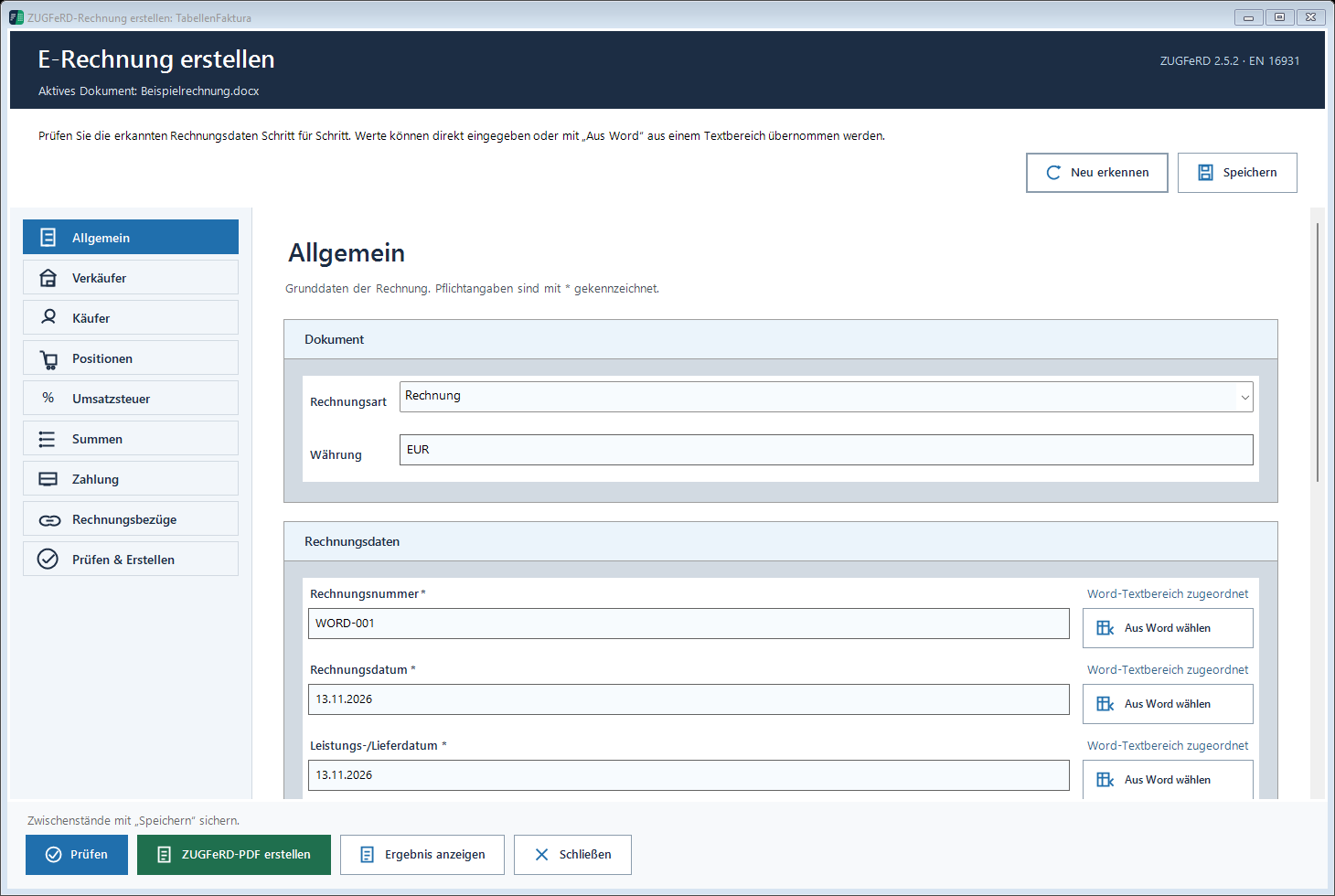
Allgemein: basic invoice data
Set invoice type, currency, number, invoice date, delivery date or service period and due date. Add buyer reference or Leitweg-ID, business-process identifier, purchase order and note where required. The invoice type must reflect the actual transaction.
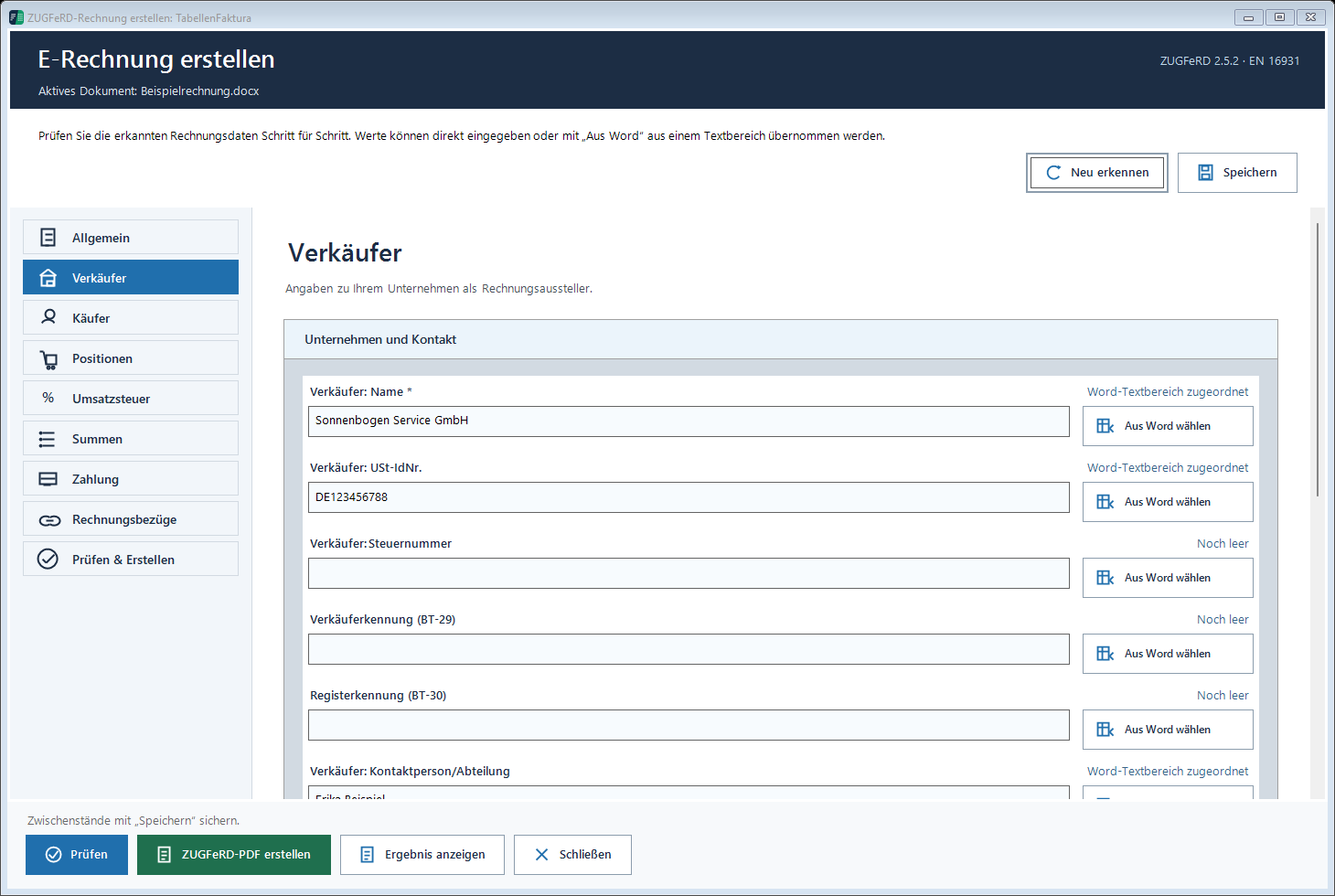
Verkäufer: seller
Seller name, address, country, tax and registration identifiers and contact details. VAT and domestic tax identifiers are distinct fields. Values printed in the letterhead still need mapping. XRechnung requires a complete seller contact.
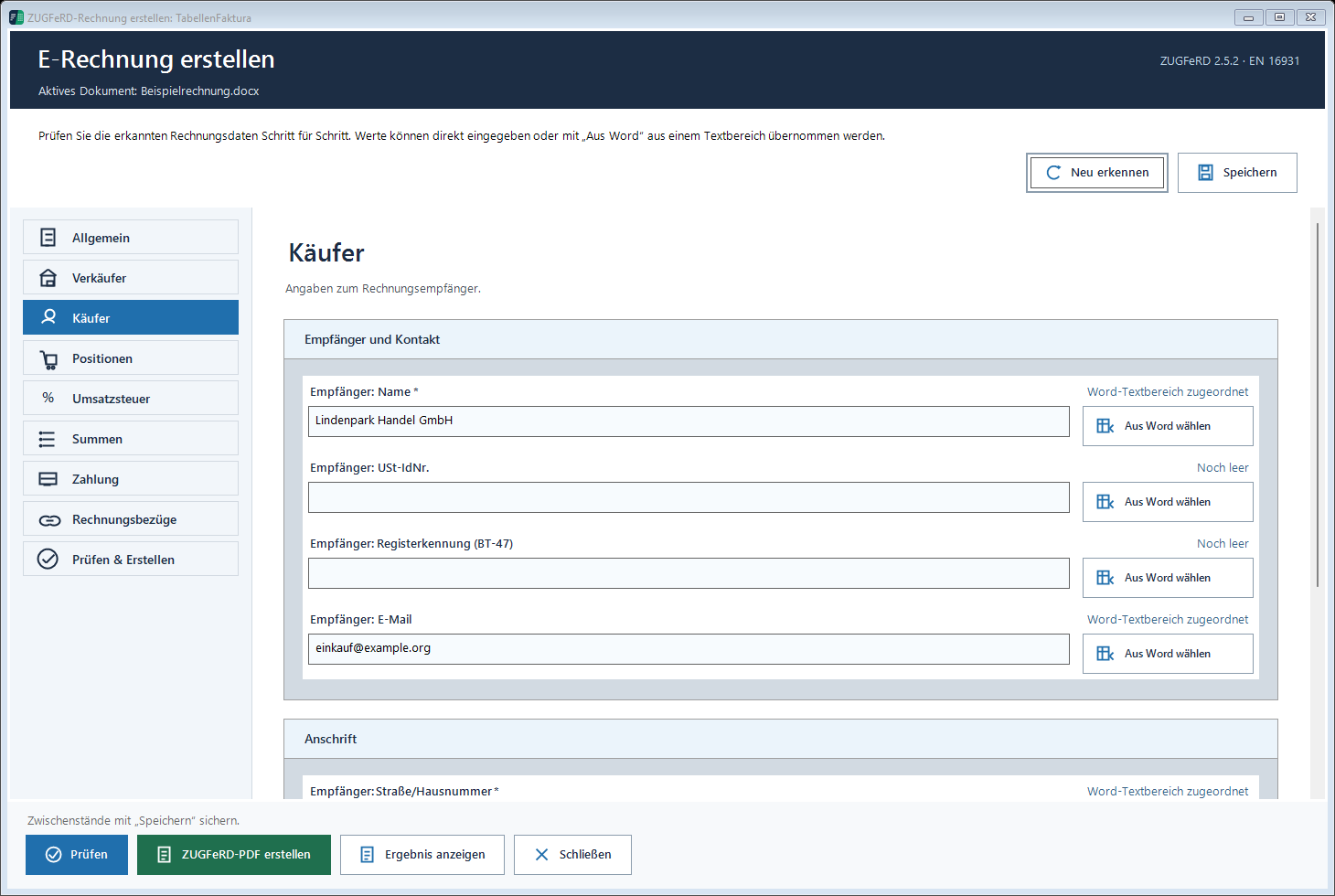
Käufer: buyer
Recipient name, address, country and applicable VAT identifier, references and email. Buyer email is used for the mail draft and as the electronic recipient address in this application. Check every imported customer value.
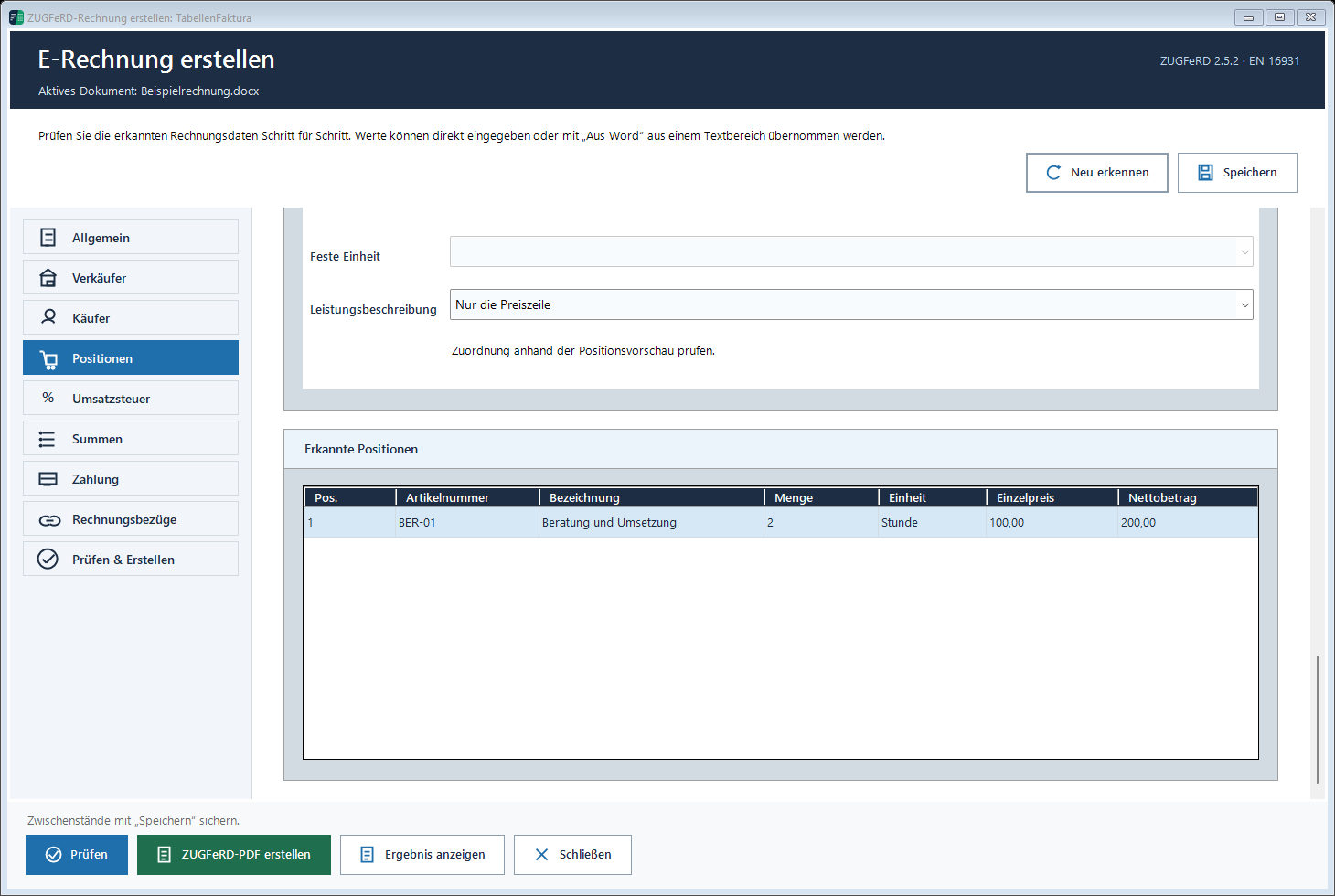
Positionen: line items
Select the table, row range, columns, additional descriptions, units and continuation rules. Erkannte Positionen shows the items included in the electronic invoice. Compare completeness and amounts with the document.
Umsatzsteuer: VAT
Check rates, categories and required exemption reasons. Individual items can override defaults. The tax breakdown must match visible totals. A 0% rate alone does not specify an exemption reason.
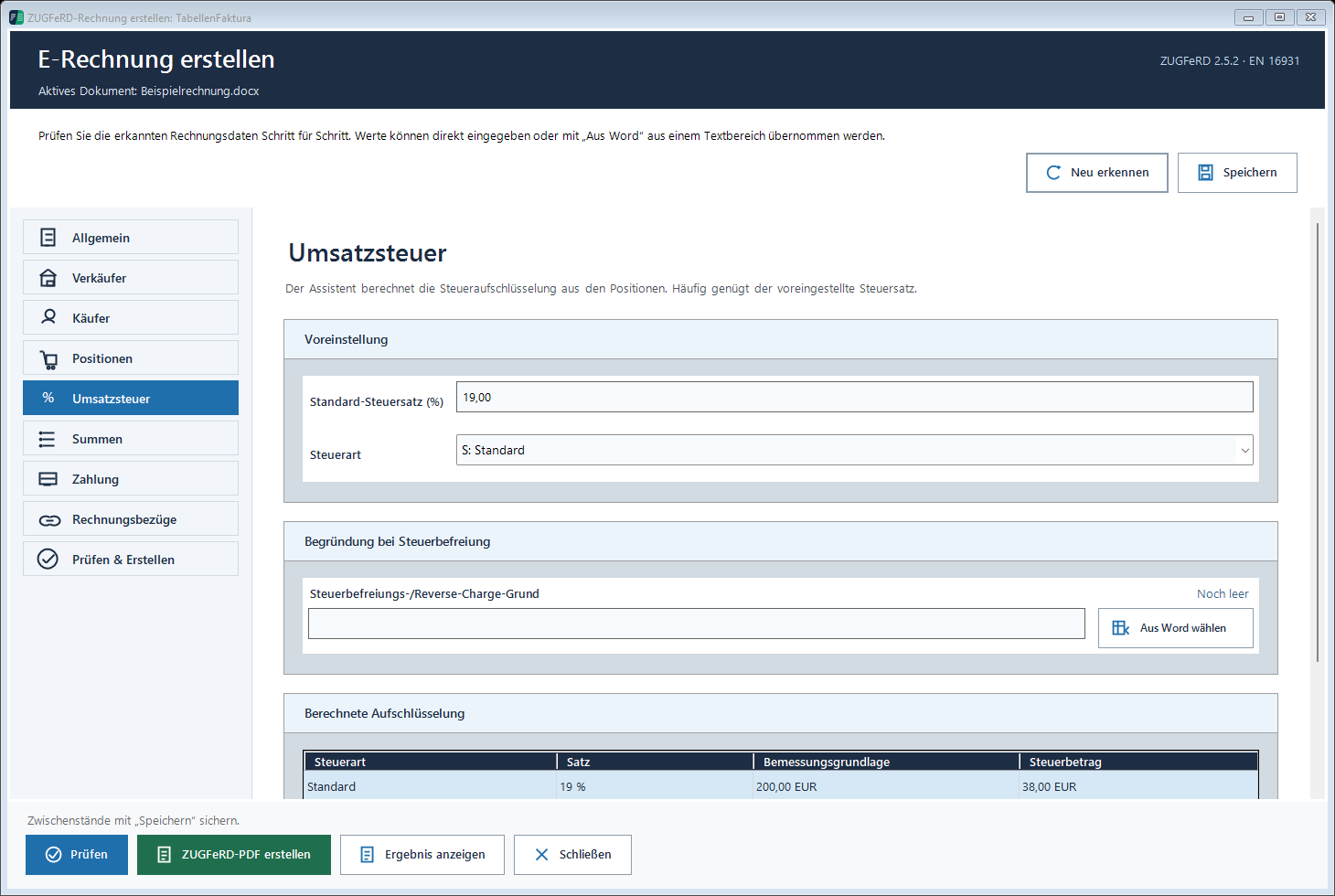
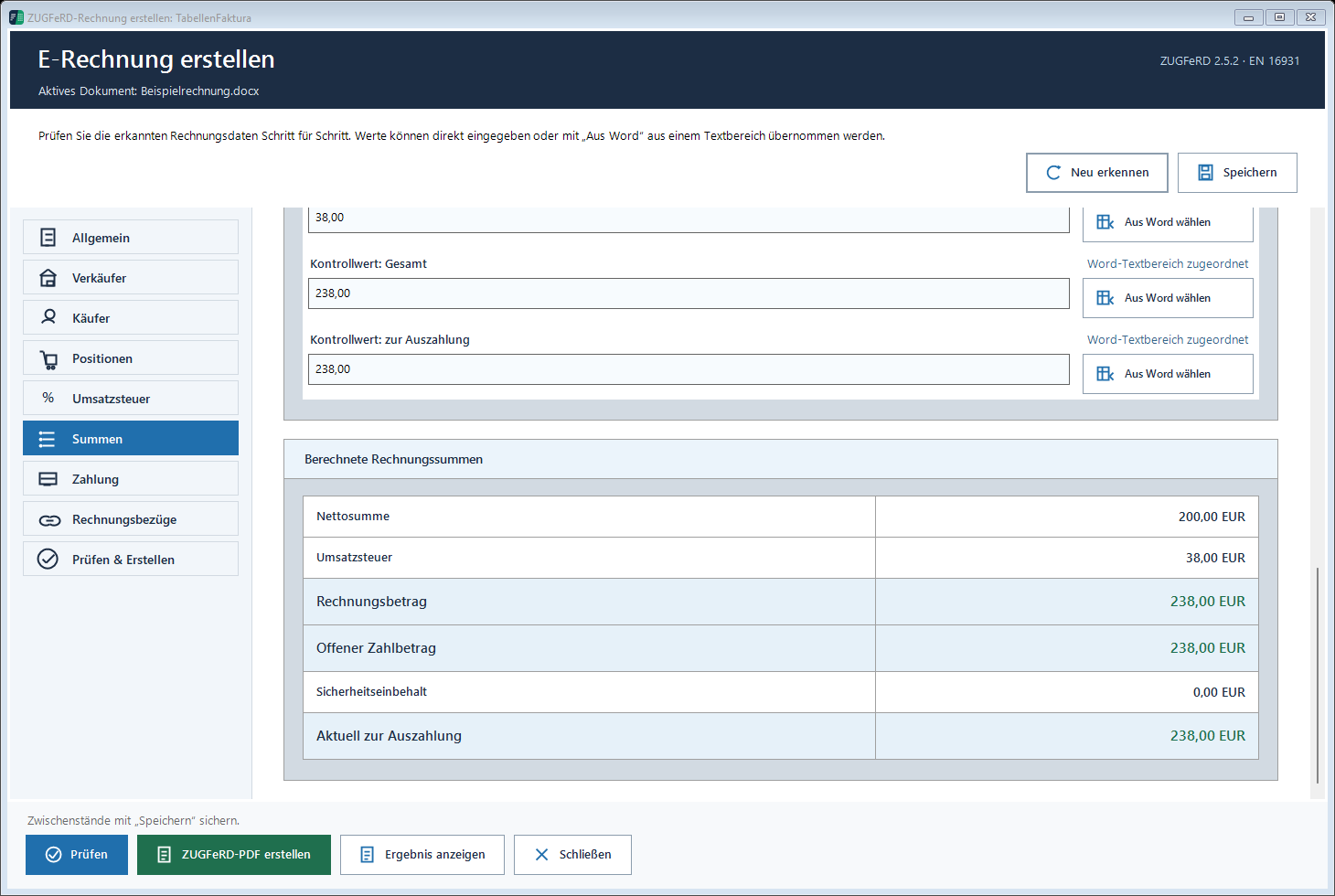
Summen: totals
Net, tax and gross are calculated from the items. Discounts, surcharges, received payments and retention are accounted for separately. Map existing Word totals as control values.
- Invoice total
- Total including tax and applicable adjustments.
- Amount due
- Invoice total less received payments to be credited.
- Current payout
- Amount due less a security retention.
Einzelbeträge can collect several sources with tax details and references. Never count a payment or discount twice.
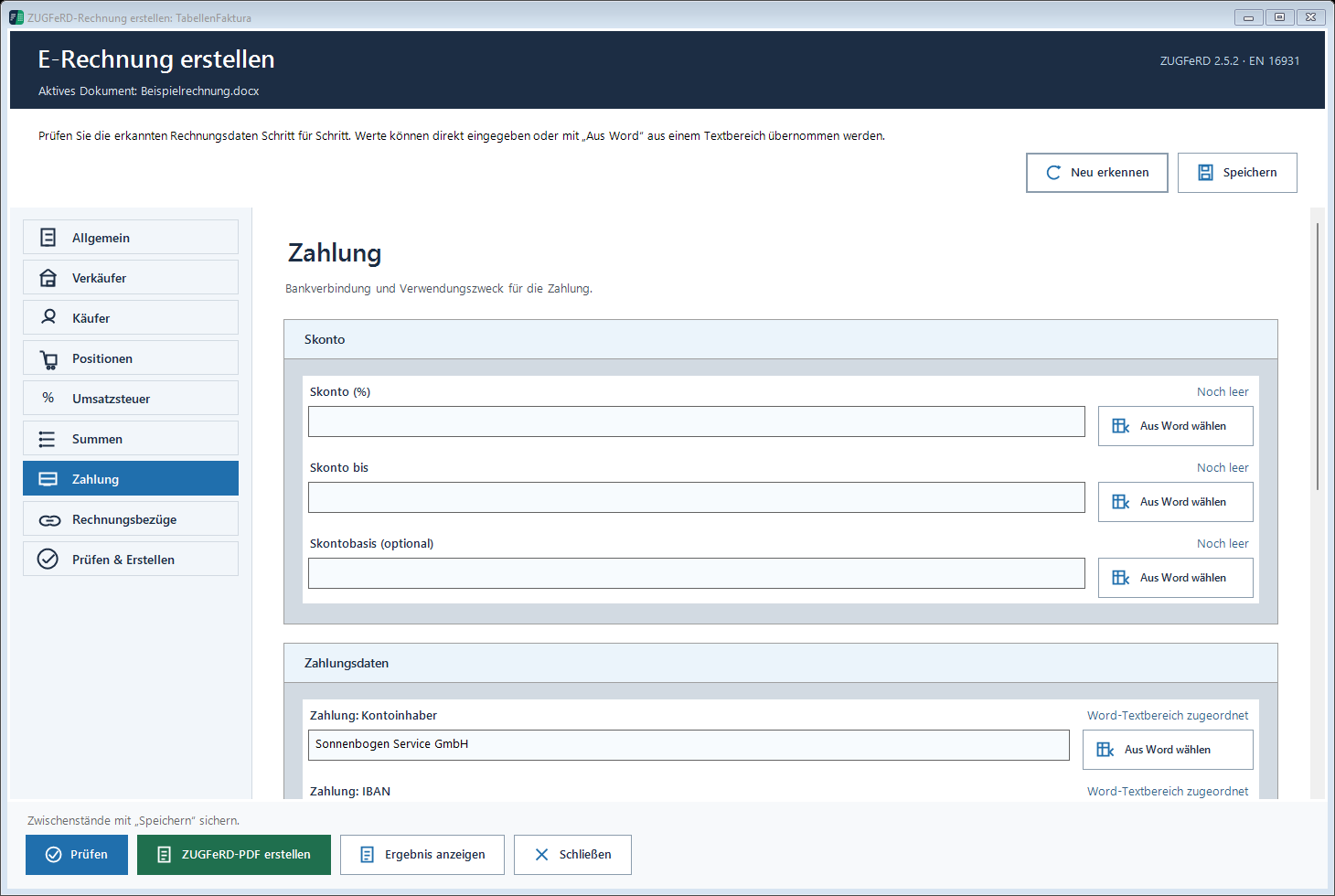
Zahlung: payment and payment QR
Account holder, IBAN, BIC, reference and payment terms. Enter agreed cash discount with percentage, deadline and an optional specific basis. An offered cash discount is not a received payment.
For the optional payment QR, choose an insertion point in Word and check size and available page space. The code is inserted for PDF export and removed from the editable document afterwards. Inspect the final PDF. A payment QR is an invitation to transfer funds, not confirmation of payment.
Rechnungsbezüge: references
Enter the number and date of a preceding invoice. Final-invoice payment details and tax amounts must also appear in the relevant amount schedule. A reference does not itself deduct money.
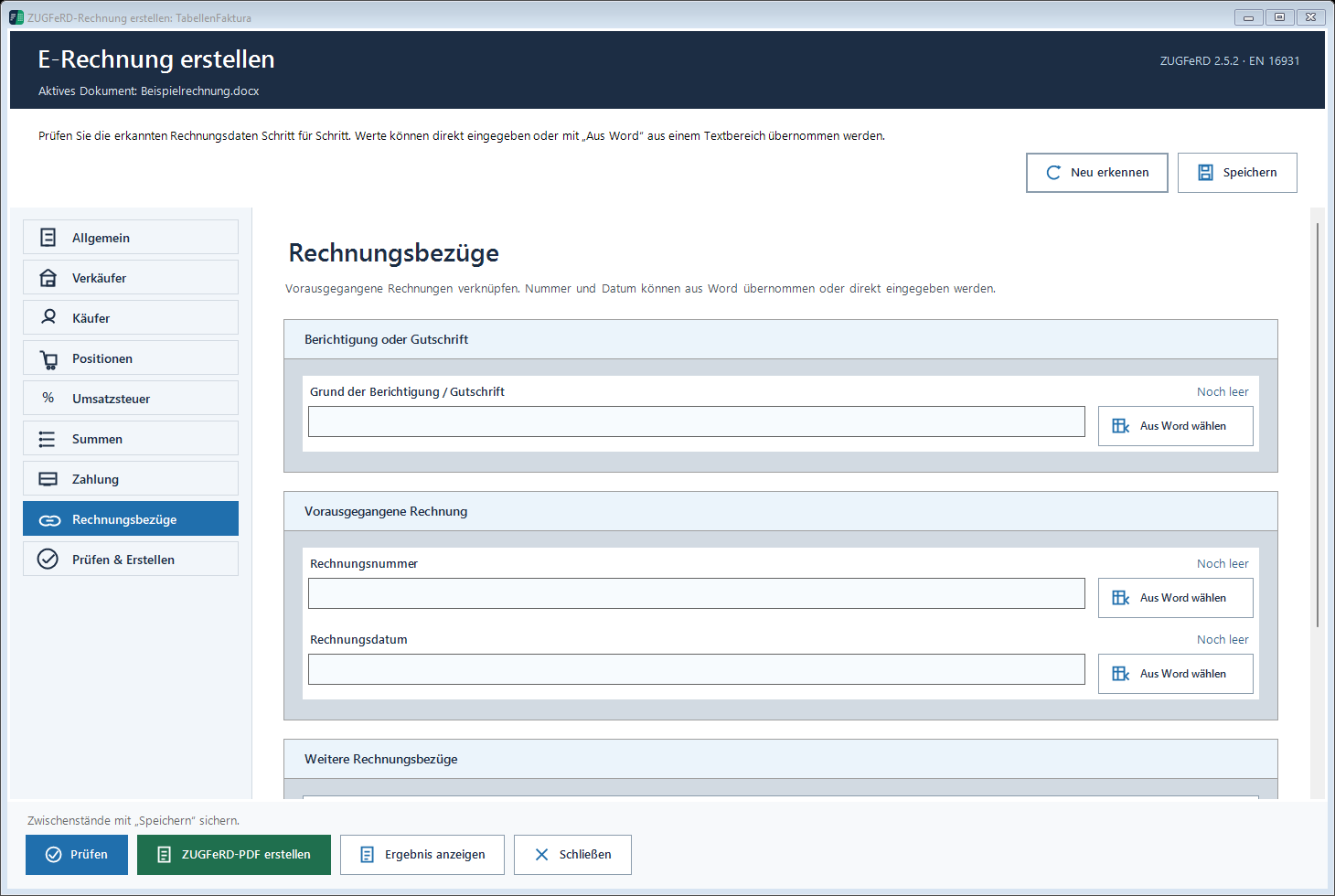
Prüfen & Erstellen: check and create
Prüfen shows missing data and discrepancies. Open the linked issue, correct its cause and check again. Speichern saves settings and mappings, not a final invoice. Neu erkennen recognises data again, which must be rechecked.
Create the ZUGFeRD PDF or XRechnung, then compare the result with Word. Ergebnis anzeigen opens the existing result.