

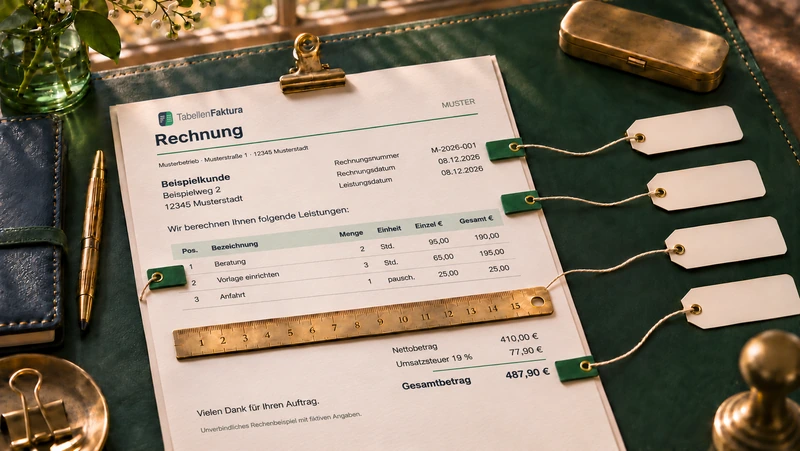
Configure a Word template by mapping invoice fields and line-item columns to their actual locations in the document. This guide focuses on initial setup and checking imported values rather than repeating the general Word workflow.
Start with a working copy
First save the editable DOCX template under a separate name. Replace sample names, dates and bank details before actual use. The same file should not act as both an unchanged master template and a completed issued invoice. Keep the saved original as the starting point for new working copies.
Text value, table cell or fixed information?
| Detail | Suitable source | What to check |
|---|---|---|
| Invoice number | Selected text or a single cell | Select only the number value |
| Seller details | Mapped Word fields or direct entry | Same information in the visible document |
| Line items | Consistent Word table | Define the first and last data rows |
| Totals | Amounts actually displayed | Compare again after every change |
Use the Word selection action for an individual field. Select only the required content in the document. In “Invoice number: RE-2026-014”, the relevant value is “RE-2026-014”. For a table cell, choose the appropriate cell. Avoid accidentally including labels, neighbouring values or additional paragraph characters.
Define the item range deliberately
Choose the correct Word table for line items. Columns are counted from left to right starting at 1. The first and last item rows define the data range. The header, a subtotal and the final amount payable are not additional invoice items. Accidentally including a totals row can duplicate an amount.
- Map description, quantity, unit and net unit price to the correct columns. Add the tax details relevant to the invoice.
- Combine additional description columns only when they belong to the same item or service. Choose the separator deliberately.
- Also map a visible net line amount so that differences from the calculation can be detected.
- Compare the preview with Word row by row. Check the count, order and complete descriptions.
Save mappings with the document
Securing references attaches mappings to the selected Word content. Save both the mappings and the DOCX file afterwards. Content controls and bookmarks form part of the configured template and should not be removed unintentionally. Copying only the visible invoice text does not necessarily copy the complete configuration.
New columns, additional rows or a deleted text range can change the structure. After such edits, reopen the saved template and check the preview. If a mapped range has been deleted, select that field again. This is especially important when the document contains several similar tables.
A small check before routine use
For an initial check, use three different items: for example two hours of consulting, flat-rate documentation and an item counted in pieces. This makes incorrect quantity or unit columns easier to spot. Save, close Word normally, reopen the file and check the same mappings. Use the template for actual invoices after this basic workflow works correctly.
The complete workflow: create an e-invoice with Word
Frequently asked questions
Must the invoice number be in a table?
No. A suitable selected text range can also be mapped. What matters is selecting the correct value unambiguously.
Can item cells be merged?
The item table needs a consistent column structure in every data row. Unmerge item cells before mapping.
What happens after an invoice field is deleted?
Select the required value again, save its mapping and check the preview. Merely recreating the same appearance does not restore a deleted bookmark.